
How to create a letter
Letters in HealthTrack are created from letter templates set up by your practice. The template supplies the layout and letterhead, and HealthTrack fills in the patient, booking and referral details when the letter is created.
Create a letter
- Navigate to the patient's file in HealthTrack and select the Documents tab.
- Select the Create Letter button at the top of the Documents screen, or press
CTRL+L. - In the Letter Template Selector screen, highlight the letter template to be used.
- Select the Create button.
- Depending on the letter template configuration, the user may receive one of the following prompts.
-
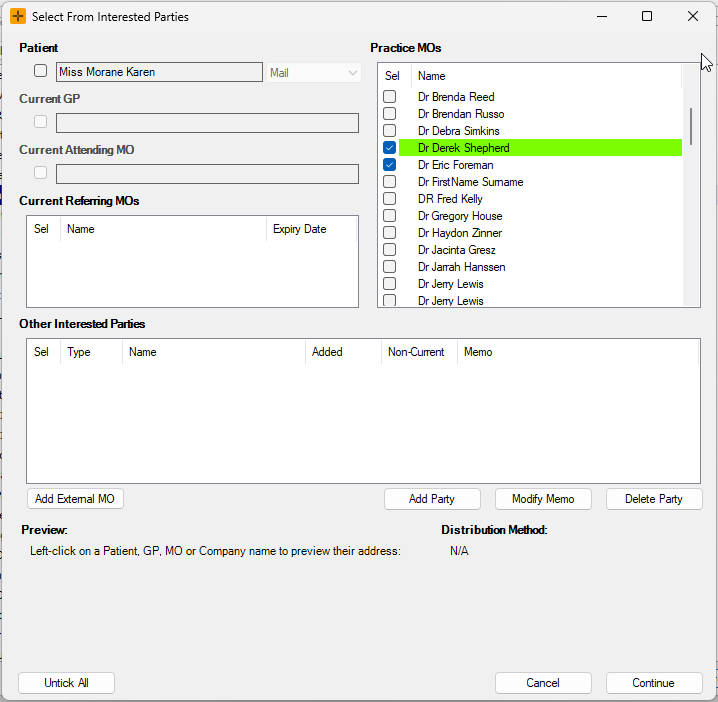
Select From Interested Parties: select letter recipients based off the patient's interested parties. The first recipient is highlighted in green and is considered the 'Primary Recipient'. Select Continue to proceed.
-
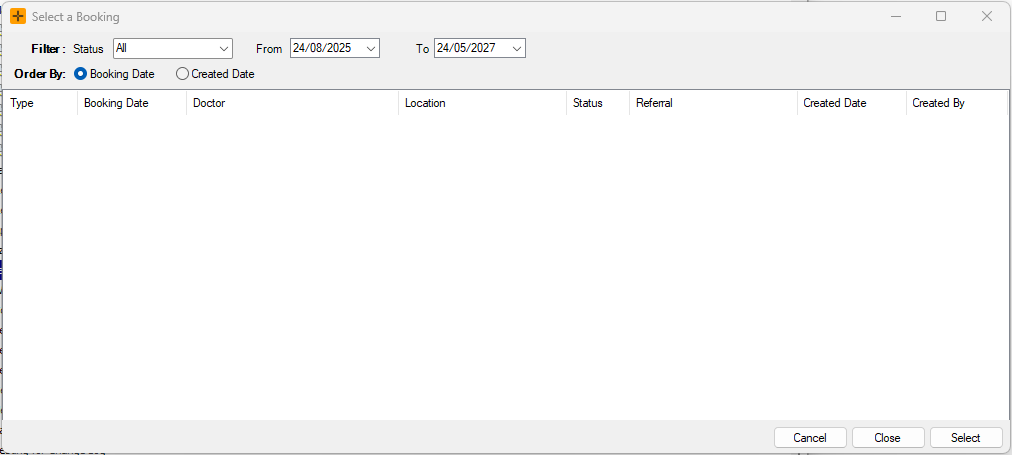
Select a Booking: select a booking/multiple bookings to populate relevant details on the letter. Choose the Select button to proceed.
-
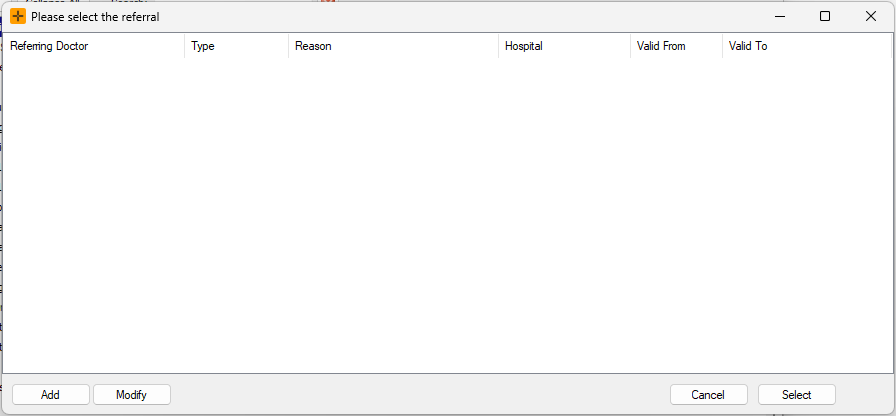
Please select the referral: choose a referral to populate referral details on the letter. Choose the Select button to proceed.
-
-
In the Classify Letter screen that opens, you can make any required changes and select OK.
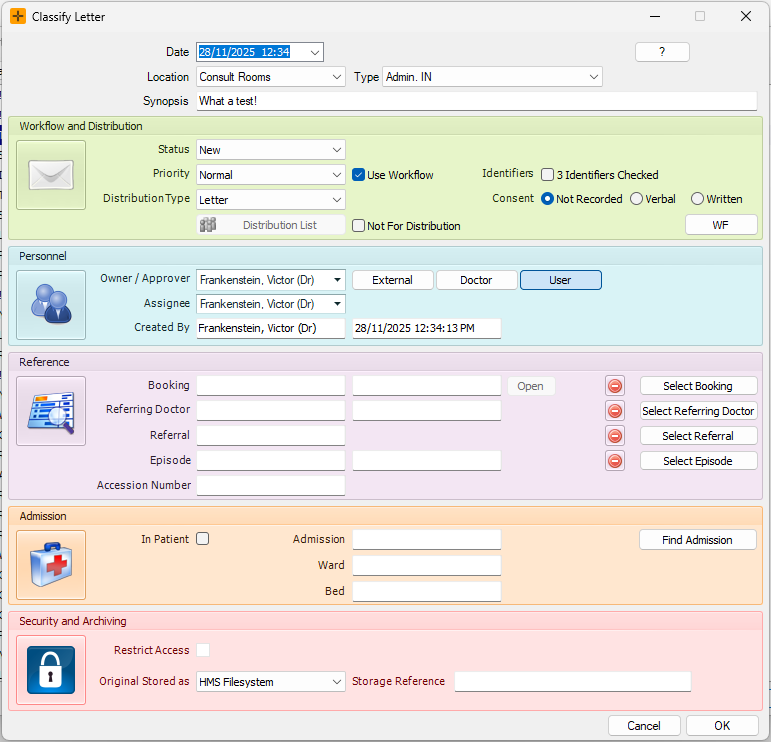
The letter should now open in the HealthTrack Document Editor or in the default editor for your computer, such as Microsoft Word.
The Letter Template Selector only shows the templates your user account is allowed to use. If a template you expect is missing, ask your practice administrator to check the template's security settings.
Which editor the letter opens in
The editor that opens is set by configuration, not by the letter itself:
- Microsoft Word (or whichever app your computer associates with the file type), when the user is set to use the system default editor.
- The built-in HealthTrack document editor, when the user is set to edit letters inside HealthTrack.
If one person's letters open in Word and another's open inside HealthTrack, that is a settings difference between the two users, not a fault.
The specific Word Editor Preference can be selected in the Document Management and Importing tab via File > User Preferences.

Tags fill when the letter is created
The template's tag fields (patient details, doctor details, and the booking or referral you selected in the prompts above) are filled in at the moment the letter is created. HealthTrack uses whatever data exists at that point.
If a field comes out blank or wrong, the cause is almost always missing or incorrect data at creation time, not a problem with the editor. Complete the missing details on the patient record, then create the letter again from the template. An already-created letter does not refresh its fields when the patient record changes.
Letters and referrals are different
A letter and a referral are separate things in HealthTrack, even when a letter is addressed to a referring doctor:
- A letter is created from a letter template as described above and is filed on the patient's Documents tab.
- A referral is created through HealthTrack's referral function and is stored as its own record. It does not appear in the patient's documents as a letter.
If you are looking for a referral in the documents tree and cannot find it, check the patient's referrals instead. Creating a letter about a referral does not create the referral itself.
After the letter is created
The finished letter is saved to the patient's Documents tab, filed under the folder shown in the Classify Letter screen. Sending the letter to its recipients (print, fax or electronic) is handled by HealthTrack's document distribution based on the interested parties selected when the letter was created and each recipient's registered delivery method.