
How to import a document
Use the Import Documents & Images screen to bring external files such as scanned documents, referrals, and images into a patient's record. Documents can be imported individually, as multi-page documents, or pasted directly from the clipboard.
Import a document
- Open the patient's record and go to the Documents tab.
-
Click Import Doc.
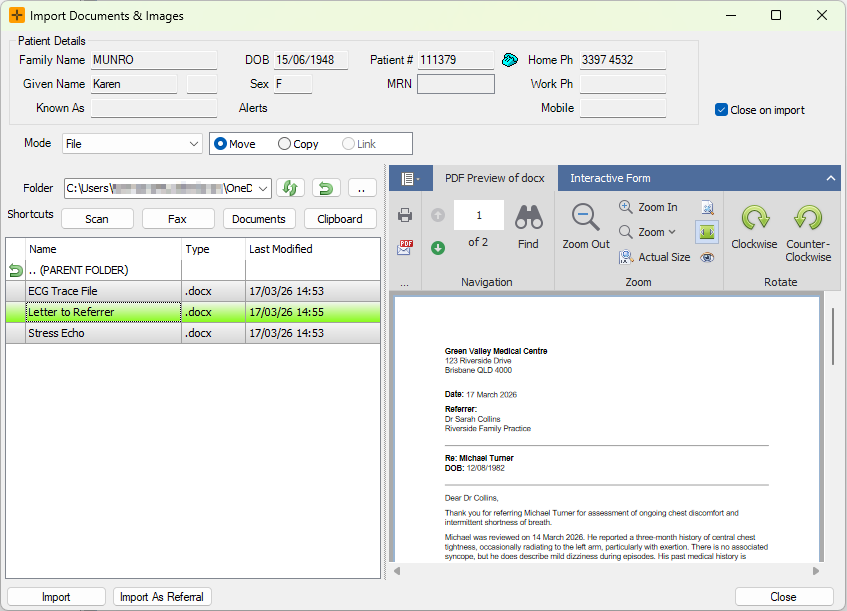
- Browse to the folder containing the file. Use the ... button to browse, or click one of the shortcut buttons (Scan, Fax, or Documents) if configured. See "About the Scan, Fax and Documents buttons" below for what these do.
- Select the file from the list. A preview appears on the right where supported.
Close on Import is selected by default via the checkbox at the top right. Clear it to keep the Import screen open when importing several files for the same patient.
- Under Mode, select File. (For multi-page documents, see Multi-page import below.)
- Choose how the original file is handled:
- Move: removes the file from its original location after import. HealthTrack stores its own copy.
- Copy: imports a copy and leaves the original in place. HealthTrack stores its own copy.
- Link: does not store a copy in HealthTrack. The patient's record points to the file in its original location.
- Click Import.
- In the Classify Document window, select the appropriate folder and update any relevant fields, then click OK.
A linked document depends on the original file staying exactly where it is. If the file is later moved, renamed or deleted, the document will no longer open from the patient's record. If the file sits on one computer's local drive, other workstations may not be able to open it either. For anything that needs to be part of the permanent record, use Move or Copy. Only use Link for files kept in a stable shared network location.
To import several files with the same classification in one step, hold Shift and click each file in the list before clicking Import.
About the Scan, Fax and Documents buttons
- These buttons are folder shortcuts. Each one opens a preset folder on your computer or network, so you can jump straight to where your files usually arrive rather than browsing for them each time. Your practice administrator or HealthTrack support can configure which folders they point to.
- HealthTrack does not operate your scanner directly, and there is no built-in scanning step. Scanning happens in your scanner or fax software, which saves the scanned file to a folder.
The Scan button opens the folder so you can import the file. If clicking Scan shows an empty folder, check that your scanner software is saving files to the folder the button points to.
Blocked file types
HealthTrack desktop accepts almost any file type. Your practice can block specific file types (for example, for security reasons) through a site setting. If a file will not import and you are confident it is a normal document type, contact your practice administrator or HealthTrack support to check whether its file type has been blocked for your site.
Multi-page import
Use this mode to combine several individual files such as separate scanned pages, into a single document in the patient's record.
-
In the Import Documents & Images screen, set Mode to Multipage File.

- Double-click each file to move it from the upper list into the lower list.
-
Use the arrow buttons to reorder the pages as needed.
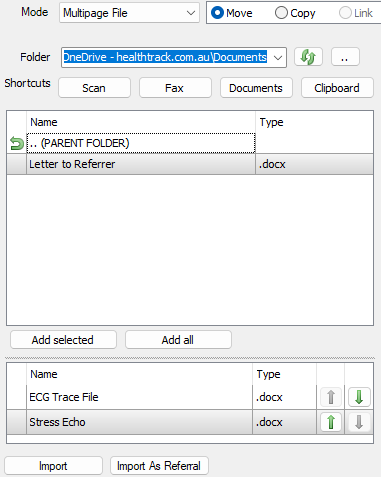
- Click Import, complete the Classify Document window, and click OK.
Once imported, use the left and right arrow buttons or the page drop-down in the bottom-right corner of the preview to navigate between pages.
Quick Paste from clipboard
Paste a file copied from outside HealthTrack directly into the import screen using the clipboard.
- Copy the file externally (right-click the file and select Copy).
- In the Import Documents & Images screen, click the Clipboard button.
- Verify the preview, complete the Classify Document window, and click OK.
You can copy multiple files before using Quick Paste - all copied files will be added simultaneously.
Drag and drop
Files can be dragged from outside HealthTrack directly into the Import Documents & Images screen.
- Open the Import Documents & Images screen.
- Drag a file from a folder or desktop and drop it into the screen.
- Verify the preview, complete the Classify Document window, and click OK.
You can select and drag multiple files at once. All selected files will be imported with the same classification.
The Orphaned folder
Occasionally a document appears in a patient's Documents tab in a folder called Orphaned. This is a safety net: it means HealthTrack found the document's file in its storage but the import or save that created it was never fully completed (for example, the workstation lost connection partway through). Rather than losing the file, HealthTrack re-attaches it to the patient and files it under Orphaned.
The document itself is intact. To tidy it up:
- Open the document from the Orphaned folder and check its contents.
- Reclassify it (or use Document Move) to file it into the correct folder, and update the synopsis and other details as needed.
Setting a default import folder
Each user can set a default folder for imported documents in their preferences. This pre-populates the folder field in the Classify Document window.
- Go to File > User Preferences > Document Management & Importing.
- Set the preferred default folder for imports.
- Click Save and Close.
For more instructions on setting User Preferences, review our Getting Started article here.