
How to use quick classify
All files in HealthTrack are classified when they are created or imported, and can be reclassified at any time if the details need to change. The Classify screen is accessible via:
- Selecting the Quick Classify checkbox at the bottom of the screen and double-clicking the document.
- Selecting the Info button at the top of the screen.
Quick Classify saves time when you need to reclassify multiple documents in a row. Enable it once and double-click each file to update its details.
The Clinical Record Information screen is divided into 4 sections:
- Workflow and Distribution
- Personnel
- Reference
- Admission
Classifying documents when you import them
When you bring a file into a patient's record, the last step of the import is the Classify Document window, where you choose the folder and set the file's details before it is saved. This is the first classification a document receives. Every import path finishes this way.
Use Quick Classify afterwards when you need to correct or update those details, for example to move several imported files into the right folder or change their status in one pass. Select Quick Classify, then double-click each document to reopen the Classify screen.
Workflow and Distribution

- Status: documents can move through several states before being finalised and distributed,
- Priority: marks a file as "urgent" so that it is reviewed and distributed sooner.

- Use Workflow: when this checkbox is selected, files will be included in the Document Management screen.
- Distribution Type: this can change how the file is received by other
- Distribution List: this button opens the Distribution List for that particular document.
- Not For Distribution: selecting this checkbox prevents the file from being automatically distributed when finalised.
- Identifiers: this checkbox can be selected to highlight that 3 points of identification for the patient have been checked.
- Consent: the radio options can be selected to highlight that the patient has given consent, if required.
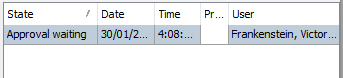
- WF: this button will display recent changes to the document's status and information surrounding its printing.
Personnel

- Owner/Approver: the individual named on the letter, who dictated it, or who is responsible for signing it off. This is generally the person finalising the letter before it is distributed.
- Assignee: individual/group of users the letter is assigned to.
- Created By: lists the user that created the file, as well as the date and time of creation.
Reference

- Booking: these details will populate if a booking is selected when the letter is first created or by choosing the Select Booking button.
- Referring Doctor: the referring doctor's name and provider number will populate based on selections made when creating the letter, or by choosing the Select Referring Doctor button.
- Referral: the referral ID will populate based on selections made when creating the letter, or by choosing the Select Referral button.
- Episode: the episode ID and description will populate using the Select Episode button.
- Accession Number: this number will populate from a DICOM integration.
Admission

- In Patient: this checkbox can be selected to reflect that the file relates to an inpatient visit.
- Admission/Ward/Bed: this can record the Admission, Ward, and Bed number for an inpatient record.
The Find Admission button will provide a list of admissions for the patient, which can automatically populate the Admission, Ward and Bed fields.
Security and Archiving

- Restrict Access: Select to limit which users can view this file. Must be set at the time of creation.
- Requires RestrictDocAccess permission.
- 'Use Workflow' check-box must be un-ticked.
- Original Stored as: Specify how the original copy of an imported file is stored (e.g. HMS Filesystem, disc, offsite).
- Storage Reference: Record where the original copy is being stored.