
How to manage the task list
Tasks document work related to patient care, quality management, and medico-legal records. Tasks are never permanently deleted - even a task that is removed keeps a permanent record, including the reason it was removed. Every HealthTrack user can create tasks and have tasks assigned to them. Tasks can be associated with a patient, booking, referral, company, or prescription, and can also serve as reminders or follow-ups between users.
Tasks are not patient reminders
Tasks are a to-do list for staff. They never send anything to the patient. Appointment reminders, recall notices and other SMS or email messages to patients are handled by a separate system and are not affected by creating or completing a task. If you want the patient to receive a message, send it through the usual SMS or reminder features, not by creating a task.
Tasks also do not repeat. There is no recurring-task option; anything that recurs (such as recalls) is generated by its own feature, which may create a fresh task each time.
Accessing your task list
- The task list is accessible from three locations.
- Practice Wide > Task List.
- The Task tab on the left-hand side of the diary.
- Practice Wide > My Dashboard and selecting the Tasks icon.
Viewing the task list
- The Task List shows all tasks assigned to or created by you.

- Use the Ownership options to filter the list:
- My Tasks - default view. This includes tasks assigned to you directly and tasks assigned to any group you belong to.
- Created by me - to monitor tasks you have delegated.
- Managed by me - tasks you are responsible for.
- Use the View options to sort by due date or to show all tasks.
- Select the Show Complete checkbox to include completed tasks.
- Double-click any task to open it.
Assigning tasks
A task can be assigned to an individual user or to a group:
- A task assigned to a user appears only in that user's list.
- A task assigned to a group appears in the task list of every member of that group. Any member can open, work on and complete it.
Group tasks are not claimed or locked when a member opens them, so agree within the team who is picking up a shared task.
When a task is reassigned, HealthTrack keeps track of who it was previously assigned to, so a task you delegated shows back in your view if it is returned to you.
Task statuses
Every task moves through three statuses:
- Not Started - the status of every new task.
- In Progress - set this when you begin working on the task. HealthTrack records who moved it to In Progress and when.
- Complete - set this when the work is finished. HealthTrack records who completed the task and when.
A task shows as overdue when its due date has passed and it has not been completed. There is no separate "overdue" status; it is worked out from the due date.
Creating a task
Tasks can be created from multiple locations:
| Patient Demographic tab | select Add Task |
| Patient Management tab | select New from the Tasks section at the bottom of the screen |
| Clinical Summary tab | select Add Task |
| Clinical Records tab | select Create New Task after right-clicking a clinical record |
| Practice Wide > Incoming Approval | select Accept and Add Task |
| Booking Form | select Add Task |
| Diary > Task tab | select New |
- Selecting any of the above options opens the Task window.
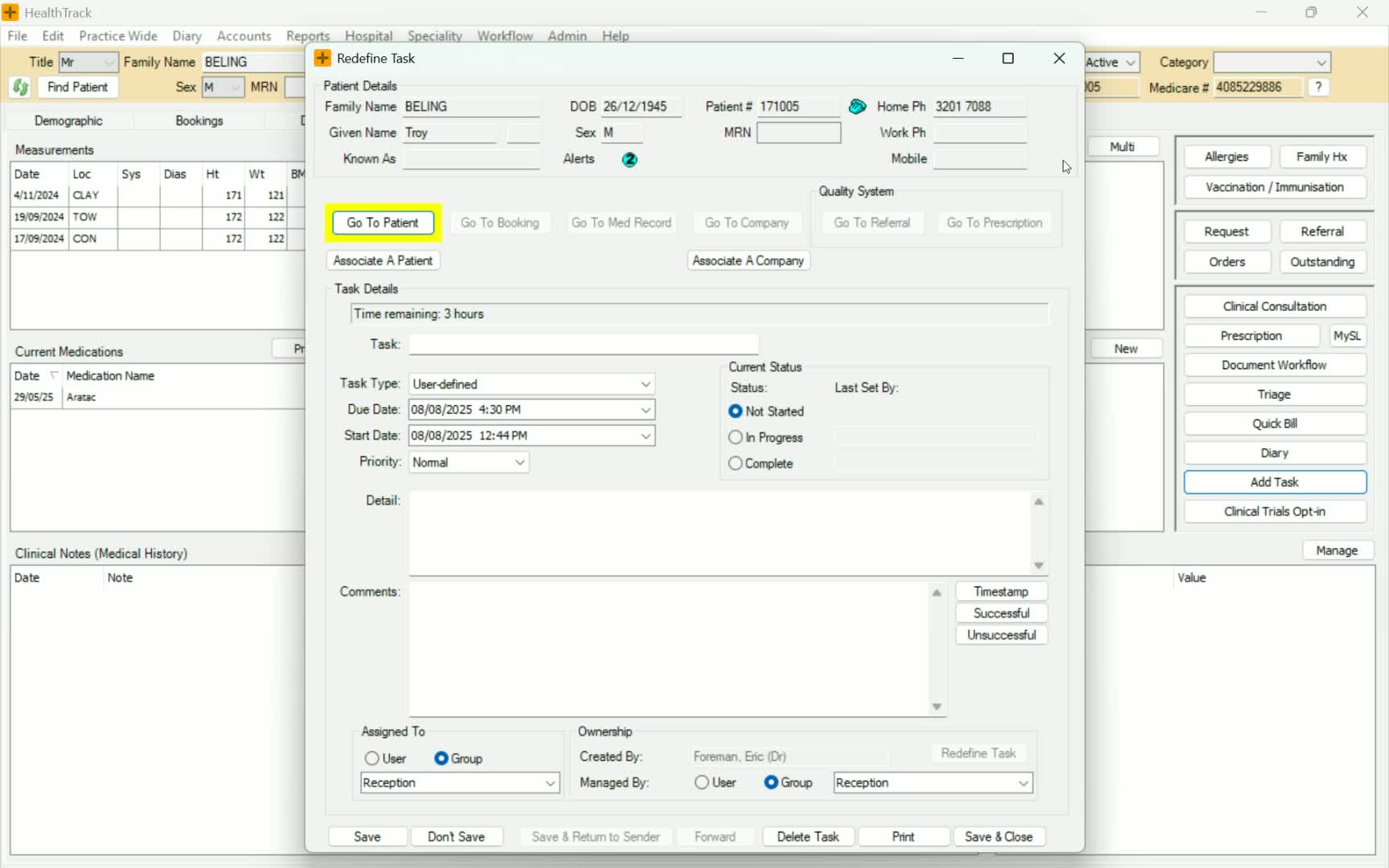
- In the Task window, the Patient's basic information is displayed at the top.
- Populate the fields as required and select Save & Close.
Tasks are never permanently deleted. Record enough detail in the Detail field that anyone reading the task at a later date can understand what was required and why.
HealthTrack can also create tasks automatically. For example, a patient's SMS reply that needs attention, accepting an incoming document with Accept and Add Task, or activity from online services (such as online bookings and the Doctor Portal) can each add a task to the relevant list. These tasks are worked and completed the same way as tasks created by staff.
Completing a task
To update or complete a task, open the Task List:
- Select Redefine Task to make it editable.
- Change Current Status to In Progress when you begin work on the task.
- Add an entry in the Comments section to record the actions completed.
- Click the Timestamp button to insert the current date and time into the Comments field.
- When complete, change Current Status to Complete and select Save & Close.
Printing tasks
- On the Task List screen, click Print to print every task in the list.
- On the Edit Task screen, click Print to print the single task you have open.

Print tasks for other users (manager)
There is a Task list export which can be generated for all tasks or for tasks belonging to a specific user. This requires the RedefineAnyTask manager security permission.