
How to add alerts to the patient
Alerts can be added to patient files as a visual cue to alert users to important information.
Alerts must be created before adding them to a patient. They can be configured in the Alert Definition Manager by a Practice Manager or by staff with the AlertDefinition_Modify permission.
- To add an alert to a patient, navigate to the Demographic tab.
- Select Edit Patient.
-
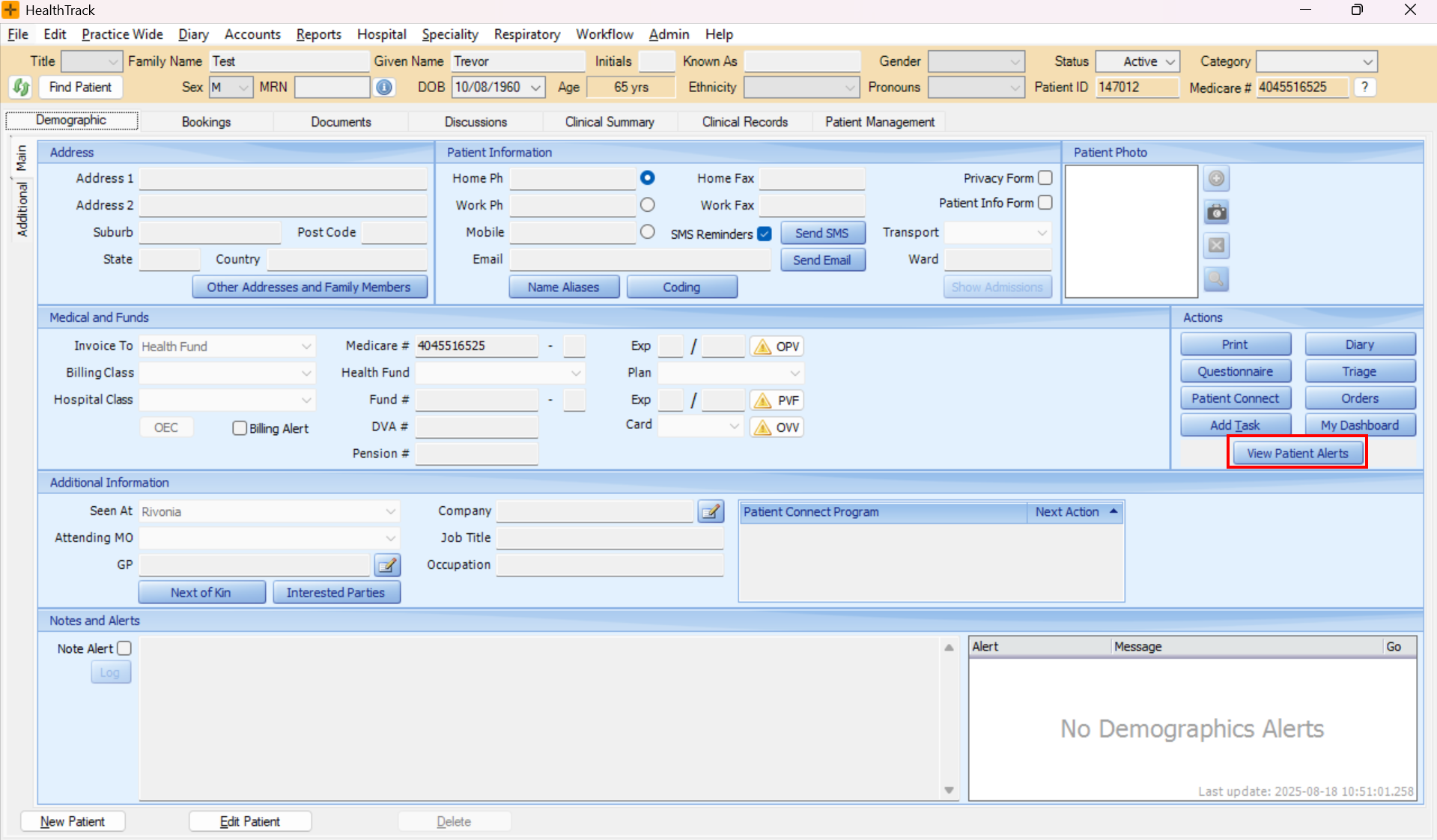
Select View Patient Alerts.
- To add an Alert 1 and/or Alert 2: select the checkbox next to the relevant alert under the Alert 1 and/or Alert 2 sections.
- To add a Patient Alert: update the Manage Alerts section.
- Select Save.
- Select Save Patient.

- Alerts are visible on the Demographic tab. When there are existing Alerts, the View Patient Alerts button will have a red background. Any Patient Alerts will be visible in the Alert window at the bottom right of screen:

- Alerts are also visible on patient bookings in the Diary.
- When the checkboxes in the Alert 1 and Alert 2 sections are selected, a 1 or 2 symbol will appear for the patient in the HealthTrack Diary and invoicing screens, to notify users that they need to go to the patient's demographics to check the alert:

- When a Patient Alert has been added, the patient's booking will appear with a fading colour gradient. Hovering over the booking will display the alert in a "floating note" message box:

Who sees the alert popup
As well as the visual cues above, a Patient Alert can pop up in a window when a user opens the patient. Additionally, you can set whether the alert displays a pop-up for:
- Doctors
- Non-doctors
If a user reports that an alert is not popping up when they open the patient, check the definition's audience settings in Admin > Alert Definition Manager first. This is the most common cause.
Changing alert definitions
Changes made in the Alert Definition Manager (new definitions, edited messages, popup audience, diary colours, enabling or disabling) do not flow through to other HealthTrack desktop sessions that are already open. Those users will keep seeing the old behaviour until they close and reopen HealthTrack.
After changing an alert definition, ask affected staff to restart HealthTrack so the change takes effect on their screens. HealthTrack Web picks up definition changes on its own after a short delay.