
Understanding the transaction listing
The Transaction Listing screen outlines all transactions for the selected patient. It can be accessed via Accounts > Transaction Listing. The screen is divided into 4 sections:
- Transactions: this includes invoices, payments, credit, adjustments, bad debts, refunds, as well as any reversed transactions.
- Quotes: any quotes issued.
- Allocations: identifies the allocations for the selected item in the 'Transactions' section.
-
Outstanding Invoices Summary: summary of patient's account, highlighting any outstanding amounts in brackets of 30, 60, 90, and 120 days. The total outstanding amount and total available credit is also included.
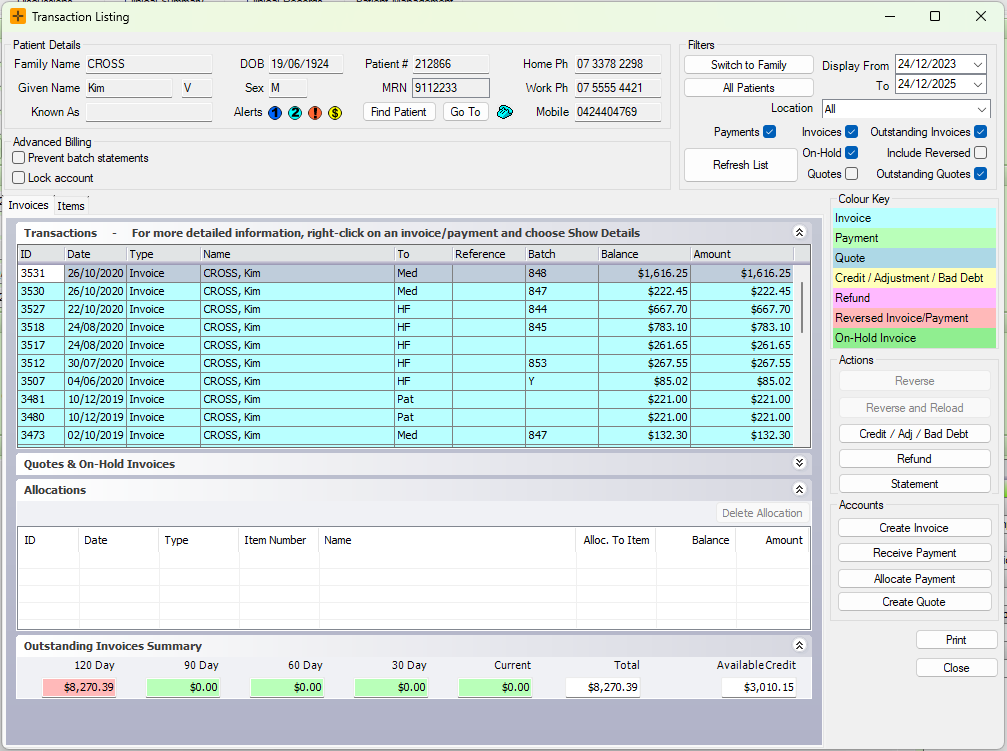
The colour key on the right-hand side of the screen helps distinguish between invoices, payments, quotes etc.

Actions Section
The Actions section on the right-hand side of the Transaction Listing screen allows the user to apply any of the listed actions.

- Reverse Invoice/Reverse Payment: removes the selected invoice/payment from the patient's account.
- It is not deleted, but is marked as reversed and will remain on the account.
The Reverse Invoice button will be disabled if the invoice is part of a batch - to reverse the invoice, it will first need to be removed from the batch. The Reverse Payment button will also be disabled if the payment is part of a bank deposit.
- Reverse and Reload: can be used for invoices/payments to fix mistakes when creating them.
If the payment or invoice was allocated prior to reversing and reloading, you will need to reallocate the payment to the invoice. If the payment is not allocated, the patient will have a credit amount along with an outstanding amount.
- Credit/Adj/Bad Debt: modifies balances of invoices/payments. Selecting this button will open up the New Credit/Adjustment/Bad Debt screen where you can select the relevant option.

- Credit: applies to the patient's account for future services.
- Adjustment: applies directly to the invoice - can be used to fix small errors without reversing the invoice.
- Bad Debt: applies directly to the invoice - clears the invoice's outstanding balance (or part of it). This should be used when you do not expect to recover the invoice amount from the patient.
- Refund: allows for an amount to be returned to the patient - is applied to an existing payment.
- Commonly used when payment has been overcharged and already paid.
- Statement: summarises the patient's outstanding invoices and invoiced items.
Accounts Section

- Create Invoice: opens the invoice screen to create a new invoice for the patient.
Creating an invoice from the Transaction Listing will not have any booking/referral details automatically included - these will need to be manually entered in by the user.
- Receive Payment: opens the receive payment screen.
- Allocate Payment: displays any un-allocated payments so they can be allocated to invoices.
- Create Quote: opens quoting screen to create a new quote.
The Print button below the Accounts section can be used to print the details in the Transaction Listing, either for the specified patient or for all patients. The report can be filtered by date range, location, who to report on, and what to include in the report.
