
How to add referring doctors
Referring doctors (referring MOs) have their own register in HealthTrack, separate from your practice's own doctors. As well as the doctor's name and contact details, each entry carries their provider number and their document delivery settings - the two pieces of information that decide whether referrals match up correctly and whether letters and reports actually reach the doctor.
Search before you add
HealthTrack also creates referring doctor entries automatically (see below), so the doctor you are about to add may already exist. Search first using the first three letters of the surname plus the first letter of the first name. This search pattern catches most existing entries, including ones created automatically with slightly different details.
Tick Show Deleted MOs to include deleted entries in the search. This allows you to avoid re-adding a doctor someone has previously deleted.
Add a referring doctor
- Go to Admin > Referring MO Details or use the keyboard shortcut
F9. - Search for the doctor first to make sure they are not already in the system.
- Select New at the bottom of the screen.
- Enter all known details into the displayed fields. The family name is required, and the provider number should always be entered when known - it is what HealthTrack uses to match this doctor to incoming results, reports and referrals.
- Set the doctor's delivery method in the Document and Report Distribution section (see the next section).
- Select Save at the bottom of the screen.

Provider number checking is format-only. A number that looks valid but belongs to the wrong doctor will still save, and incoming results will match against it. Double-check the number against the referral or letterhead.
Set the delivery method
The Document and Report Distribution fields decide how outbound letters and reports reach this doctor - and whether they arrive at all.
- Mail - documents are flagged for manual printing and posting.
- Fax - documents are flagged for fax delivery.
- Electronic - documents are sent through a document exchange provider (for example Health Link or Medical Objects). Select the provider and enter the doctor's electronic address in the Comms User/ID field. Your document exchange provider supplies this value.
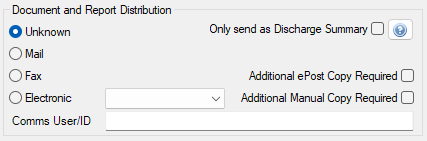
If you choose an electronic method and leave the Comms User/ID blank or enter it incorrectly, documents to this doctor will not deliver. HealthTrack shows a warning once when you save, but nothing will stop you saving. If a doctor reports missing documents, this field is the first thing to check.
If the distribution fields are left unset, HealthTrack flags the doctor's documents as manual, and staff need to print and post them from the Distribution List. For the full delivery setup steps, see How to add a distribution method.
Why doctors appear that you did not add
Manual entry is only one of the ways referring doctors get into the register. HealthTrack also creates entries automatically:
- Incoming results and reports. When a result or report arrives electronically carrying a provider number that is valid but not yet in the register, HealthTrack creates a new referring doctor entry from the details in the message. This keeps incoming documents flowing, but the auto-created entry has only whatever details the message contained - usually no delivery method.
- Referral entry. When staff record a referral and the doctor is not found, they can create the entry from the referral screen. It is the same register - the entry then appears in Referring MO Details.
- Your own doctors. Each of the practice's internal doctors is mirrored into the register automatically, one entry per provider number, marked with Internal Doctor in the address. These are not duplicates. Do not delete them - they are what lets your own doctors be recorded as referrers for internal referrals.
Automatic creation is also why duplicates are common. A doctor who starts at a new location gets a new provider number, so their first result from that location creates a second entry. Auto-created entries can also duplicate a manually added doctor whose provider number was mistyped or missing.
If you find a duplicate
Tidy up duplicates by soft-deleting the entry you do not want to keep: edit the unwanted duplicate, select the Is Deleted checkbox, and save. Before you delete, check which entry has the correct provider number and delivery settings, and keep that one.
Deleting does not merge or re-point anything. Referrals and patient links already recorded against the deleted entry stay where they are, and there is no merge tool. Never delete the Internal Doctor entries described above.