How to submit a patient claim
Setting up Patient Claims
HealthTrack enables Patient Claiming when Medicare Online Billing is enabled.
- After enabling Medicare Online Billing, set the default as either "on" or "off" for submitting claims.
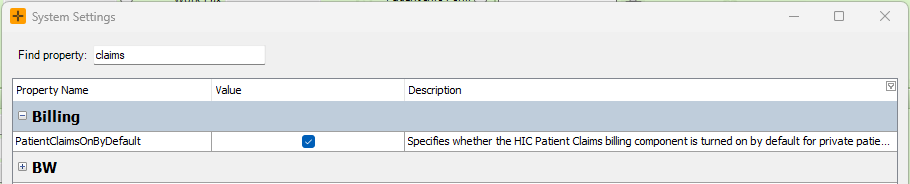
- To do this, go to Admin > Maintenance > System Settings.
- Search for 'Claims' and Edit the PatientClaimsOnByDefault property by ticking the 'Value' check-box.
There are two ways to submit a Patient Claim
-
Submitting a Patient Claim on Invoice Creation
- Create an invoice for a patient as usual.
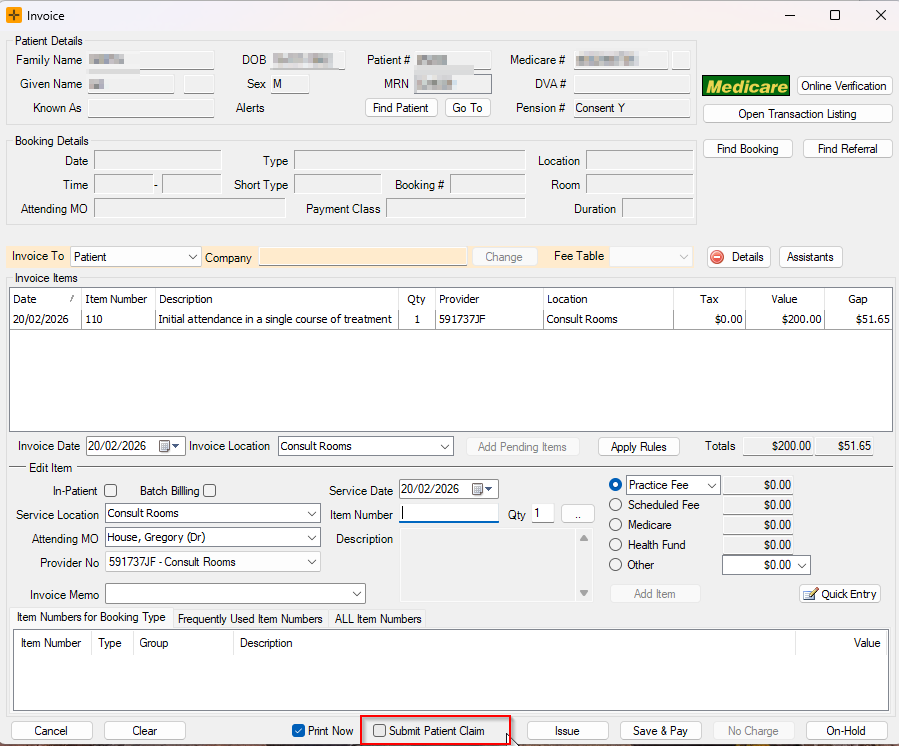
- Update the 'Invoice To' field to Patient and make sure the ‘Submit Patient Claim’ check-box is ticked.
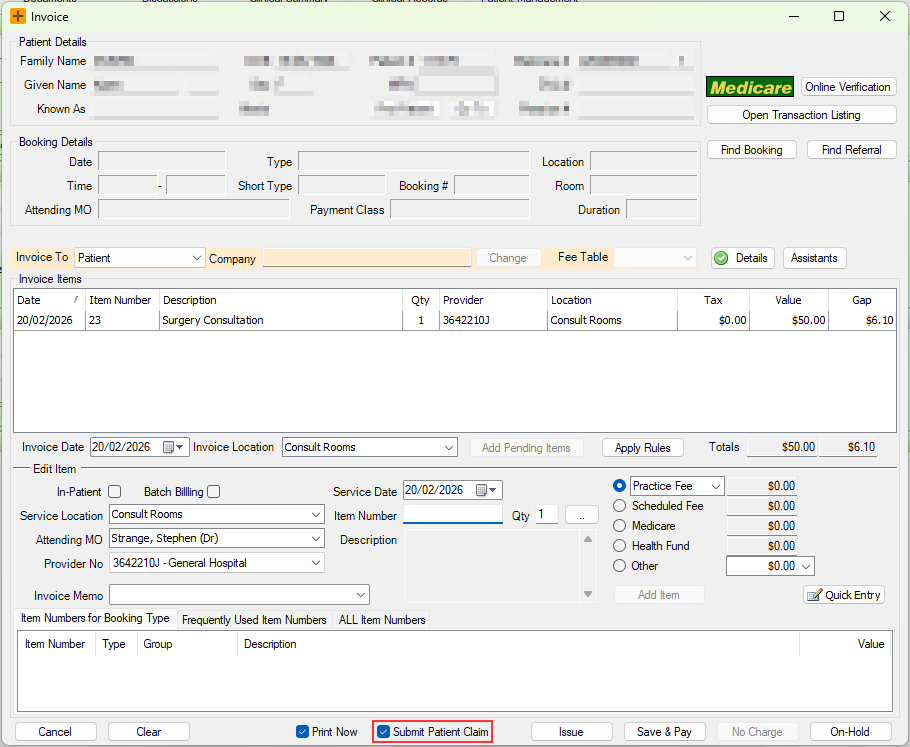
- Click the Save & Pay button and receive the payment as per normal processes.
|
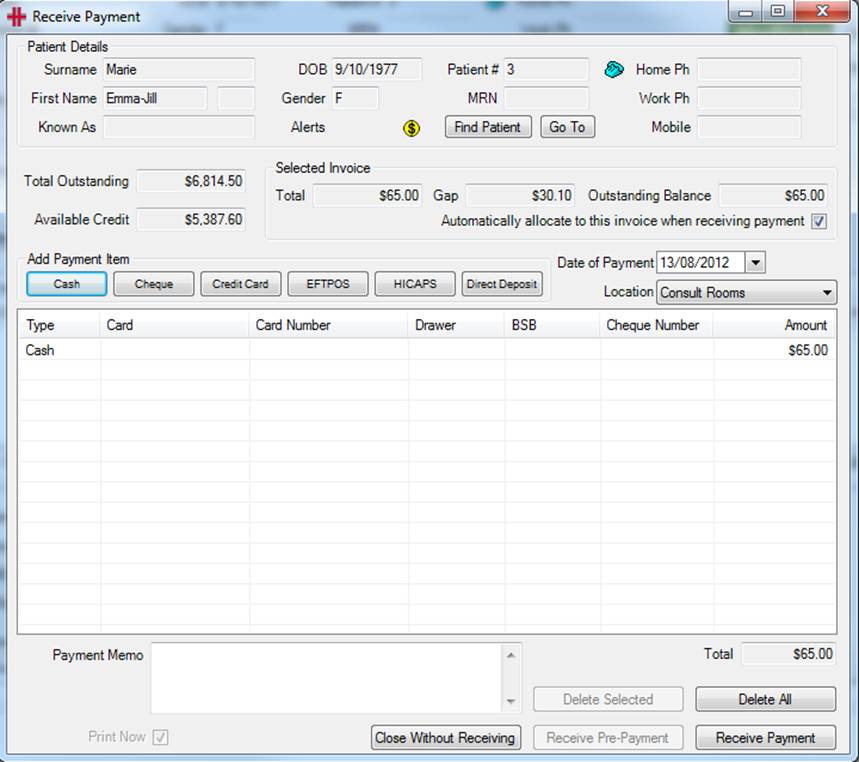
Once you have received the payment click the Receive Payment button. |
|
|
|
|
|
Now the Submit Patient Claim screen will be appear. Transmit this Claim: The claims will be submitted at the current point in time therefore ‘Now’ will always be selected for this. |
|
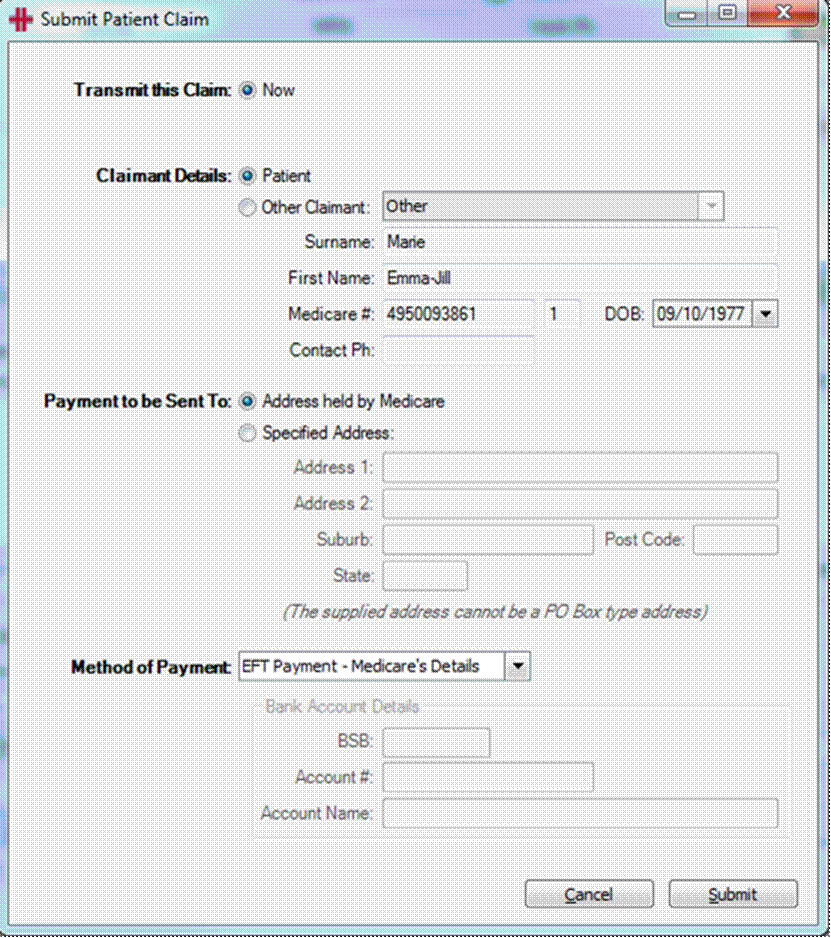
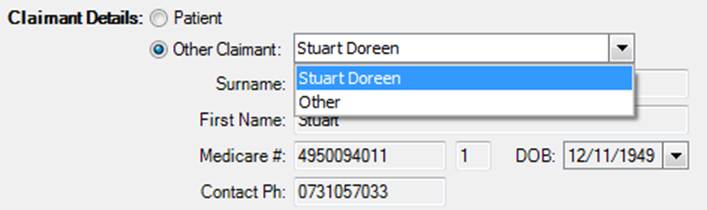
Claimant Details: This is the person who is claiming the payment, not necessarily the patient e.g. it might be the parent of the patient. If it is the patient then ensure that “Patient” is selected otherwise click on the “Other Claimant” option. After clicking “Other Claimant” the drop down list will provide options of all associated family members along with an Other option. If a family member is selected then their details will be automatically entered.
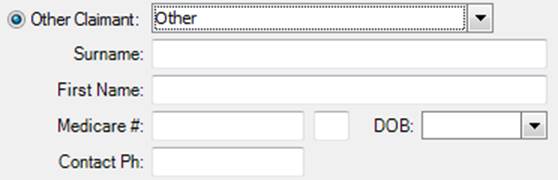
If ‘Other’ is selected you will need to complete all fields, otherwise this claim will not be able to be submitted to Medicare.
Payment to be Sent to: If a cheque is being sent to the patient this is the address that the cheque will be sent to. By default it will go to the address that is registered with Medicare however you can specify a different address if required. Please note that this cannot be a PO Box and must be a street address.
Method of Payment:
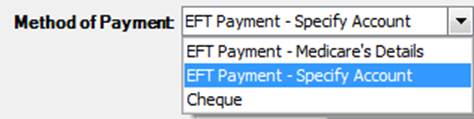
EFT Payment – Medicare’s Details (default selection); this means that if the patient has registered their bank account details with Medicare then the money will be transferred into this account. If they haven’t registered their bank details then a cheque will be sent to the claimant.
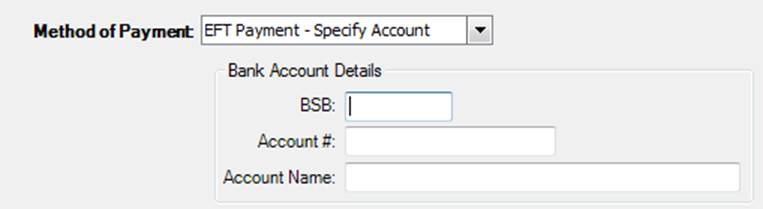
EFT Payment – Specify Account; if the patient requires the payment to go into a specific bank account then you can enter in the bank details and Medicare will transfer the money to this account. The bank account details will not be saved.
Cheque – the cheque will be sent to claimant.
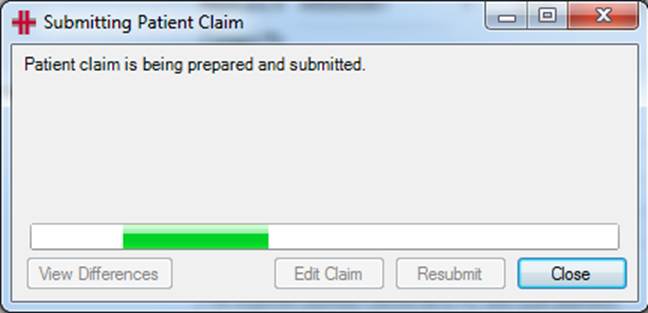
| Once all required information has been entered click Submit. |
|
A Statement of Claim and Benefit is provided to the claimant when a patient claim has been lodged in real time, processed by the agency and a benefit amount returned to the claimant. Print this for the patient.
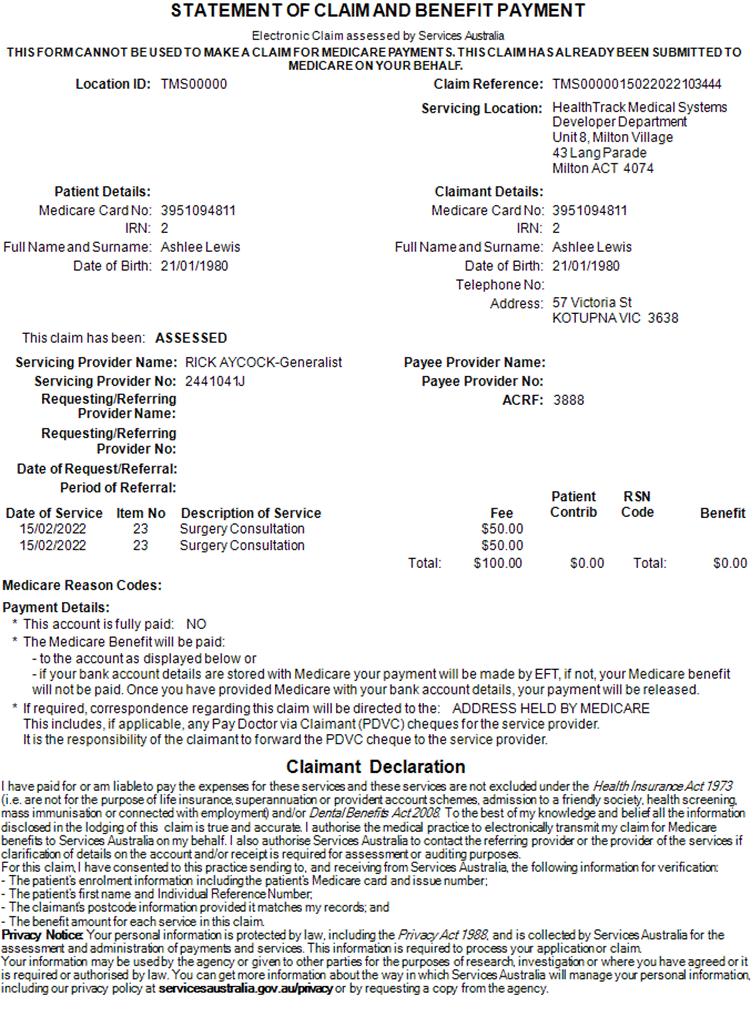
The Benefit column on the report shows the money that the patient will be receiving from Medicare.
|
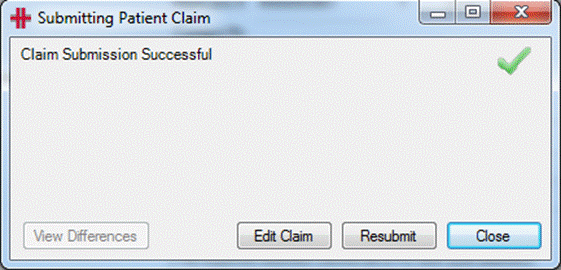
Once this report is printed for the patient a message appears advising that the claim was successful. |
|
-
Submitting a Patient Claim after the Invoice has been issued.
- Submitting a Patient Claim after an invoice has been issued is done when the payment is not being received and allocated at the same time that the invoice is issued.
- Create the patient invoice as usual. Before issuing, make sure that the Submit Patient Claim tick box is 'unticked'. Issue.
- Receive and allocate a payment from the patient's Transaction Listing.
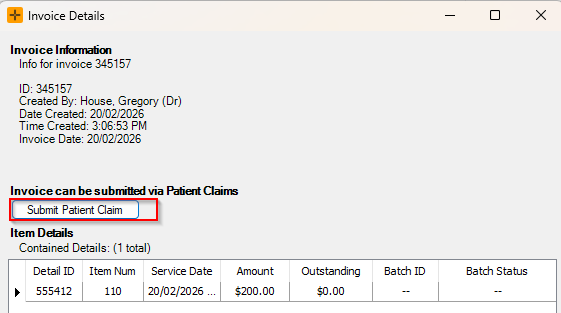
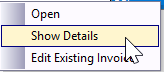
- Right click on the invoice and click on Show Detail.
- Submit Patient Claim as usual.
-
-