
How to create an outbound referral
Outbound referrals record services you are referring a patient to - either at an external practice or an internal doctor or location within HealthTrack.
Outbound referrals appear on the patient's Patient Management screen only. Unlike inbound referrals, they do not attach to bookings or invoices.
Creating an Outbound Referral
- Navigate to the Clinical Summary tab.
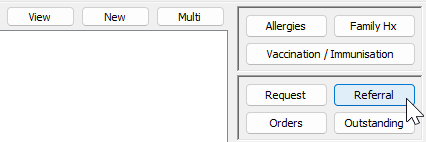
- Click Referral to open the outbound referral form.
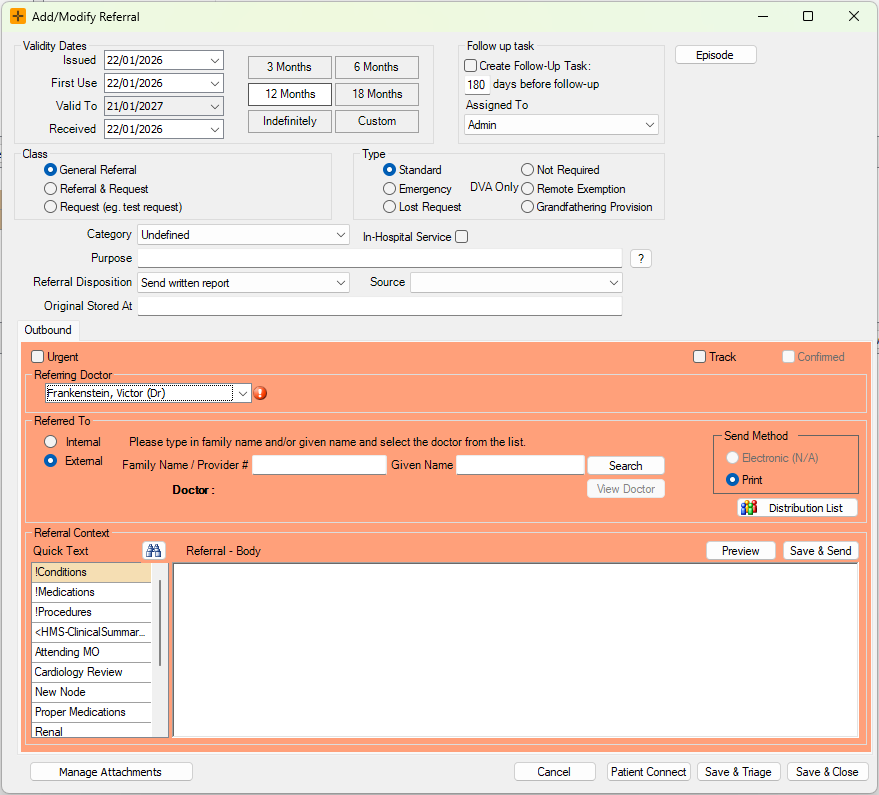
- Populate the Validity Dates section as required.
- In the Issued field, enter the date you are issuing the referral.
- In the First Use field, enter the date of the patient's first appointment for this referral.
- Set the Valid To period - select 3 months, 6 months, 12 months, 18 months, or Indefinite. HealthTrack calculates the expiry date based on the First Use date.
To set a period that doesn't match the preset options, click Custom and enter a date directly in the Valid To field.
- Populate additional Referral Details as required.
- Class: select whether this is a General Referral, a Request, or a Referral including a Test Request.
- Type: select Standard, Emergency, Lost Request, Remote Exemption, Not Required, or Grandfathering Provision.
- Follow up task (optional): Add a reminder as a follow-up task if needed - the task will be added to the task list.
- In-Hospital Service: select this checkbox if required.
- Optional fields: Populate the Category, Purpose, Original Stored At, or Referral Disposition (for example, send written report, update care plan) fields if needed.
- Select the Referring and Referred To Doctors or locations.
- Referring Doctor: confirm the correct doctor is displayed. This field defaults to the logged-on Doctor.
- Referred To: select the Internal or External radio button.
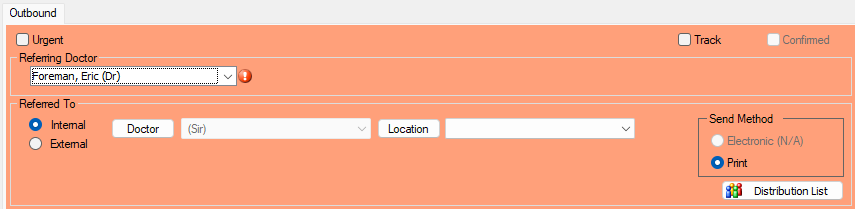
The Send Method populates automatically from the referred doctor's distribution settings. If no distribution method is configured, the Send Method defaults to Print:
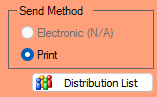
If a Document and Report Distribution method is configured in the Referring MO Database, the configured method displays. If the doctor receives electronic correspondence, the referral is sent electronically; otherwise it is flagged for printing.
- In the Referral Context field, enter the reason for the referral and any relevant clinical details.
- You can use Quick Text to insert pre-written content. The Medication, Procedures, and Condition tags automatically insert current patient information.
- Select Manage Attachments to attach a document already in the patient's file. Click Import New Document to import and attach a scanned copy of the referral.
- Select Preview to review the referral before sending, or click Save & Send to save and dispatch it.
The referral letter is generated fresh from the referral template each time it is printed or previewed - there is no separately stored letter document. A reprint always uses the current template.
Referring to an internal doctor or location
When the Referred To party is an internal doctor or location, HealthTrack automatically records the same referral as an incoming referral for that doctor or location. The receiving side sees it in their incoming referrals as soon as you save.
This is one referral shown from both sides, not a duplicate. If a doctor reports seeing an "extra" incoming referral after an internal referral was created, this is the expected behaviour - nothing needs to be deleted.
Why can't I send a referral electronically?
If Electronic is unavailable as a Send Method, or a referral will not go out, work through these causes:
- The referred-to doctor has no electronic delivery method configured. Electronic sending is only available when the external doctor has a delivery method set up in the Referring MO Database. Without one, Print is the only option. Add or correct the doctor's distribution method, then reopen the referral. See How to add a distribution method for the steps.
- A send is already pending for this referral and doctor. If an earlier electronic send for the same referral to the same doctor has not yet gone out, HealthTrack will not queue a second copy. Wait for the pending send to complete before resending.
- An internal referring doctor is not in the referring doctor register. When the referring doctor is an internal doctor, they must also exist in the referring doctor register for your logon location before the referral can be saved and sent.
If the Send Method was correct and the referral still did not arrive, the delivery itself is handled by HealthTrack's outbound document pipeline - contact support with the patient and referral details so the delivery can be checked.
Selecting Track on the referral form adds the referral to the Outstanding Requests screen so you can follow it up until it is confirmed. Tracking outbound referrals is covered in its own article.