Managing ePrescriptions
This article covers how to cancel, cease, amend, and re-issue tokens for electronic prescriptions, as well as how to view a patient's Active Script List (MySL). Management of ePrescriptions can only be performed by the prescribing provider. All of these actions are performed from the Current Medications list on the patient's Clinical Summary tab.
Electronic prescriptions can only be managed in the HealthTrack desktop application. HealthTrack Online can view a patient's medications and create paper prescriptions, but it cannot cancel, cease, amend or re-issue electronic prescriptions.
Cancelling an ePrescription
Cancelling removes an electronic prescription from eRx so it can no longer be dispensed. You can only cancel a prescription that has not yet been dispensed. If the prescription has repeats and any have already been dispensed, it cannot be cancelled.
- Navigate to the patient's Clinical Summary tab.
- In the Current Medications list, right-click the medication and select Mark As Cancelled Medication.

- A confirmation dialog will appear. Enter a reason for the cancellation and click Proceed.
- A confirmation message will appear. Click OK to proceed with the cancellation.
- A notification will confirm the prescription has been cancelled.

Ceasing an ePrescription
Ceasing stops any remaining repeats on an electronic prescription from being dispensed. Unlike cancelling, you can cease a prescription even if it has already been partially dispensed, as long as at least one repeat remains.
- Navigate to the patient's Clinical Summary tab.
- In the Current Medications list, right-click the medication and select Cease Prescription.
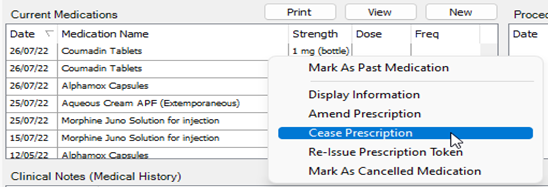
- A confirmation dialog will appear. Click OK to confirm.
- A notification will confirm the prescription has been ceased.

Cancel vs. Cease
|
|
Cancel | Cease |
|---|---|---|
| Already dispensed? | No, you cannot cancel an eScript once it has been dispensed by a pharmacy. | Yes, as long as there is at least 1 repeat on the eScript, it can be ceased. |
| What it does | Removes the prescription entirely from eRx. | Stops remaining repeats from being dispensed. |
| Reason required? | Yes, for internal reference only. | No |
Amending an ePrescription
You can amend the details of an electronic prescription (for example, changing the pack size) as long as it has not yet been dispensed. If the prescription has multiple repeats, no repeats can have been dispensed.
- Navigate to the patient's Clinical Summary tab.
- In the Current Medications list, right-click the medication and select Amend Prescription.
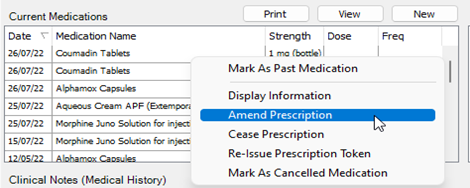
- The prescription screen will open with the existing details. You can change fields like pack size, quantity, or instructions, but you cannot change the medication itself.
- When you have made your changes, click the Prescribe button to submit the amendment to eRx.
- A confirmation dialog will appear once the amendment is acknowledged.
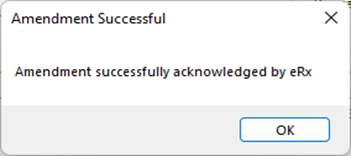
After amending, you can re-issue the token if the patient needs an updated copy.
Re-Issuing a Prescription Token
If a patient cannot locate their token or needs it sent again, you can re-issue it. The token is not the legal prescription itself, so re-issuing does not count as a reprint.
Only the original prescription token can be re-issued from HealthTrack. Once a pharmacist has generated repeat tokens, the original token will no longer function.
- Navigate to the patient's Clinical Summary tab.
- In the Current Medications list, right-click the medication and select Re-Issue Prescription Token.
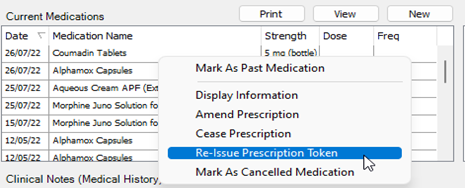
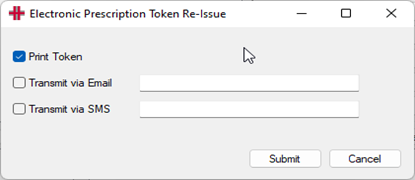
- Select the delivery method/s - Print Token, Transmit via Email, or Transmit via SMS - and click Submit.
- A confirmation message will appear once the token has been re-issued.
Viewing the Active Script List (MySL)
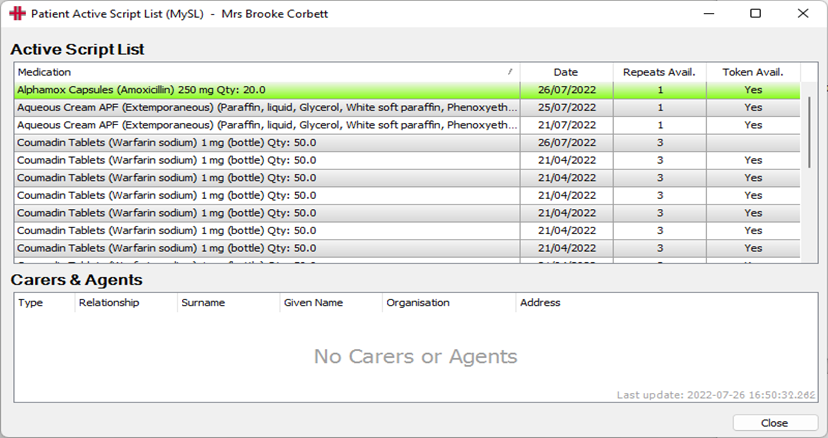
MySL (My Script List) lets you view a patient's active prescriptions, including those prescribed by other providers. This is useful for checking what medications a patient currently has available for dispensing.
- Navigate to the patient's Clinical Summary tab.
- Click the MySL button on the right-hand side of the screen.
If You Don't Have Access
If the doctor does not have access to the patient's MySL, a screen will appear with a Request Access button.
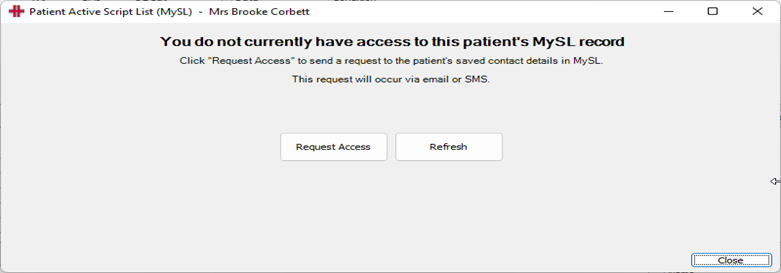
- Click Request Access. The patient will receive an SMS or email from MySL asking them to authorise access.
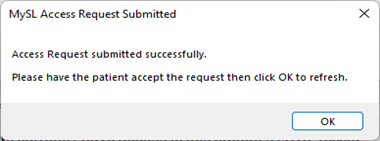
- The patient replies to the message to grant access.
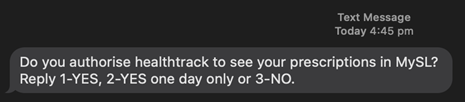
- Once the patient has authorised, click OK or Refresh to load the Active Script List.
Viewing the Script List
The Active Script List shows all current prescriptions with medication details, script date, repeats available, and whether a token is available.