
HealthTrack Messenger
Messenger is HealthTrack's instant messaging feature. It supports one-on-one conversations, group conversations, system-wide broadcasts, patient arrival notifications, and SMS messaging from within HealthTrack. To open Messenger, navigate to Practice Wide > HealthTrack Messenger.
There are three main ways to reach people:
- One-on-one (a direct message to a single user).
- Group (a message to everyone in a security group, or an ad-hoc custom group).
- Broadcast (a system-wide alert to all users, shown in the Alert channel).
Channel Types
Messenger organises messages into the following channel types:
| Channel Type | Description |
|---|---|
| Alert | System-wide alerts for all users, such as shutdown notifications. |
| Arrival Notification | Sent automatically to configured staff when a booking is updated to the Arrived status. |
| Individual | One-on-one messaging with another user. Click the icon in the top right to view the recipient's contact details. |
| Security Group | Messages all users in a predefined security group (for example all doctors or managers). Groups are configured in Admin > Security > Security & Permissions. |
| Message Group | Ad-hoc groups created with any combination of users, security groups, or message groups. New members receive the full conversation history; removed members lose access. |
Creating a New Conversation and Sending a Message
- Click the New button in the top left corner of the HealthTrack Messenger screen, or
Ctrl+K.
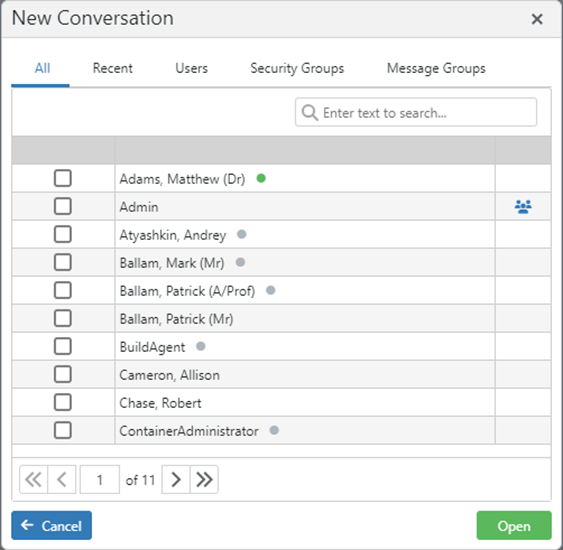
- In the New Conversation screen, use the search bar to find a user by name. Double-click a user or existing group to open the conversation.
- To start a conversation with multiple users or groups, select the checkboxes next to each name, then click Open.
- Enter your message in the reply box and press
Enter, or click the send button to the right.
Conversations with unread messages remain visible in the channel list indefinitely. Once read, conversations disappear from the list after 3 days of inactivity. The conversation history is retained and accessible when opening a new conversation.
Editing a Message Group
You can rename a custom group or change its members at any time.
- Select the group conversation from the channel list on the left.
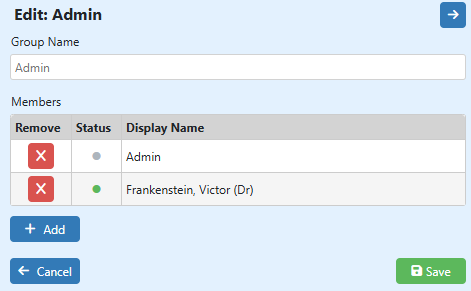
- Click the icon in the top right-hand side of the screen to open the group settings.
- To remove a member, click X next to their name. To add members, click + Add, select from the list, then click Confirm.
- Click Save to apply your changes.
Send a Message as an SMS
You can send a message as an SMS to the recipient's mobile number in addition to delivering it in Messenger.
- Select the individual conversation from the channel list.
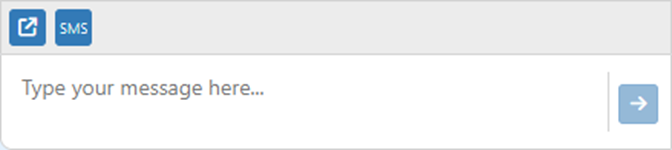
- Click the SMS button above the typing box, or enter
#smsanywhere in the message. An SMS icon will appear next to the send button, confirming the message will be sent as an SMS.
SMS messaging is only available for individual conversations. Delivery to the recipient's phone is not confirmed. This option is only available if the recipient has a mobile number recorded in their User Preferences.
Link to a Patient
You can attach a patient record to a message so recipients can open the patient directly from the conversation.
- Select the conversation from the channel list.
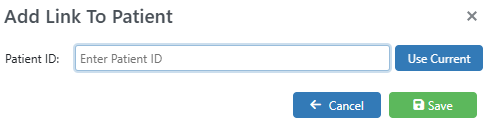
- Click the blue share icon above the typing box.
- Click Use Current to automatically fill the currently open patient's ID, or manually enter the Patient ID.
- Click Save to attach the patient link. Up to three patients can be linked in a single message.
Recipients can open the linked patient record by clicking the Go to Patient button in the message.

Patient Arrivals
When a booking is set to the Arrived status, the booking's doctor automatically receives a notification in their Arrival channel.
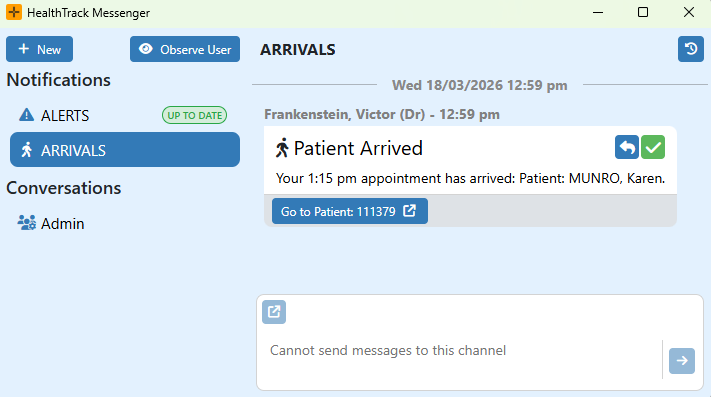
Click the Patient ID button in the notification to open the patient record in the main HealthTrack window.
|
|
Click the green tick to acknowledge. This removes the notification from the channel. |
|
|
Click the blue reply button to open a reply box. Enter your message and press Enter or click the send button. |
|
|
Click the View Arrivals History icon to show previously acknowledged arrivals. Click again to hide. |


The default behaviour for arrival notifications can be adjusted per user in either of these locations:
- Admin > Internal MO > Manage Internal MOs - change the Patient Arrived Alerts setting.
- Admin > Staff Directory - click View next to a user's name to change their Patient Arrived Alerts setting.
User Preferences
Each user can customise their HealthTrack Messenger experience via File > User Preferences, using the Messenger Settings in the bottom right corner.
| Setting | Behaviour |
|---|---|
| Open Messenger when a New Message is Received | Automatically brings the Messenger window to the front when a new message arrives. The HealthTrack taskbar icon may also highlight orange. |
| Keep Messenger Hidden | Receive messages silently with no notifications. You must manually open Messenger to check for new messages. |
| Never Receive Messages | Blocks direct messages from being sent to you. You can still receive group messages, but notifications are suppressed. You can still send direct messages, though recipients cannot reply. |
Manager Features
Observing a User (Admin Only)
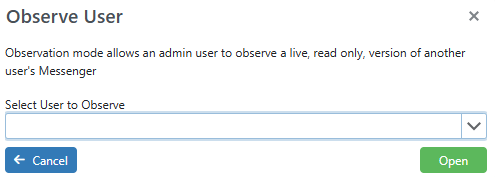
This opens a read-only window showing all conversations the observed user has access to, updated live with new messages.
- Click Observe User at the top left of the Messenger window.

- Select a user from the drop-down and click Open.
Messenger Audit Page (Admin Only)
Navigate to Admin > Notifications & Messages > HealthTrack Messenger Audit Page. This page lists all messages and notifications sent via Messenger. Use the search fields and column filters to find specific messages.
Security & Permissions
Go to Admin > Security > Security & Permissions to assign any Messenger-related permissions for users.
AccessWhisper - required to use Messenger. Included by default in the Default security group.
WhisperAdmin - required for the Observe User and Messenger Audit features. Included in the HMS-Administrator security group. Can be assigned directly to users who need access.