
How to restrict user access to a Location
Viewing access and billing access can be restricted by location, using settings in both the Locations and Rooms Manager and the Security and Permissions screen. A location with no restriction stays visible to every user. Once you restrict a location, only users you grant permission to can see it or bill against it.
Restricting Location Access
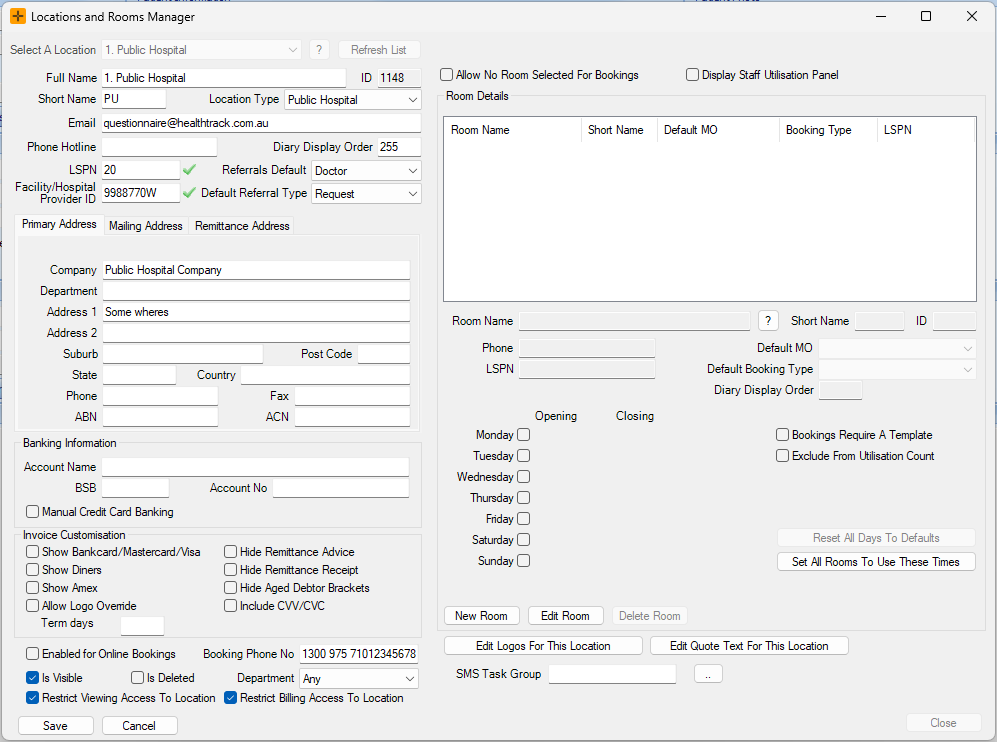
- To activate the restriction for a particular location, go to Admin > Locations and Rooms > Locations and Rooms Manager.
- Select a location and press Edit.
- Then, select the Restrict Viewing Access to Location and/or the Restrict Billing Access to Location checkboxes.
As soon as you select a restrict checkbox and save, the location disappears from everyone's location lists, including your own, until viewing (or billing) permission is granted. Grant yourself and the relevant users permission straight after restricting the location, so no one loses access to a site they still need.
Adding Location Permissions
Viewing and billing access are granted per location, and separately from each other. A user can be given viewing access without billing access, or the reverse.
- To assign viewing or billing access to a particular user, navigate to Admin > Security > Security and Permissions.
- Select the correct user from the column on the left.
- Select the Show Permissions checkbox.
- Select Add Location Permissions to open the Add Location Permissions screen.
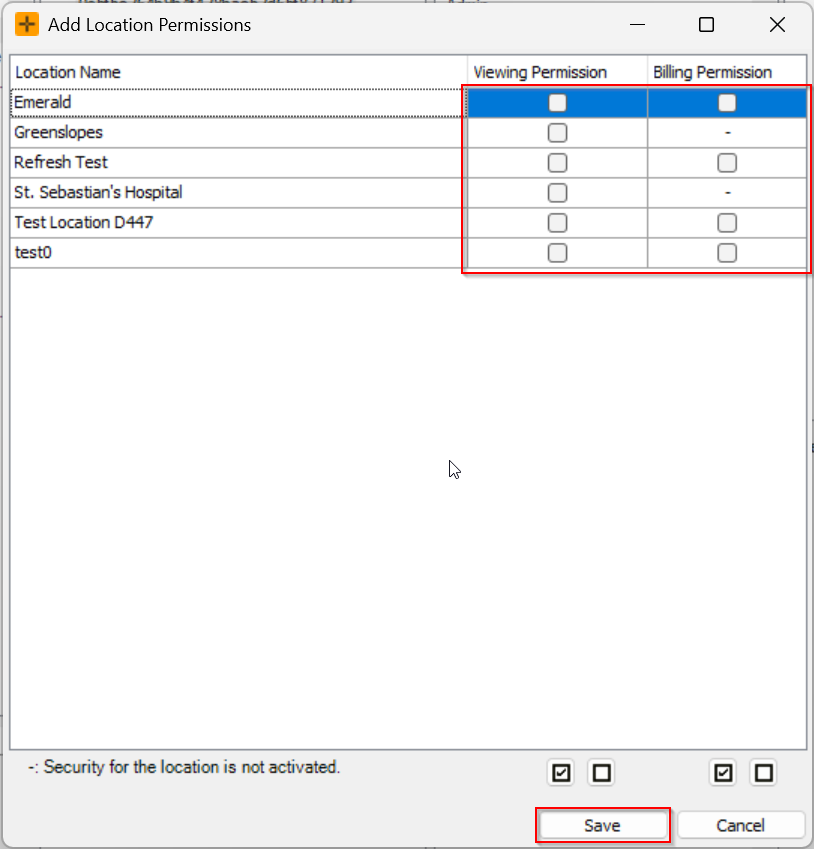
- Update the viewing and billing permissions for the location as required.
- Select Save.
Security and permission changes do not take effect straight away on the desktop. The user needs to close and reopen HealthTrack before a new grant applies, because their permissions are worked out once when they log on. Grant the access, then have the user log off and back on.
How the working location is chosen
A user's working location is set when they log on. The logon screen shows a location list, and the location chosen there stays fixed for the whole session.
- To work at a different location, go to File > Change Location.
- The list on the logon screen only shows locations the user is allowed to see. If you restrict viewing access to a location and do not grant a user permission, that location will not appear in their logon list at all.
- HealthTrack remembers each user's last location, so it is selected by default next time they log on. A locum or shared login will start at whichever site was used last.