
How to create a new Security Group
Security groups in HealthTrack let you define one set of permissions and assign it to multiple users who share the same role, rather than setting permissions per user.
Create the group
- Go to Admin > Security > Security & Permissions.
-
In the bottom left of the HMS Security Groups Manager screen, select Groups, then select the Create New Group button that appears.
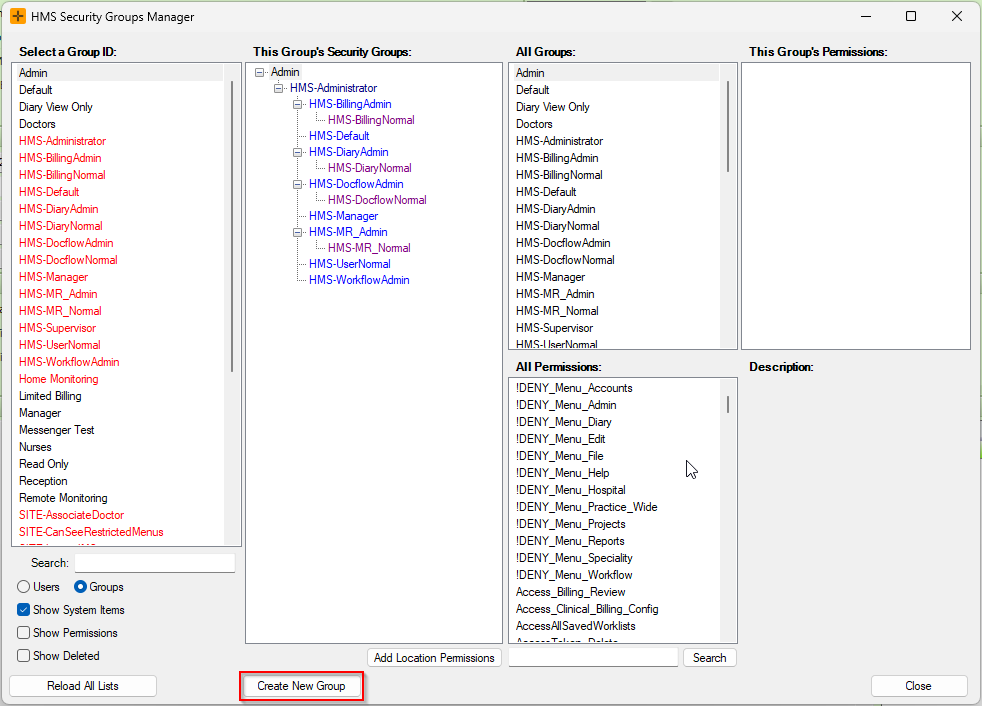
-
In the Create New Group dialog, select Standard Group.
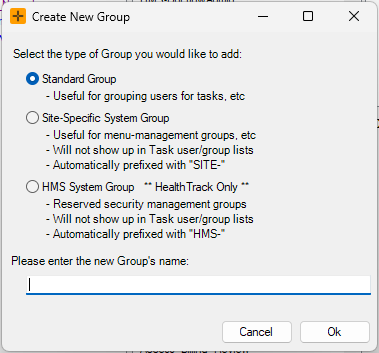
- Name the group to suit the role (for example, Admin), then select Ok.
- Back in the HMS Security Groups Manager screen, select the Show Permissions checkbox and select the group you created.
- Assign the relevant permissions to the group on the All Permissions tab.
Assign the new group to users
- In the bottom left of the HMS Security Groups Manager screen, select Users.
- Choose the user, and under the All Groups section, right-click.
- Select Assign Group.
How permissions combine across groups
A user can belong to more than one security group. Permissions are cumulative: a user is granted every permission that any of their groups allows. Adding a user to a second, more permissive group only ever adds access. Being a member of a group that does not have a particular permission does not take away access the user already has from another group.
Because access adds up this way, give each group only the permissions its role needs. If a user can do something they should not, check every group they belong to, not just their main one.
When permission changes take effect
On the desktop application, permission changes do not apply to a user while they are logged in. After you change a group's permissions, or change which groups a user belongs to, the affected user needs to log out of HealthTrack and back in before the new permissions take effect.
This is the usual reason a permission looks like it was granted but nothing seems to change for the user.