
Reviewing Questionnaire Responses
Review Patient Submissions
When a patient submits a questionnaire, a note is created in the Discussions tab of their record. This note is created for every submission, whether or not the template requires review.

If the questionnaire template has Requires Review enabled, responses also appear in Practice Wide > Questionnaire Review for staff action.
Questionnaire Review
Requires Review must be enabled on the questionnaire template for submissions to appear in this screen.
If a submitted questionnaire does not appear in Questionnaire Review, it is because the template did not have Requires Review enabled. It is still recorded as a note in the patient's Discussions tab, and any mapped data configured on the template is still applied to the patient's record.
Only templates with Requires Review enabled add responses to the review queue. To change this for future submissions, enable Requires Review on the template in Admin > Questionnaire Management.
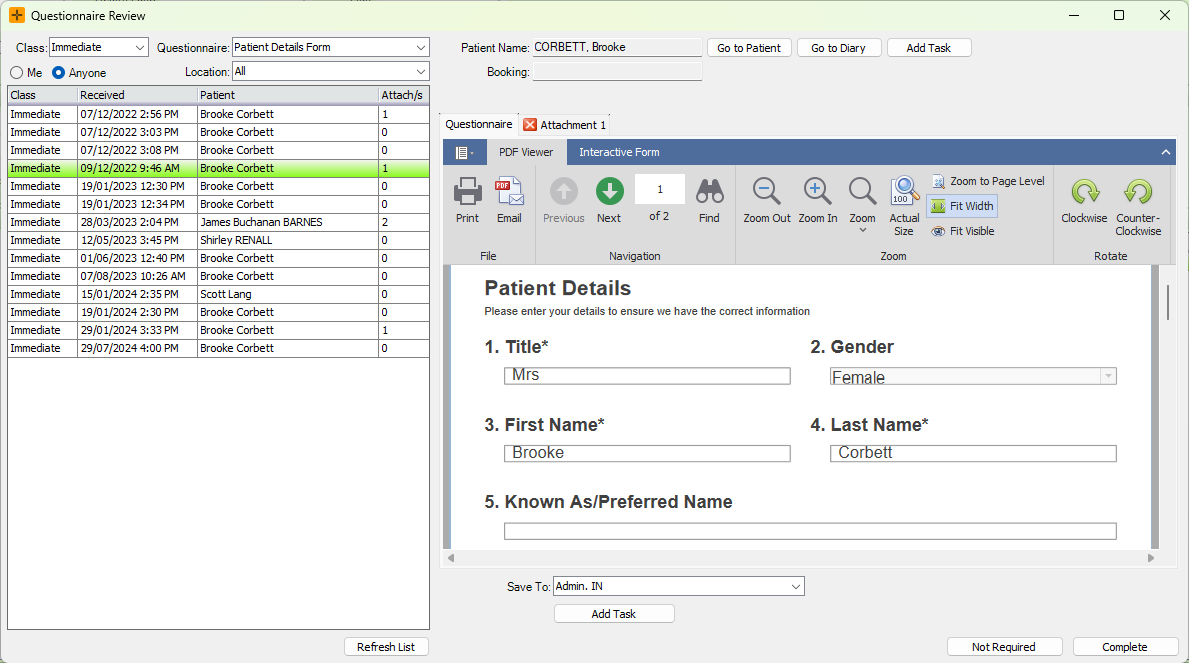
From the top-right of the Questionnaire Review screen, the following actions are available:
| Button | Action |
|---|---|
| Go to Patient | Opens the patient's Demographic screen. |
| Go to Diary | Opens the Diary. |
| Add Task | Creates a task linked to the patient. |
At the bottom of the screen:
| Button | Action |
|---|---|
| Complete | Saves a PDF of the response to the patient record and marks the questionnaire as complete. Only available after all attachments have been actioned. |
| Not Required | Removes the questionnaire from the review queue without saving. |
| Add Task | Opens a New Task screen, linking the task to the patient and a PDF of the response. |
Update Patient Demographics from a Response
If questionnaire questions are configured with Reference IDs, use Update Mapped Data to apply the patient's responses directly to their Demographic record.
- Navigate to Practice Wide > Questionnaire Review.
- Select the patient's response from the list on the left.
- Click Update Mapped Data.
- Review the Matching Details (responses that match existing data) and Not Matching Details (responses that differ).
- Select the Select checkbox for each field to update.
- Adjust values in the Update to… column as needed.
- Click Merge Selected. The selected fields are updated in the patient's Demographic screen.
If the questionnaire has Automatically Apply Mapped Data enabled, this merge happens automatically and the Update Mapped Data button is not shown.
Handle File Attachments
If the questionnaire allowed patients to upload files (such as referrals or results), each file appears as a tab above the response preview in Questionnaire Review.
- Navigate to Practice Wide > Questionnaire Review.
- Select the patient's response from the list.
- Select an attachment tab above the preview to view its contents.
- Use one of the actions below to process the file.
| Button | Action |
|---|---|
| Save | Opens the Classify Document screen to save the file to a nominated folder. |
| Save All | Opens the Classify Document screen and saves all attachments with the same settings. |
| Mark as Not Required | Discards the file without saving. |
| Save as Referral | Saves the file, then opens the Add/Modify Referral screen. |
After processing, a tick appears on saved attachments and a cross on discarded ones.

When configuring a questionnaire template, you can set a default folder for each file upload question to streamline classification.
Booking Requests
Responses to Booking Request questionnaires appear in Practice Wide > Triage. From there, staff can match the request to an existing patient or create a new one, and schedule a booking directly into the Diary.
Questionnaire Listing
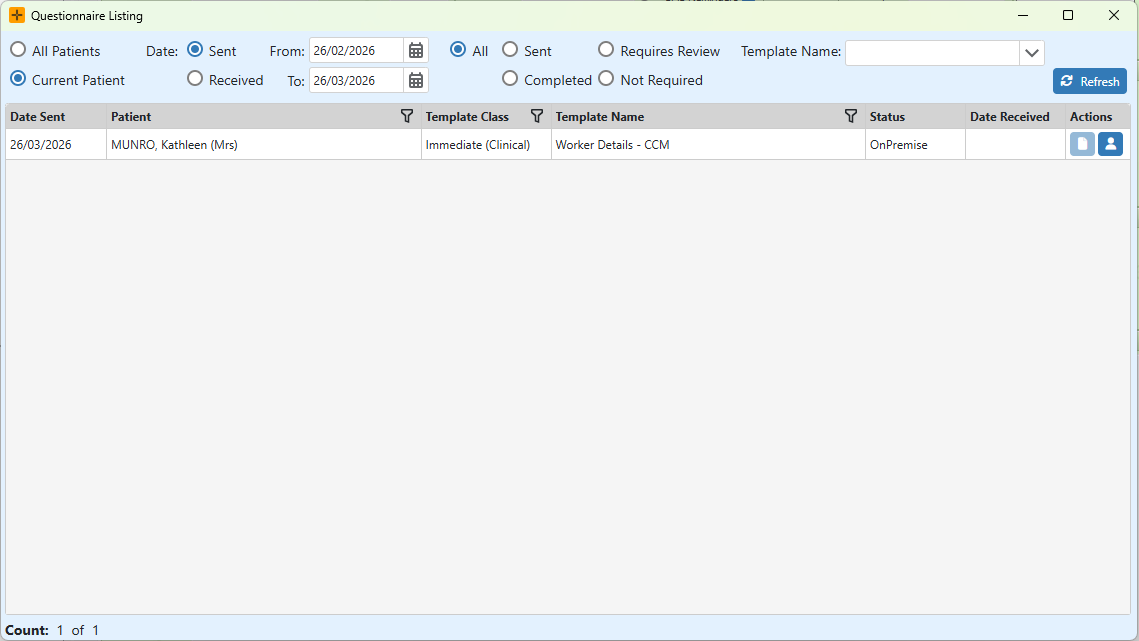
The Questionnaire Listing screen displays all Immediate questionnaires sent to patients. Navigate to Practice Wide > Questionnaire Listing and use the filters at the top to narrow results.
Unavailable Questionnaires
A patient may see the message "This questionnaire can no longer be viewed" for the following reasons:
- The patient has already submitted a response to an Immediate Questionnaire. A new questionnaire link must be issued for them to respond again.
- The questionnaire link has expired. Immediate Questionnaires can be configured with a maximum number of days before expiry.