Viewing a patient's Patient Connect programs
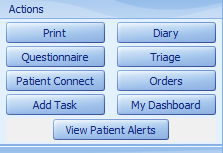
To view a patient's patient connect programs, in the Demographics screen, the Patient Connect button in the Actions section can be selected.
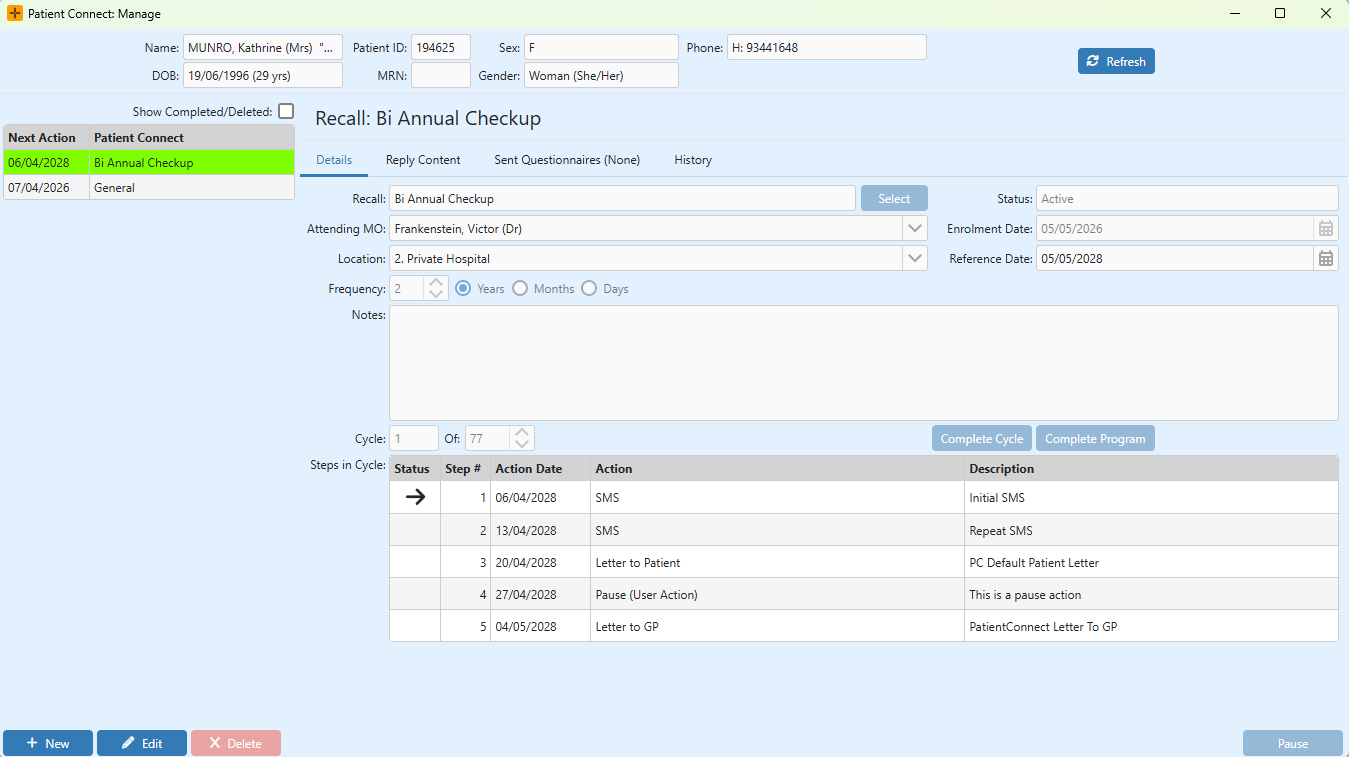
This will open up the Patient Connect: Manage screen which is used for adding new Patient Connect programs, editing existing programs and viewing current and past program actions and history. It is also where Reply Content information can be viewed and edited.
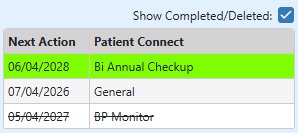
By default the view shows only active Recall and Program type programs. Select the Bookings and Referrals checkbox to also see Booking and Referral type programs. Select the Show Completed and Deleted checkbox to view past programs as well.
Details Tab
Existing Patient Connect programs of Program Type Recall and Program will display by default in the left-hand panel of the screen on the Details tab. By selecting a program in this panel, the details will display in the Details panel on the right of the screen.
| Recall/Program | Name of program |
|---|---|
| Status | Current status of program |
| Attending MO | Patient's doctor for program |
| Location | Location for program booking |
| Frequency | The program frequency for a cycle |
| Enrolment Date | The date the program was set up for the patient |
| Booking Types | Booking Types that will complete a program cycle |
The below details are dynamic, according to the program type.
| Next Recall Date | Recall - Proposed future Booking Date |
| Program Starts | Program - Enrolment Date |
| Reference Date |
Booking - Existing Booking Date Referral - Enrolment Date |
| Cycle: Of | Displays the current cycle of how many cycles are set for the program |
| Steps in Cycle | Cycle steps in program and Action Date of any completed steps and next step |
Reply Content tab
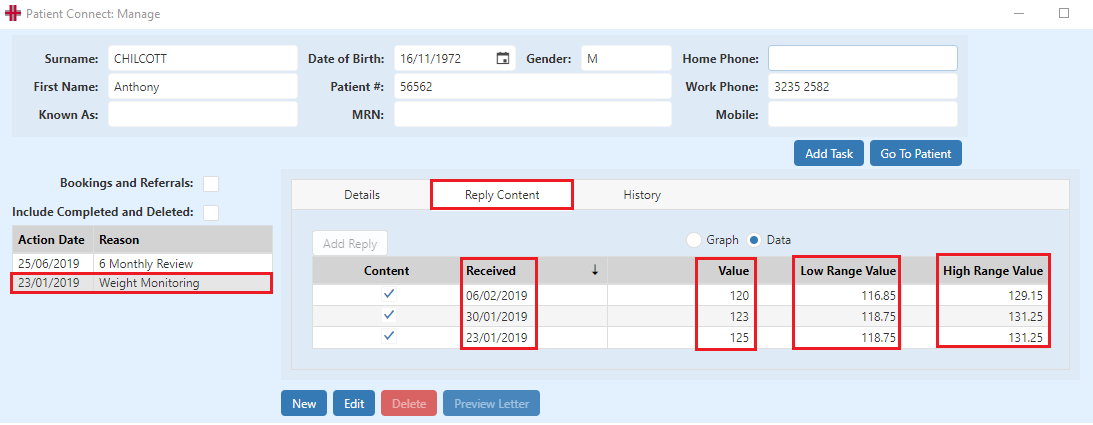
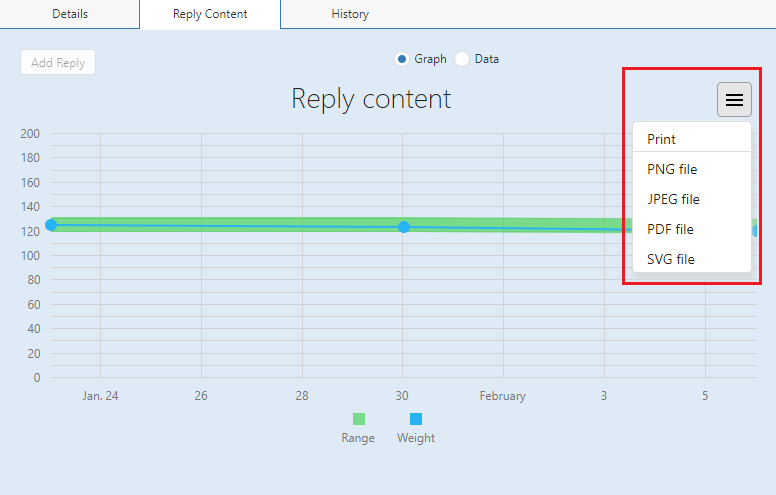
Patient Connect programs can be set up to receive replies from patients, as a connection monitoring tool, via SMS. The replies will display in the Reply Content tab and are viewable as a Data table or Graph.
- The table columns displayed contain the following data:
- Received - the date the reply was received
- Value - the value sent by the patient
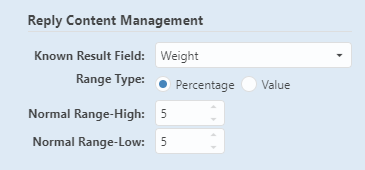
- Low Range Value - the lower threshold set in the Reply Content Management configuration for the program (for example, 5%). See Reply Parameters below.
- High Range Value - the upper threshold set in the Reply Content Management configuration for the program (for example, 5%). See Reply Parameters below.
The Graph view contains a print functionality if needed.
Where replies land
Patient replies are processed automatically. There is no separate worklist or triage queue for staff to action - HealthTrack matches each reply back to its program and records it for you.
- Numeric replies for a Program type program appear in the Reply Content tab described above, where they can be viewed as a data table or graph.
- Received replies can also be viewed in Practice Wide > Patient Connect Reply Review. This is a historical record of replies, not a list of items to action.
Because replies are handled automatically, you do not need to mark them as read or clear them from a queue. The Reply Content tab and the inbound reply log are for viewing what came in, not for actioning it.
Reply Parameters
Low and High Range Values for the Reply Content tab are set in the Reply Content Management configuration when the program is created. The values are typically expressed as a percentage tolerance around an expected response.
History Tab
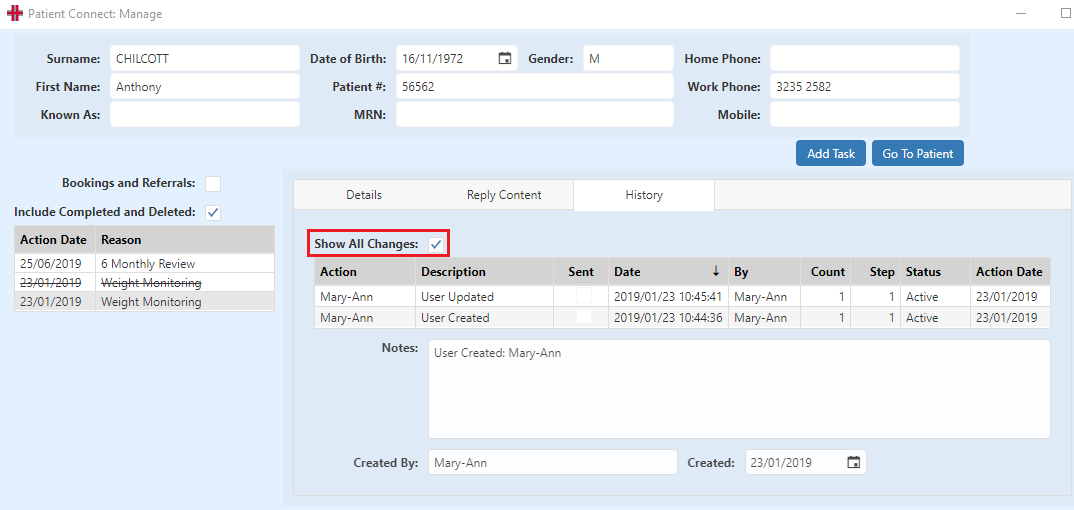
Displays the Program history Actions. The view defaults to the automated actions of the program. To view all Actions, including User actions, select the Show All Changes checkbox.