
How to use Booking Sets
Booking Sets let you define a group of related bookings and create them in one action from the Diary. Each set can enforce rules such as specific order, same day, or same room.
A Booking Set bundles several different booking types for the same patient, for example a consult, bloods and imaging booked together. This is different from:
- Group bookings, where many patients share the one appointment slot.
- Recurring bookings, where a single booking type repeats on a schedule.
Accessing Booking Sets
- Open the Diary (shortcut:
CTRL+D). - Locate the Booking Sets area in the left panel, below the diary filters.
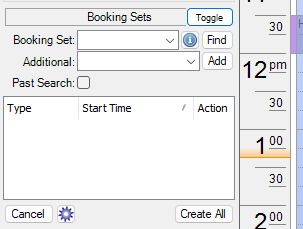
- Click Toggle to expand the Booking Sets panel.
- The Booking Sets panel appears with a drop-down to select a set, and buttons to search and create bookings.
Create Bookings from a Booking Set
- Select a patient.
- In the Booking Sets panel, choose a set from the Booking Set drop-down.
-
Click Find. HealthTrack locates the next available time slots that match the set's rules.
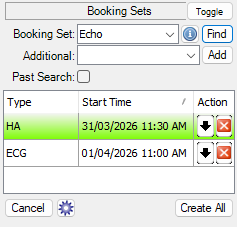
- Review the proposed bookings. Each row shows the booking type, date and time.
- To find an alternative time for a specific booking, click the down arrow in that row's Action column.
- To remove a booking from the set, click X in that row.
- When satisfied, click Create All to book all entries for the current patient.
The diary shades proposed booking slots so you can visually confirm timing before creating them.

Rescheduling or cancelling bookings created from a set
When you create bookings from a set, HealthTrack links them together. This changes how you cancel or reschedule them afterwards.
- Cancelling a booking: When you cancel one booking that was created from a set, HealthTrack asks whether to cancel only that booking or all of the linked bookings in the set. Choose the option you need before confirming.
- Rescheduling a booking: There is no single action to move a whole set at once. Reschedule each booking on its own.

Bookings created from a set use the same linking as recurring bookings, so the cancel prompt looks and behaves the same way.
Create a New Booking Set
-
Open the Booking Sets Manager by clicking the cog icon in the Booking Sets panel.
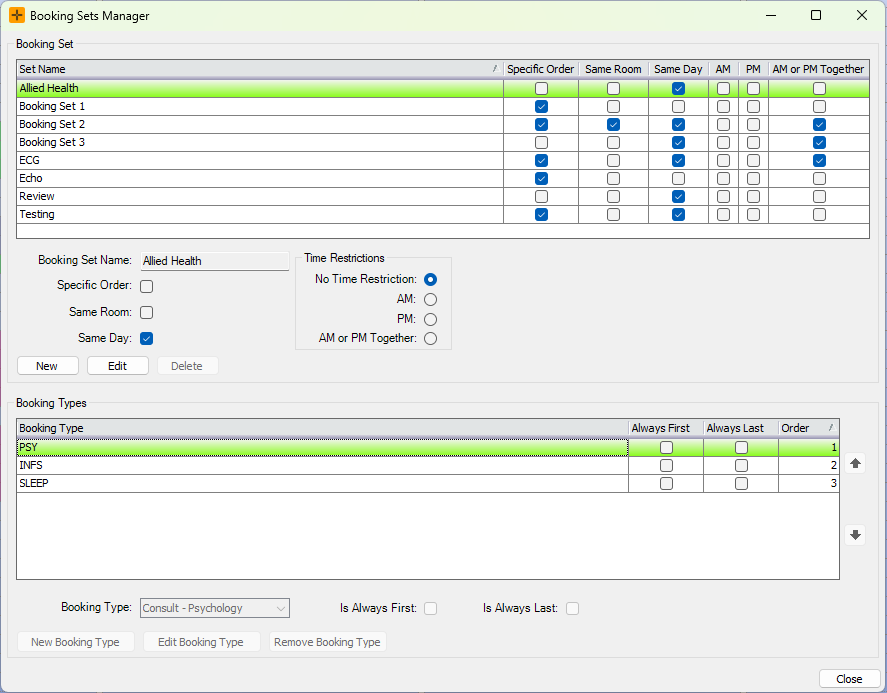
- Click New in the Booking Sets Manager.
- Enter a name in the Booking Set Name field.
- Set the properties for the booking set:
| Property | Description |
|---|---|
| Specific Order | Bookings must be created in the listed order. |
| Same Room | All bookings in the set are assigned to the same room. |
| Same Day | All bookings must fall on the same day. |
| Time Restrictions | Restrict bookings to AM, PM, AM or PM Together, or No Time Restriction. |
-
Add booking types to the set using the Booking Type section at the bottom of the manager. Click New Booking Type and select the type from the drop-down.
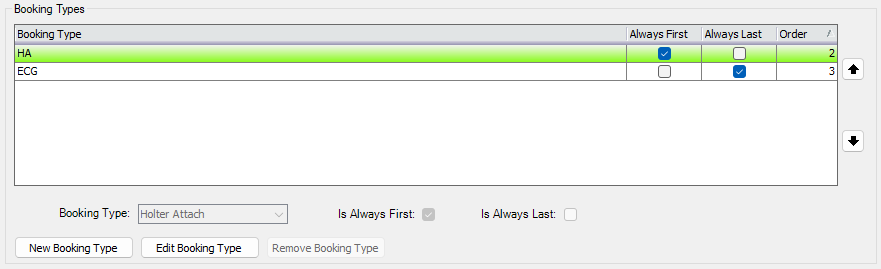
- Set the order for each booking type if Specific Order is selected.
- Click Save to save the new set.
Edit or Delete a Set
- To edit, select the set and click Edit. Make your changes and click Save.
- To delete, select the set, click Edit to enter edit mode, then click Delete.
Deleting a Booking Set cannot be undone. Deleting a set template does not cancel or change any bookings already created from it.