
How to Manage HealthTrack Licenses
HealthTrack gives system administrators the controls to monitor who is logged in, keep session numbers within the licensed limit, time out idle users, and see which features the site is licensed for. This article covers idle timeout, login restrictions, multiple-session warnings, session management, viewing and analysing your licence.
These features require administrator-level access. Standard users cannot access session or licence management settings.
Set an idle timeout
The idle timeout setting logs a user out of HealthTrack automatically after a set period of inactivity. For example, if a user leaves HealthTrack open and inactive for 60 minutes, HealthTrack logs them out. A warning appears about a minute before, so the user has a chance to stay signed in. This setting applies system-wide. All users are subject to the configured timeout period.
The timeout is a full logoff and shutdown of HealthTrack, not a screen lock. Any unsaved work is treated the same as a normal logoff.
System Setting changes apply system-wide, so changes will take effect immediately for every user at every location. If you are unsure of whether a change is safe to make, contact HealthTrack Support for assistance.
- Navigate to Admin > Maintenance > System Settings.
- In the Find property field, search for the IdleTimeoutInMinutes property.
- Enter the desired timeout period in whole minutes. A value of 0 turns the idle timeout off.
- Click Save.
Sites licensed for ePrescribing cannot turn the idle timeout off. If your site has ePrescribing and the value is set to 0, HealthTrack automatically forces it to at least 15 minutes to meet regulatory requirements.
Restrict logins when the licence limit is reached
HealthTrack can prevent standard users from logging in once the licensed session count is reached. Administrators can still log in and manage sessions manually.
- Navigate to Admin > Maintenance > System Settings.
- In the Find property field, enter: systemManaged.
- Set the value to 1.
- Click Save.
The systemManaged property is what makes the concurrent-session cap blocking rather than a warning. Once enabled, when the licence count is exceeded:
| User type | Behaviour |
|---|---|
| Standard user | Login is blocked. A message indicates the license limit has been reached. |
| Administrator | The Manage HealthTrack Sessions window opens, allowing the admin to close idle sessions and free up licenses. |
Handle multiple sessions for the same user
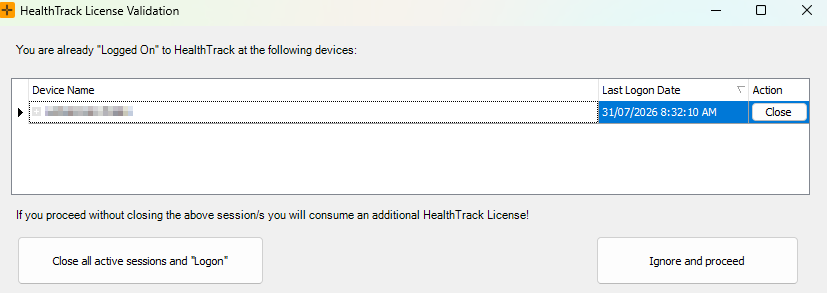
HealthTrack warns users when they have more than one active session open at the same time. This can happen when a user logs in on multiple machines without closing earlier sessions.
When a duplicate session is detected, a warning dialog appears with the following options:
| Option | Result |
|---|---|
| Ignore and proceed | Continues with the new session and leaves existing sessions open. |
| Close all active sessions and Logon | Closes all other sessions and starts a single new session. |
| Close | Close specific sessions manually from the list. |
Manage active sessions
Administrators with the SecurityManageSessions permission can view and manage all active user sessions from the session management window.
- Navigate to Admin > Security > Session Management.
- The Manage HealthTrack Sessions window displays all currently logged-on users, each user's Heartbeat (time of last activity), and options to send messages to logged-on users or close individual sessions.
Use this screen to identify and close idle sessions when the practice is running low on available licenses.
The licence counts active sessions, not people. If a workstation crashes or is switched off without logging out, its session still counts against the limit until HealthTrack detects it has stopped responding. This happens about 10 minutes after the session's last heartbeat, after which the seat is freed automatically.
View your licence
The Licence Viewer shows which features your site is licensed for, without needing to contact support.
- Open the HealthTrack Help menu.
- Select Licence Viewer.
The viewer lists the licensee name and every feature in the catalogue, each marked as licensed or unlicensed, with counts where a feature is seat-based (for example, the concurrent-user cap).