Configuring My Health Record
The My Health Record Configuration screen is the main place to review your practice's setup for My Health Record. Go to Admin > Maintenance > My Health Record Configuration.
The screen has four tabs: Certificates, Locations, Doctors, and Auto-Upload. Each is described below.
Certificates
The Certificates tab shows the NASH certificates at each location. It provides the same functionality as Add Cert from HPI-O details on the Location screen, in a single view.

A NASH certificate that is close to expiry, or has already expired, will stop My Health Record working for the location that uses it.
Locations
The Locations tab shows the readiness of each location for use with My Health Record.

For a location to be ready, it needs:
- A valid NASH certificate
- A configured HPI-O
- A Facility Type
- A Practice Setting
Facility Type and Practice Setting are new fields on each Location. Both are mandatory to use the location with My Health Record. The lists are fixed and cannot be customised. These fields are also available on the Manage HPI-O screen in the Windows Client. The Status column indicates whether a location is ready.
There are two ways you can add the Facility Type and Practice Setting fields to each of your locations:
-
Via the Locations and Rooms Manager.
- Go to Admin > Locations and Rooms > Locations and Rooms Manager.
- Select a location from the drop-down at the top.
- Select Manage HPI-O at the bottom right.
- In the right-hand side, choose the Facility Type and Practice Setting from the drop-downs.
- Select Save.
-
Via the My Health Configuration screen.
- Go to Admin > Maintenance > My Health Record Configuration.
- Choose the 'Locations' tab.
- Tick the required locations.
- Use the 'Bulk Edit' option to update the Facility Type and Practice Setting in bulk.
HPI-O validation and error clearing must still be performed in the Windows Client, under Admin > Locations & Rooms > Locations & Rooms Manager > Manage HPI-O.
Why a location is not ready
Readiness is worked out per location, so one location can be ready while another is not. If a location's Status does not show as ready, check each of these in turn:
- No valid NASH certificate. The location has no certificate assigned, or its certificate is invalid or expired. Assign or renew the certificate on the Certificates tab.
- HPI-O not configured or not validated. The HPI-O is missing, or it has been entered but not validated. Configure and validate the HPI-O under Manage HPI-O.
- Facility Type not set. Set the Facility Type for the location.
- Practice Setting not set. Set the Practice Setting for the location.
Because certificates are assigned per location, a missing or incorrect certificate affects only that location. Other locations keep working normally. If uploads fail for one location only, the certificate assigned to that location is the first thing to check.
Doctors
The Doctors tab shows the readiness of each doctor for use with My Health Record.

A doctor must have:
- A valid HPI-I
- A Staff Entry with an Occupation assigned
- A work phone number and/or email address
The tab shows how many doctors are ready and highlights which of these details is missing for each doctor who is not, so you can see at a glance what needs fixing.
HPI-I validation is performed via Admin > Internal MO > Manage Internal MOs. This tab reports the result; it does not validate the HPI-I itself.
Auto-Upload
The Auto-Upload tab controls which record types are uploaded to My Health Record automatically on finalisation, and which My Health Record document type they upload as.

No record types are enabled for auto-upload by default. HealthTrack may suggest a My Health Record document type for certain record types.
To configure auto-upload:
- Select the checkbox next to the record type you want to enable.
- Select the My Health Record document type from the drop-down.
- To override the setting for a specific classification, expand the row and set the classification-level value. Classifications without an override use the record type's setting.

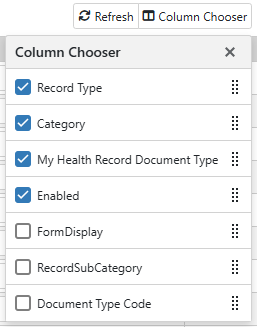
To see the original FormDisplay and RecordSubCategory values, add these columns using the column chooser.