
How to create a Bank Deposit
The Bank Deposit screen is used to manage the banking of cash, cheques and manual credit card vouchers for the practice. It lists all payments that need to be banked, lets you group them into a deposit, and tracks the deposit through to bank reconciliation.
Opening the Bank Deposit screen
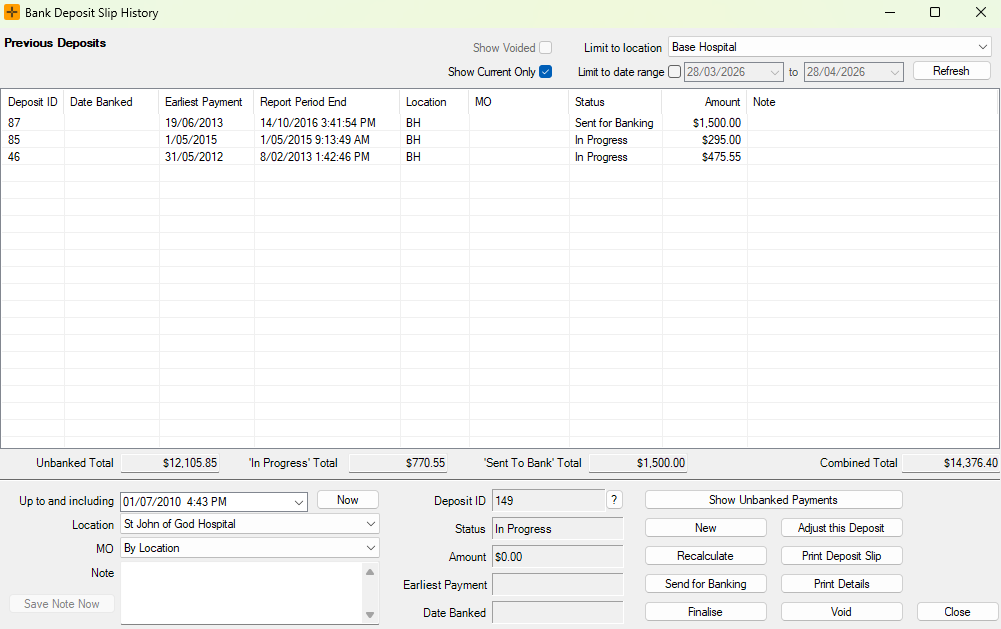
Navigate to Accounts > Bank Deposit. The Bank Deposit Slip History screen opens, showing existing deposits and a totals summary at the bottom of the table for Unbanked payments, In-Progress deposits, Sent to Bank deposits, and a Combined Total.
Creating a new bank deposit
You can create a bank deposit either from the Unbanked Payments Summary (recommended) or directly from the Bank Deposit Slip History screen.
From the Unbanked Payments Summary
- On the Bank Deposit Slip History screen, click Show Unbanked Payments.
- Review the payments that have not yet been included in a deposit.
- Click Create Bank Deposit.
The new deposit appears in the Deposit List with a status of In-Progress.
Directly from the Bank Deposit screen
- In the deposit details panel, use the drop-downs to select the billing location, MO, and the date range to include.
- Click New.
The deposit appears in the Deposit List with a status of In-Progress.
Printing the Deposit Slip
- Select the deposit in the Deposit List.
- Click Print Deposit Slip to print the slip taken to the bank.
For a more detailed list of payments included in the deposit, click Print Details instead. This is useful for internal reconciliation records.
Adjusting an In-Progress deposit
While a deposit is still In-Progress, you can adjust it.
| Action | What it does |
|---|---|
| Recalculate | Adds payments from Unbanked Payments that fit the criteria entered in the date field, and refreshes the deposit total. |
| Send back to Unbanked | Returns all payments in the selected deposit to Unbanked Payments. A confirmation prompt appears before the action runs. |
| Void | Reverses or adjusts an individual payment within the deposit. |
Once a deposit is sent for banking, the payments inside it cannot be edited, adjusted, or voided. Make all changes while the deposit is still In-Progress.
Sending the deposit for banking
- Select the deposit in the Deposit List.
- Click Send for Banking when the deposit is submitted to the bank.
The status changes from In-Progress to Sent for Banking, and the payments are locked from further changes.
Finalising the bank transaction
After the bank has processed the deposit, finalise it in HealthTrack to close the loop.
- Select the deposit with a status of Sent for Banking.
- Click Finalise.
- Enter the bank reference number and any other details from the bank confirmation.
- Save to finalise the bank transaction.
Keep the Unbanked Payments total at zero before running the Bank Deposit Listing or end-of-period reconciliation reports. Outstanding unbanked payments will distort reconciliation against bank statements.