
Multipage Document Import
Multipage Document Import combines several scanned files into a single document in HealthTrack. Use it when a patient document was scanned in pieces (for example, four separate PDF pages) and you want it stored as one file rather than multiple entries in the Documents tab.
When to use Multipage Import
- A single document was scanned across several files.
- Multiple related pages need to be filed as one record in the patient's Documents tab.
Import multiple files as one document
- On the patient's Documents tab, select Import (or press
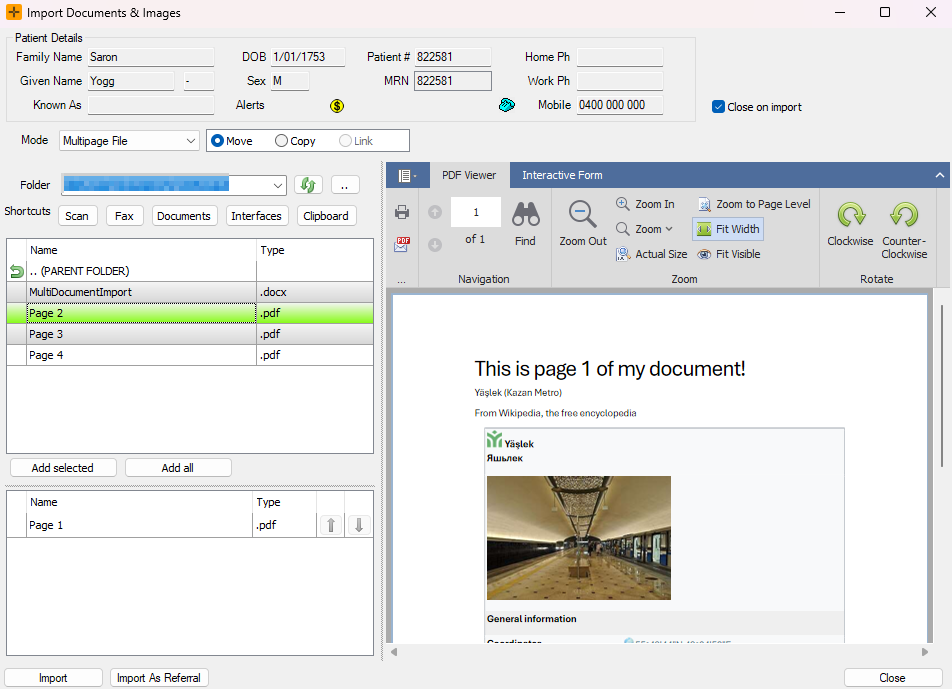
CTRL+ALT+L) to open the document import screen. - In the Mode drop-down, select Multipage File. A second list box appears below the Files list.
- Double-click each file you want to include. The file moves from the top list to the bottom list.
- If you add a file by mistake, double-click it in the bottom list to remove it.
- Use the up and down arrows next to each file in the bottom list to rearrange the page order.
- Click Import. The classification screen opens.
-
Classify the document as you would for a single-file import.
View a multipage document
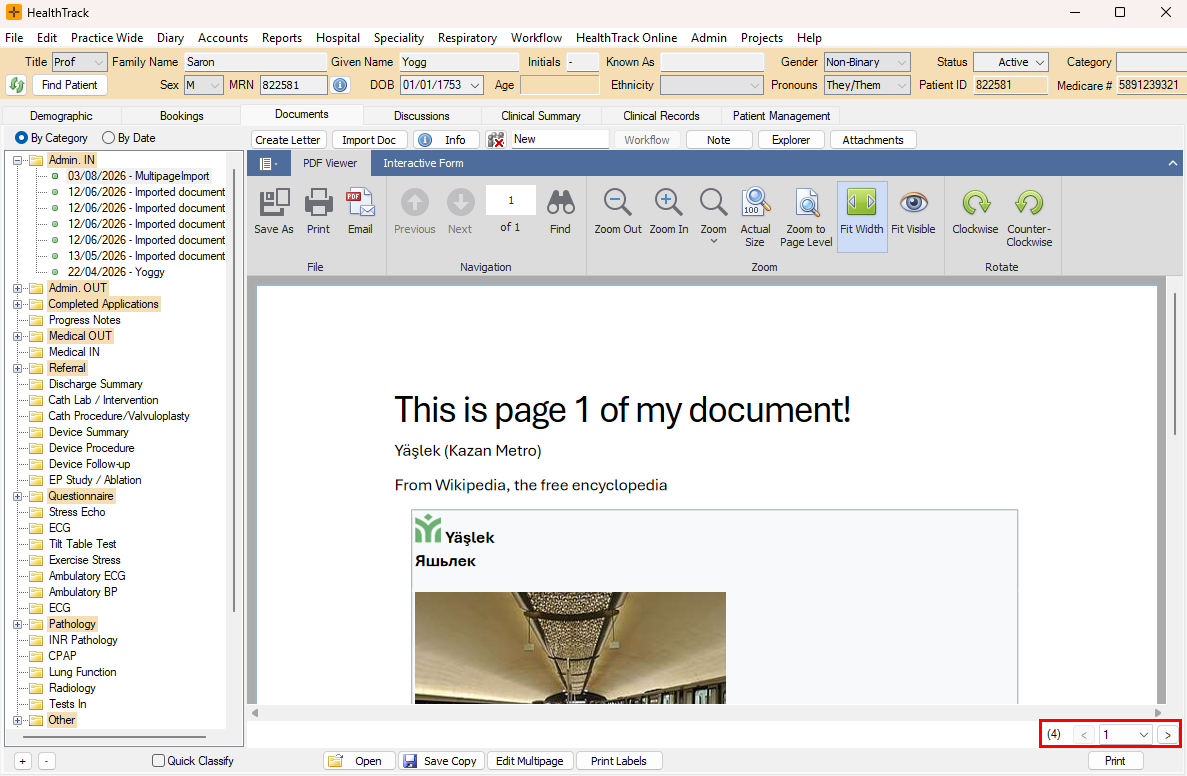
Once imported, the document displays as a single entry in the Documents tab. To navigate between pages:
- Use the left and right arrows in the bottom right corner.
- Select a page from the page drop-down.
The bottom right corner also shows the total page count.
Manage pages after import
You can change the page order of a multipage document after it has been imported. Open the document from the Documents tab and press the Edit Multipage button. Use the ModifyMultipageDocument screen to move pages up or down, then press OK.
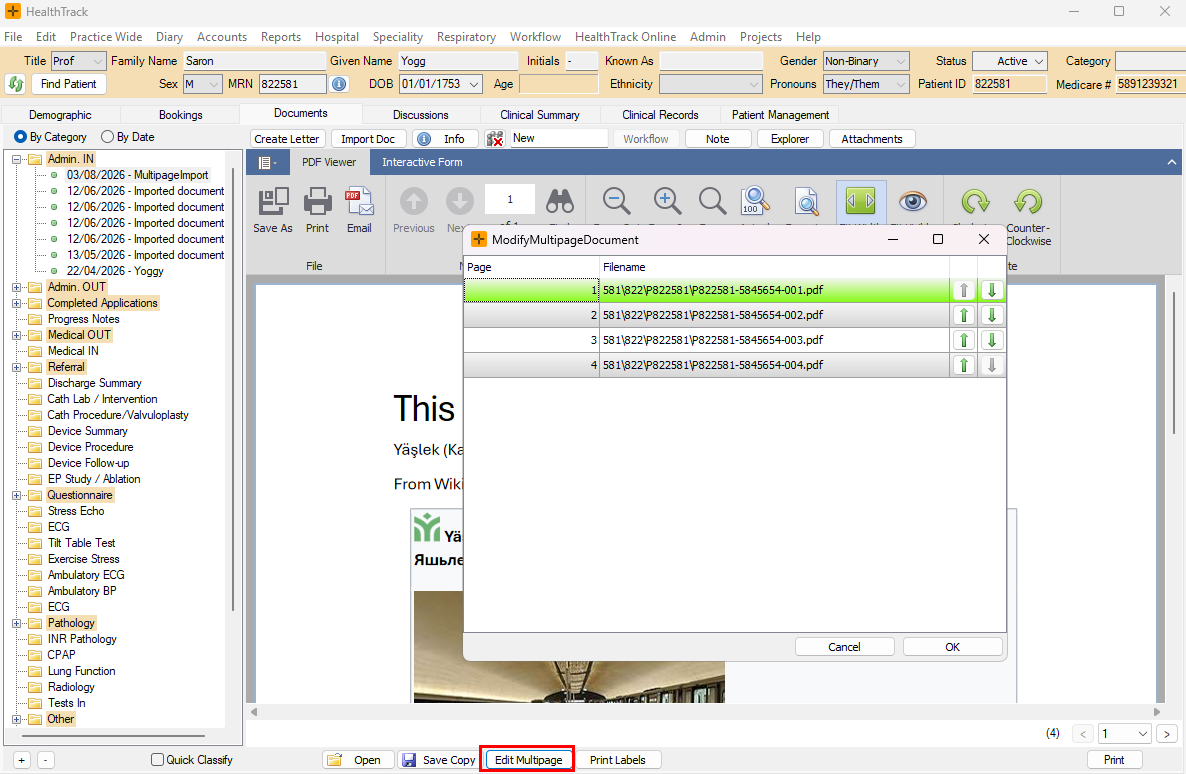
If you only need to change the page order and the pages themselves are correct, reordering after import avoids re-scanning or re-importing the document.