
Checking system status and sending logs to support
When HealthTrack is not behaving as expected, two built-in screens help you work out what is going on and give our support team what they need: the System Status screen and the About screen. This article shows you how to check the health of your system, find your HealthTrack version, and send log files to support.
Check the System Status screen
The System Status screen runs a live check of the key parts of HealthTrack, such as the file service, the message queue and the web services, and tells you whether each one is healthy.
- Go to Help > HealthTrack System Status.
- The top of the screen shows who is logged in, the computer name, the date and time, your practice's licensee name, and the HealthTrack version and release.
- Below that, each part of the system is listed with a status of Healthy or Unhealthy. A line that is not healthy includes a short description of the problem.
- An overall status appears at the end of the list.
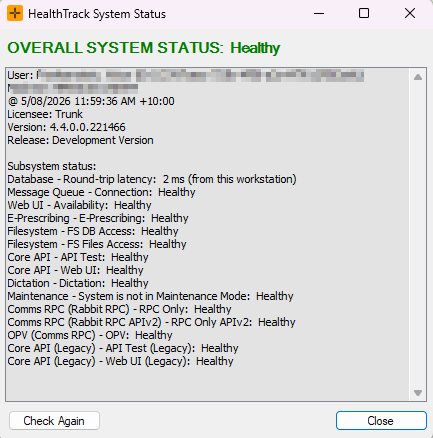
The System Status screen is also available from the HealthTrack login screen. This is handy when you cannot log in and want to check whether the system itself is the problem.
If any line is Degraded or Unhealthy, take a screenshot of the whole screen before you contact support. The description on the unhealthy line tells us where to start looking.
The System Status screen is a health check, not a performance monitor. It tells you whether each part of the system is reachable and working, but it does not show speed or capacity numbers.
Send logs to support
HealthTrack keeps a log file on each computer that records what the program has been doing. When something goes wrong, this file often shows the cause, so support may ask you to send it in.
- On the computer where the problem happened, open the Help menu and select About.
- Select Email Log to Support to send the log file to the HealthTrack support team.
- If emailing directly does not work at your practice, select Save Log File instead, then attach the saved file to your support ticket or email.
Logs are kept per computer. Send them from the workstation where the problem occurred, not from a different machine.
The About screen also has a Clear Web Cache button. Leave this alone unless support asks you to use it as part of troubleshooting.
If you see a maintenance message at login
If HealthTrack shows the message "HealthTrack is currently undergoing maintenance" when you try to log in, planned maintenance work is under way and logins are blocked until it finishes. Wait and try again a little later. If the message stays up longer than expected, or you were not expecting maintenance, check with your practice administrator first.
What to include when you contact support
To help us resolve your issue quickly, include:
- A screenshot of the System Status screen if anything shows as Degraded or Unhealthy.
- The log file from the affected computer, emailed or saved as described above.
- What you were doing when the problem occurred, patient ID examples, and the exact wording/screenshot of any error message.