
How to Set Keyboard Shortcuts for Letter Templates
A letter shortcut is a key combination that opens a new letter from a chosen Letter Template for the current patient. Instead of clicking Create Letter and selecting the template from the list, press the shortcut and start writing.
Shortcuts are set per user in File > User Preferences. Each user chooses their own keys and their own templates. Two users can assign different keys to the same template.
The Letter Template must exist before you can assign a shortcut to it. If a template is missing from the list, ask your practice manager or HealthTrack support to add it in Admin > Letter Template Manager.
Set a letter shortcut
-
Navigate to File > User Preferences.
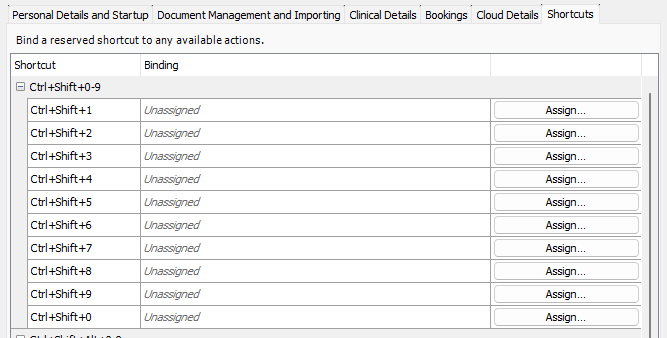
- Open the Shortcuts section.
- Select the key combination you want to use, for example
Ctrl+Shift+1. - Select the Letter Template that combination should open.

- Repeat for each template you use regularly.
- Click Save and Close.
- Restart HealthTrack when prompted. The shortcuts take effect after the restart.
Use a letter shortcut
- Open the patient.
- Press the shortcut. A new letter opens from the assigned template with the patient's details filled in.
- If the template uses a booking or referral tag, HealthTrack prompts you to select the booking or referral first.
Shortcuts work anywhere in HealthTrack desktop while a patient is open. They are not available in HealthTrack Online.
Change or remove a shortcut
- Navigate to File > User Preferences and open the Shortcuts section.
- Select a different template for the key combination, or clear the selection to remove it.
- Click Save and Close and restart HealthTrack.
Set up shortcuts for a practice
Because shortcuts are personal, every doctor and every admin user who wants them must set their own. Agree a standard mapping for the practice so that Ctrl+Shift+1 means the same letter on every desk, then have each user enter it once. A printed card listing the mapping alongside the standard HealthTrack shortcut keys helps in the first weeks. See HealthTrack Shortcut Keys.
Sign in as the user when setting their shortcuts. Preferences saved under another account apply to that account, not to the user at the desk.