
How to fix American spelling suggestions in HealthTrack
Some HealthTrack screens use the spellchecker built into Windows. This spellchecker follows your computer's Windows display language, not its region settings. Many computers are set to English (United States), even when the date, time and currency are set to Australia. When this happens, words such as "colour" and "organise" are flagged as spelling mistakes.
To fix this, change the Windows display language to English (Australia). These steps are for Windows 11.
For further information, consult the Change the Windows Display Language section of Microsoft's help page: Manage the language and keyboard/input layout settings in Windows.
Save your work and close HealthTrack before you start. Windows signs you out to apply the change.
Change the Windows display language
- Click Start, then click Settings.
- Click Time & language > Language & region.
- Find Windows display language at the top of the screen. On affected computers, it shows English (United States).
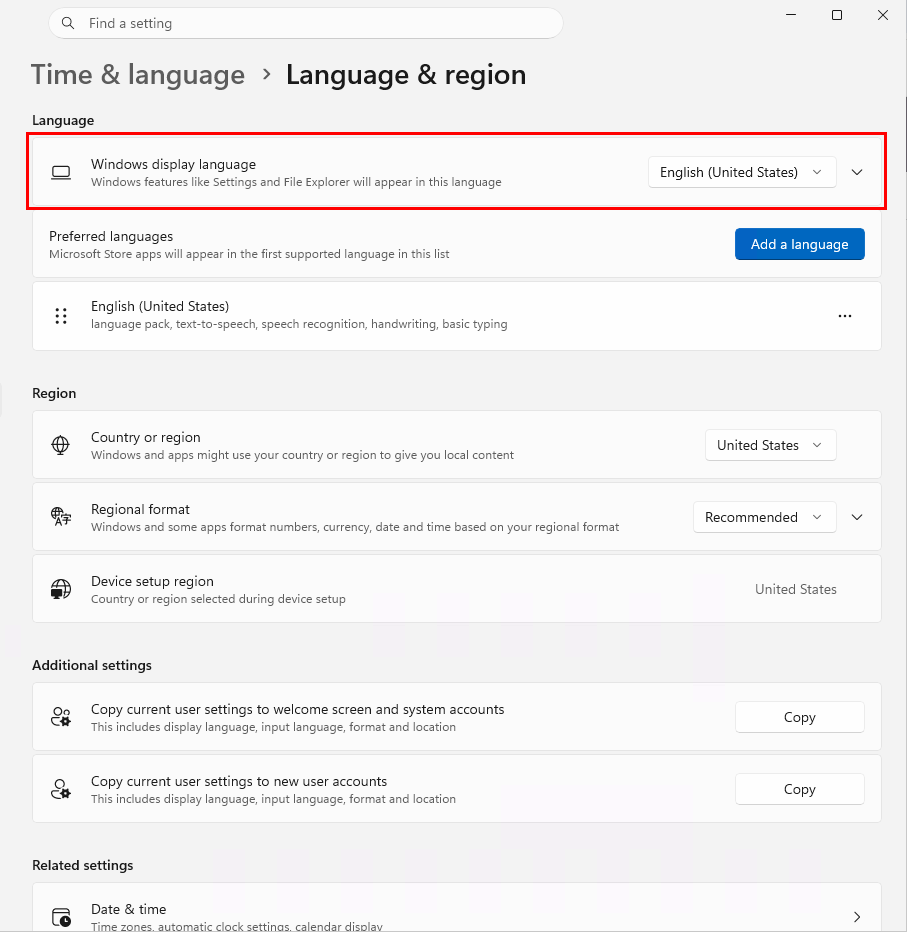
- If English (Australia) isn't already listed as one of your Preferred languages, click the Add a language button to install it.
- Click the Windows display language drop-down and select English (Australia).
- When Windows prompts you, click Sign out. If there is no prompt, click Start, click your account name, then click Sign out.
- Sign in to Windows again and open HealthTrack.
Spelling suggestions should now use Australian English.
Good to know
- This setting applies to each Windows user account. Each person who uses the computer needs to change it on their own account.
- Windows menus may change to Australian spelling. Nothing else changes.
- On a managed work computer, the Windows display language drop-down may be unavailable. If it is, contact your IT provider.
If spelling suggestions still use American English after you sign in again, contact HealthTrack Support.