
How to manage incoming referrals
Inbound referrals are recorded in HealthTrack through the Patient Management tab in the patient's file. You can attach a scanned copy of the original referral to the patient's file at the same time.
A patient can have multiple active referrals. Each new referral should be added as a separate entry - do not overwrite an existing referral.
You need access to the Patient Management screen for the patient. If the patient has no existing record, create a patient record first.
Add the referral
-
Open the patient record and go to the Patient Management tab.

-
Click New In to add a new inbound referral. The Add/Modify Referral screen opens.
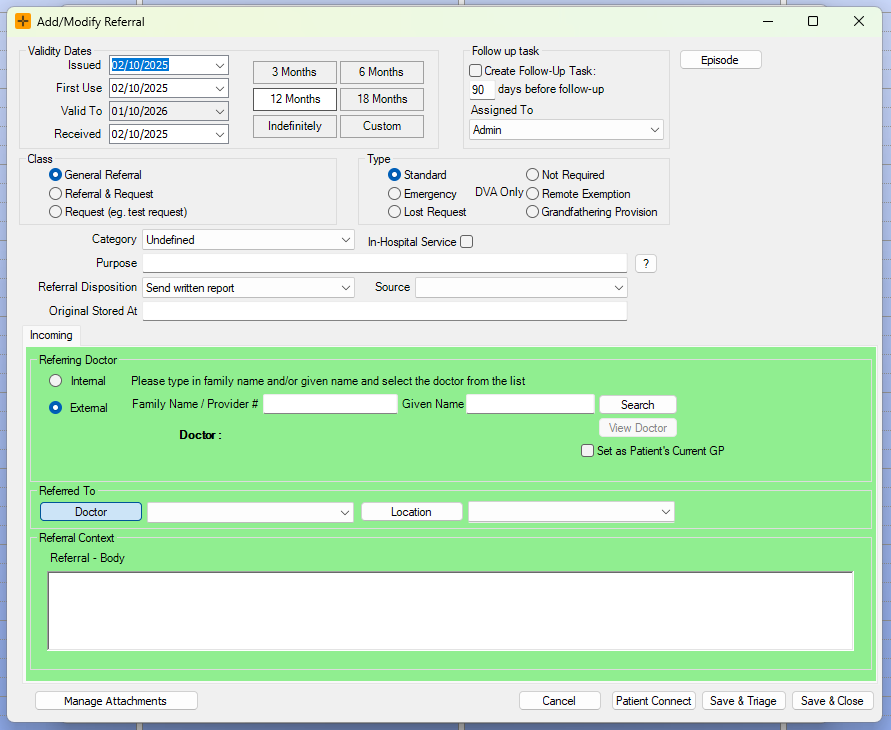
- In the Issued field, enter the date the referring doctor issued the referral.
- In the First Use field, enter the date of the patient's first appointment relating to this referral.
- Select the Valid To period: 3 months, 6 months, 12 months, 18 months, or Indefinite.
- HealthTrack calculates the expiry date from the First Use date.
The default referral period is 12 months. To set a custom date, click Custom and enter the date directly.
- Set the referral Class as General Referral, Request, or Referral Including a Test Request.
- Set the referral Type as Standard, Emergency, Lost Request, Remote Exemption, Grandfathering Provision, or Not Required.
-
If the service will be performed in a hospital, select the In Hospital Service checkbox and select the hospital from the drop-down that appears.
In the Referring Doctor section, select External and search for the referring doctor by surname or provider number.
-
Click Search or press
Entertwice. Select the doctor from the results.
-
- In the Referred To section, select either a Doctor or a Location - not both.
Attach the referral document
-
Click Manage Attachments. The Manage Attachments dialog opens.
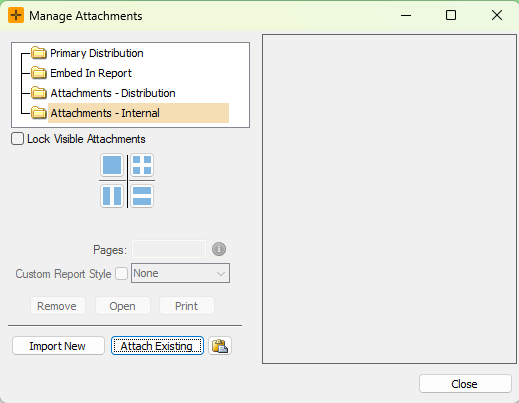
- To attach a document already in the patient's file: select Attach Existing.
- To import a new scanned document: click Import New. The document is saved to the patient's Documents tab and linked to this referral.
If you have not yet scanned the referral, you can attach it later by reopening this referral and clicking Manage Attachments.
- Click Save & Close. The referral now appears in the patient's Patient Management screen and is available for selection when making bookings or invoices.
What happens when a referral expires
HealthTrack works out the expiry date from the First Use date and the Valid To period. Once that date passes, the referral is expired - but it is not removed, and it stays attached to any bookings that already use it.
Keep these behaviours in mind:
- HealthTrack only blocks an expired referral when the booking type is set up to require a valid referral, and it only checks the dates at the moment the booking is saved. For all other booking types, an expired referral stays linked to the booking with at most a warning.
- Changing a referral's dates later does not re-check bookings that are already attached to it. If a booking was saved against a referral that has since expired (or been re-dated), this booking will not be flagged
Services billed under an expired referral are a Medicare claim rejection risk. Before billing, check the referral dates on the booking. If the referral has expired, record the patient's new referral as a separate entry and select it on the booking, rather than extending the dates on the old one.
Review referrals that have not been used
Go to Practice Wide > Unused Inbound Referrals to view incoming referrals that have not been confirmed and are not attached to any booking or invoice, listed oldest first. Use it to catch referred patients who never ended up with an appointment.

From the worklist you can:
- Double-click a referral to open and edit it.
- Confirm a referral to remove it from the list.
- Delete a referral that was recorded in error.
- Print or export the list, or send the patients on it to a patient worklist for follow-up.
Confirming a referral removes it from this list whether or not it was ever attached to a booking. Confirm means "this has been dealt with", not "this was used" - only confirm a referral once it has actually been actioned.
Cancelled bookings do not count as use. A referral whose only booking was cancelled will appear on this list again.
For instructions on How to select a referral for a Booking, review our article here.