
How to select a referral for a Booking
Selecting a Referral for a Booking
- Navigate to Diary > Open Diary or use the keyboard shortcut
CTRL+D. - Select the relevant patient and double-click to open up the Booking Form.
- In the Booking Form, go to the Referral Details section.
-
Select New In to add a new referral or Modify to update an existing one.
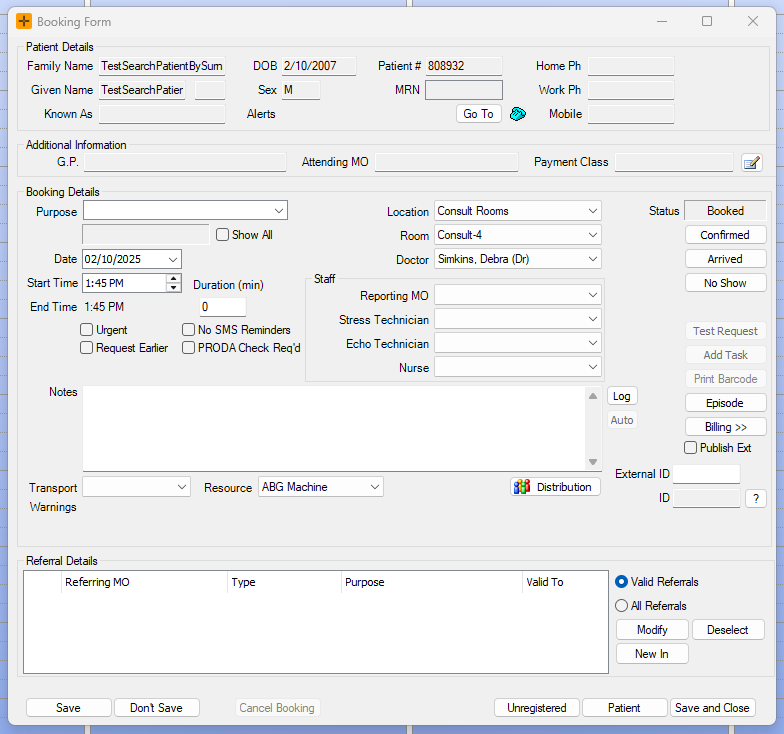
- The Add/Modify Referral screen will open.
-
Populate the screen with the relevant details.
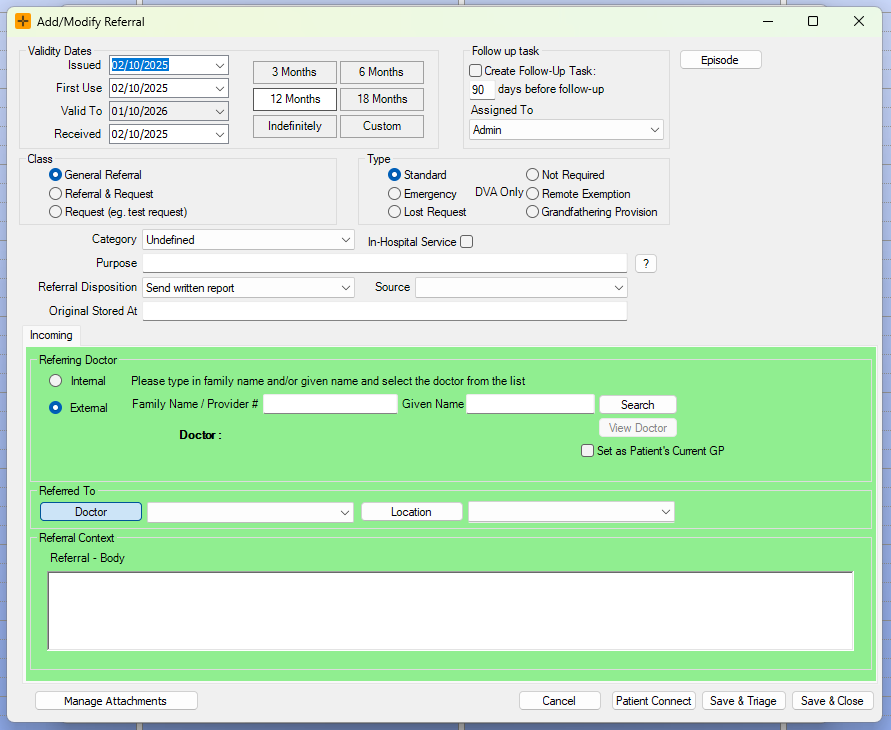
- Select Save & Close to save the referral.
Whether you can save a booking without a referral depends on the booking type. Some types let you save with a prompt, while others require a referral before you can save or close the booking. See the section below.
How referral requirements work by booking type
Each booking type carries its own referral requirement. This decides what happens when you try to save a booking that has no referral attached, or has one that is out of date.
The requirement is set at two levels:
- A practice-wide default that applies to all booking types. This can be done via Admin > Maintenance > System Settings, with the referralRequirement option.
- A per-type setting on each booking type that can override the default.
Where a booking type has its own setting, that setting wins over the practice-wide default. This is why the same practice can let you book one appointment type without a referral and block another.
There are four key behaviours:
- Warning only - You can save the booking without a referral. HealthTrack shows a dialog prompting you to add one, and you can choose to add a referral or save anyway.
- Any referral required - You cannot save the booking until a referral is attached. The referral's dates are not checked, so an expired referral still counts as one.
- Valid referral required - You cannot save the booking unless an attached referral is valid for the booking date. An expired or not-yet-started referral will not satisfy this.
- Referral required before closing - You can create and save the booking without a referral, but you cannot close the booking until one is attached.

If a patient says a referral was optional yesterday but is required today, the two bookings are most likely different booking types with different requirements.
Referral Details
In the Add/Modify Referral screen, there are a number of fields where you can enter in the referral details.
Key Details
- Issued - Date the referral was issued.
- First Use - Date of the first appointment linked to the referral.
- Valid Use - How long the referral is valid for (defaults to 12 months).
- Follow-Up Task - Create a follow-up reminder for the referral.
- Class - Categorise as General Referral, Referral & Request, or Request.
- Type - Categorise as Standard, Emergency, or Lost Request.
- In-Hospital Service - Select this checkbox if the referral is for a hospital service (select the hospital from the drop-down list).
Optional Fields
- Category - Select from the drop-down list.
- Purpose - Add details on why the referral was made.
- Referral Disposition - Specify what response is required (e.g. report back, second opinion).
Incoming Section
- Referring Doctor - Select internal or external.
- Referred To - Select either an individual doctor or a location (cannot be both).
- Referral Context - Add any further referral details.
Attaching Referral Documents
You can also attach a scanned copy of the physical referral document to the Booking.
We recommend reading the How to Import a Document article for a more comprehensive guide on the importing functionality.
- Navigate to the Add/Modify Referral screen.
- Select the Manage Attachments button on the bottom left of the screen.
- Import the scanned referral document.
- If already imported, choose the file from the list, and click Select.
- If not imported already, click Import New, and import a scanned copy of the referral to the patient Documents tab.