
How to Send Questionnaires
Questionnaires are digital forms sent to patients for completion. Two classes are available:
| Class | Description |
|---|---|
| Immediate | Sent to a specific patient with a unique URL. Typically completed before an appointment. Can be sent by SMS or email, or completed on a practice-owned device. |
| Booking Request | A single shared URL that any patient can use to submit a booking request. Does not require an existing patient record. |
Ways a questionnaire can be sent
There are two main routes for getting a questionnaire to a patient:
- Manually from the patient record. A staff member opens the patient's Demographic screen and sends the questionnaire by SMS, email, or to a practice device. The rest of this article covers this route.
- Automatically from a Patient Connect program or notification. Any SMS or email notification template that includes the Questionnaire Invite tag will generate and include a questionnaire link when the message is sent, including messages sent as Patient Connect program steps, and messages sent via a Notification Rule.
Sending Immediate Questionnaires
Send a questionnaire to a patient from their Demographic screen.
- Open the patient's Demographic screen.
- Click the Questionnaire button on the right-hand 'Actions' section.

- Select the Web tab.
- Choose Patient Mobile (SMS) or Patient Email. If the patient's contact details are recorded, these fields will pre-fill.
- From the Select Notification drop-down, select a message template.
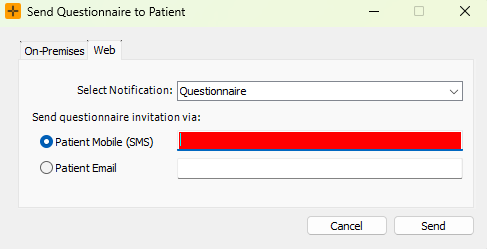
- Click Send.
- Click OK on the confirmation prompt.
The message template must include a Questionnaire Invite tag for the Questionnaire link to be included. Navigate to Admin > Notifications & Messages > Notification Manager to add this tag to a template.
Sending On-Premises Questionnaires
On-Premises Questionnaires let patients complete a form on a practice-owned device (such as a tablet) while they are at the practice.
- From the Demographic tab, click the Questionnaire button.
- Select the On-Premises tab.
- From the Select Template drop-down, choose the required Questionnaire.
- Click Create. The Send Questionnaire to Patient dialog displays a 4-digit access code.
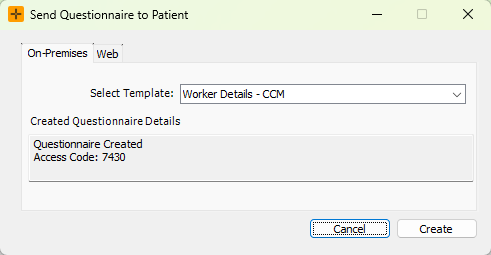
- On the practice device, open the saved Questionnaire URL and enter the access code.
- Click Submit on the device.
- Close the Send Questionnaire to Patient dialog in HealthTrack.
When the patient completes the form, the device returns to the access code entry screen, ready for the next patient.
How patients open a questionnaire
Sent by SMS or email: the patient receives a message containing a web link that is unique to them and to that questionnaire. Tapping the link opens the form in their browser; there is nothing to install. Some questionnaires also include an access PIN in the message, which the patient enters before the form opens. Links do not stay live forever. Each questionnaire has an expiry, after which the link stops working and a new questionnaire needs to be sent.
This expiry period is configurable on a per-questionnaire basis using the Max. days on the web field. See How to Create & Manage Questionnaire Templates for further details.
Completed at the practice: the patient (or a staff member assisting them) enters the 4-digit access code on the practice device. The code identifies which patient and questionnaire the responses belong to, so create a fresh code for each patient rather than reusing one.
What happens after the patient submits
- The staff member who sent the questionnaire receives a notification that it has been completed.
- The response is recorded against the patient, and a note is added to the patient's Discussions tab.
- If the questionnaire template is set to require review, the response also appears in the Questionnaire Review list for a staff member to check and file to the patient record.
For instructions on managing Questionnaire responses from patients, review our article - Reviewing Questionnaire Responses.
Troubleshooting
The Select Notification drop-down is empty, or the message arrives without a link. The message template must contain the Questionnaire Invite tag. Only templates carrying this tag can deliver a questionnaire link. Add the tag in Admin > Notifications & Messages > Notification Manager, then send again.
The SMS or Email field does not pre-fill. The patient's mobile number or email address is missing from their Demographic screen. Update their contact details, then reopen the Questionnaire dialog.
The patient says the link does not open. The most common cause is that the questionnaire has expired - send a new one. Also check that the message went to the correct mobile number or email address, and that the patient is opening the most recent message if several have been sent.
The On-Premises tab is missing. On-premises questionnaires are switched off for your site. Contact HealthTrack support to enable them.
A questionnaire is missing from the On-Premises | Select Template drop-down. The list only shows templates that are enabled for on-premises use (and not deleted). Check the template's settings in Questionnaire Management.
The Questionnaire button is missing from the patient screen. Questionnaires are a licensed feature. If the button does not appear for any user, contact HealthTrack support to check your site's licence.
The practice device rejects the access code. Codes are created per patient, per questionnaire. Close the old dialog, create a new questionnaire from the patient's record, and enter the new code on the device.