How to use custom fields
Custom fields need to be created before they can be associated with a patient. For instructions on how to do this, review our How to create a new Custom Field article.
Field types
Custom fields are typed. When a field is created in the Custom Fields Administration screen, it is set to one of the following types, which controls the kind of value you record against a patient:
- Date
- Yes/No
- Number (whole number or decimal)
- Text
There is no dropdown or list type for custom fields. If you need a list-style field, that is the separate Coding feature, which shows in the patient header. Custom fields also cannot be made mandatory.
Adding a New Custom Field to a Patient
- Go to the patient's Clinical Summary tab.
-
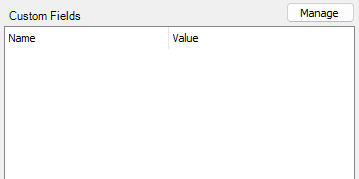
Select Manage in the bottom right section.
-
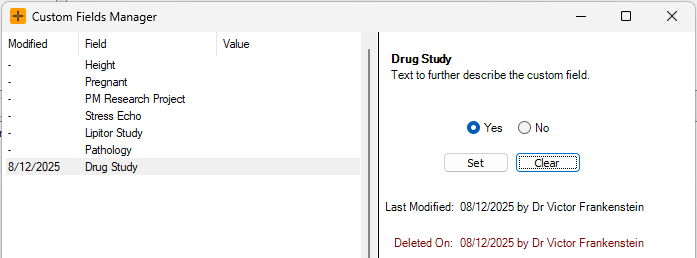
In the Custom Fields Manager screen, select the custom field to be added.
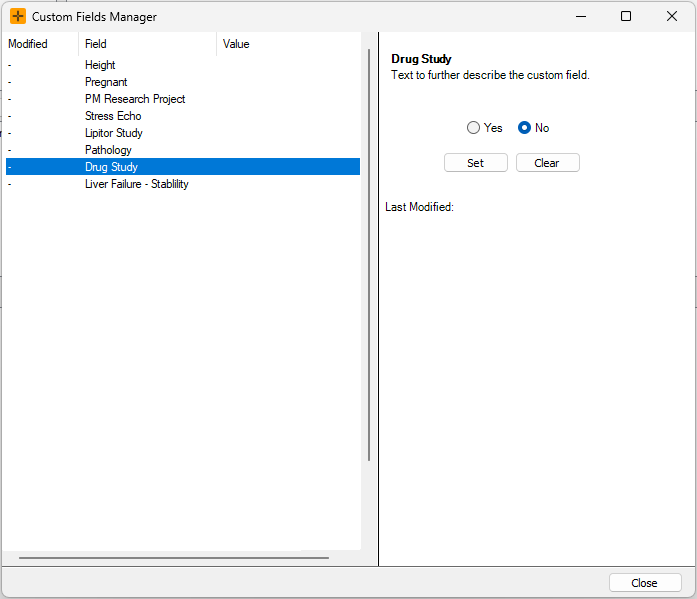
- Choose the value for the custom field and select Set.
- Once all required custom fields have been added, select Close.
-
The custom field/s will now display in the Clinical Summary screen.
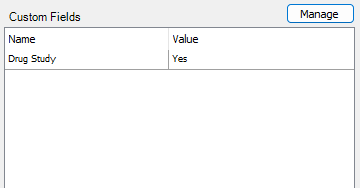
To remove an existing custom field from a patient, select Clear. It will now display the user who deleted the custom field and what date it was deleted.
Viewing Alerts for Custom Fields
A custom field only raises an alert when the Alert User checkbox has been selected for that field in the Custom Fields Administration screen and the patient has a qualifying value recorded. A couple of things affect whether the alert shows:
- Yes/No fields only alert when the value is set to Yes.
- The alert only shows while the value is within the field's valid-from and valid-to dates, set on the field definition.
Turning Alert User on for a field re-checks the alert across every patient who has a value for that field, so alerts can start appearing for existing patients once the setting is enabled.
Booking Form
- When the Alert User checkbox has been selected in the Custom Fields Administration screen, an alert will be displayed in a red box in the booking form.
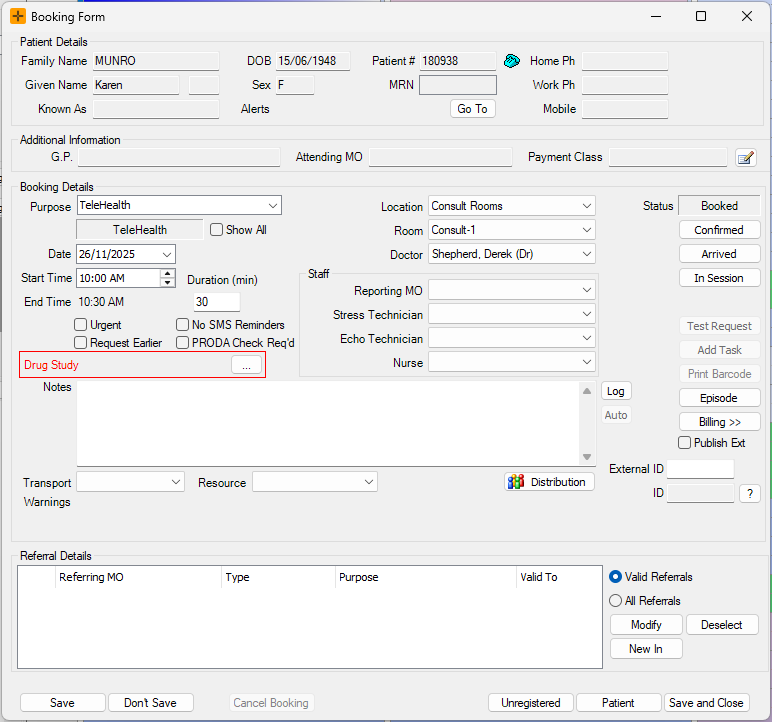
If there is more than one custom field for a patient, the user can view the full Custom Fields Manager screen via the '...' icon.
Diary
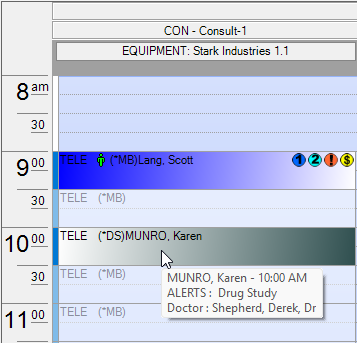
- When the Alert User checkbox has been selected in the Custom Fields Administration screen, in the diary, the booking for that patient will display a colour gradient.
- To view the alert, you can hover over the booking in the diary.