How to merge duplicate patients
HealthTrack allows users to merge patients that may have been accidentally entered into the system more than once.
Merging patients means that the new patient's details are combined with the original patient's record, and the new patient is deleted in HealthTrack.
Treat every merge as permanent. A merge cannot be undone from within HealthTrack. If the wrong patients are merged, contact HealthTrack support as soon as possible - support can partially reverse a merge, but some details may not be able to be restored. Check both records carefully before you confirm.
A patient who is the account holder for a family account cannot be the record that gets deleted. If HealthTrack will not complete the merge for this reason, change the account holder to another family member first, then run the merge again. For the steps, review our article: How to change the account holder.
Merging by Patient ID
- Navigate to Admin > Merge Patients > Merge Patients by ID.
-
In the ADMIN - Merge Patient screen, enter the corresponding Patient ID numbers into the 'Patient to keep' and the 'Patient to delete' fields.
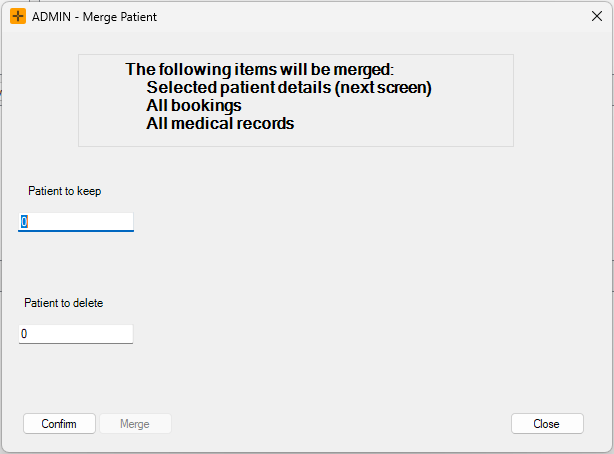
- Select Confirm.
-
A summary of the two patients' details will appear.
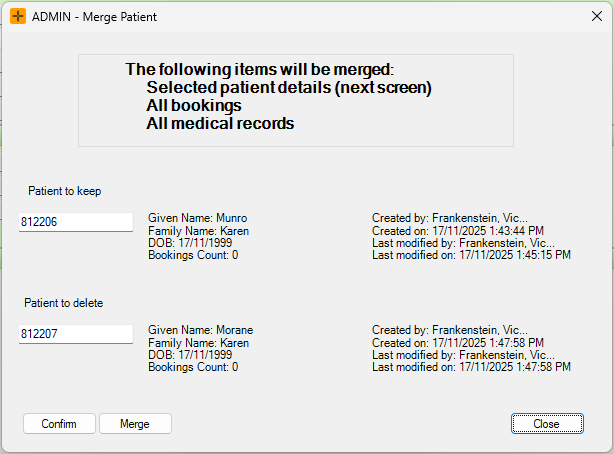
- If the details are correct, select Merge.
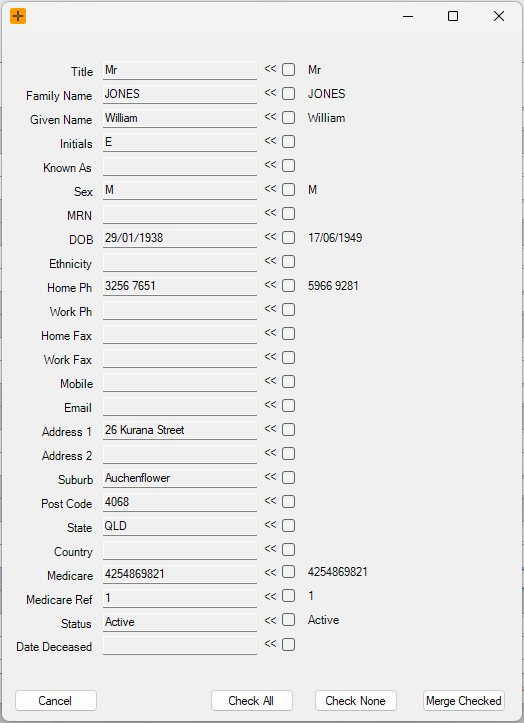
- A window will appear outlining matching details between the two Patient IDs.
-
Select the checkboxes as required or alternatively select Check All or Check None.
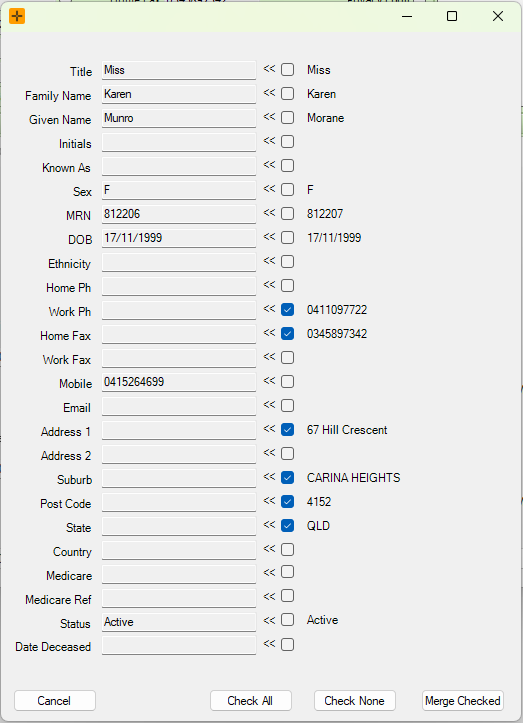
- Once all details are confirmed, select Merge Checked.
-
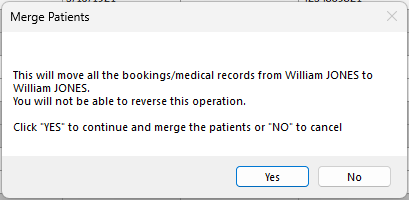
An additional Merge Patients screen will open to confirm the merge.
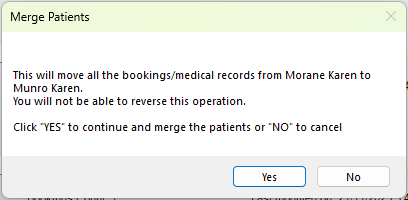
- Select Yes to merge the patients.
Merging via the Patient Merge Manager
-
Navigate to Admin > Merge Patients > Patient Merge Manager.
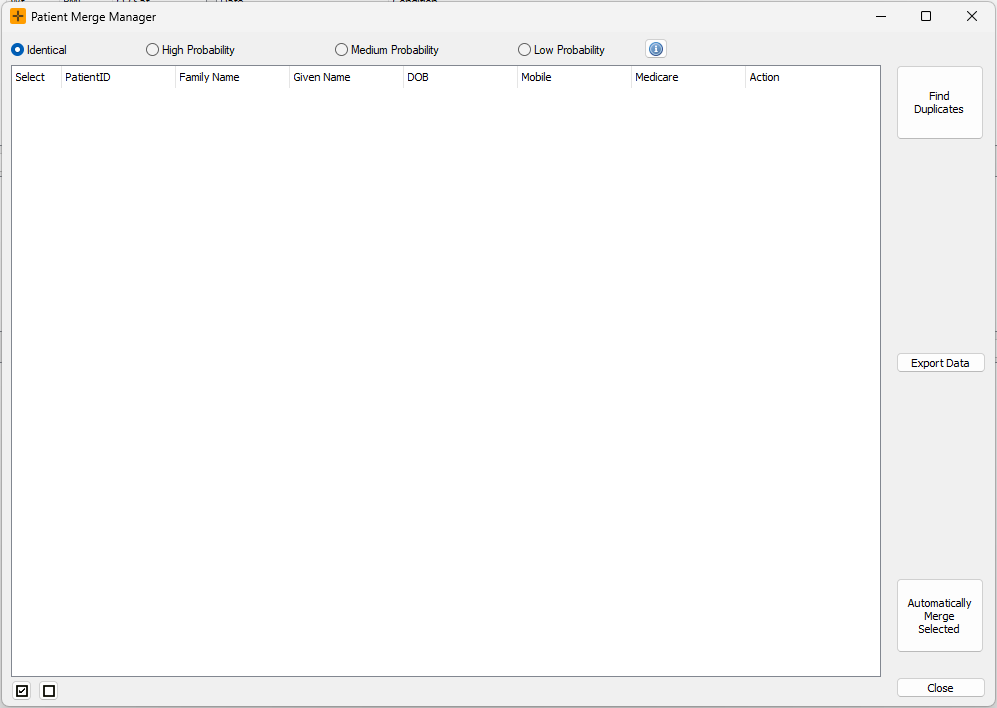
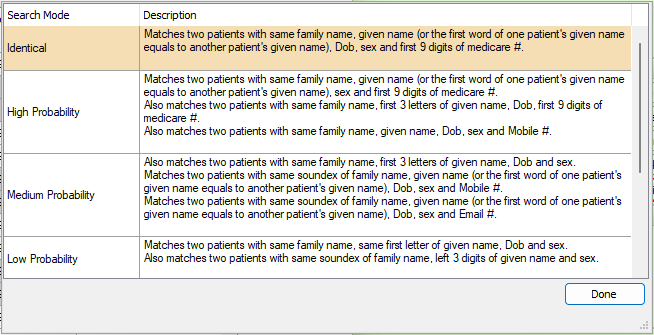
Select the appropriate 'Search Mode' to analyse patient records.
-
The below screenshot is accessible via the blue 'i' icon in the Patient Merge Manager screen.
-
-
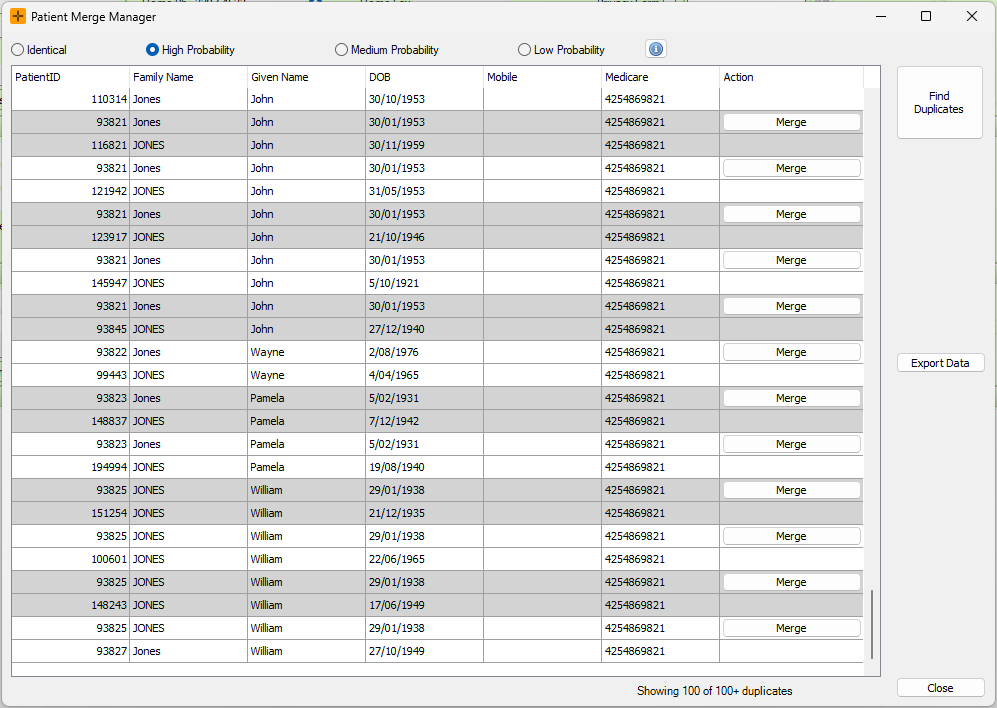
Select the Search Mode and click Find Duplicates.
-
For the 'Identical' Search Mode, there is an Automatically Merge Selected button.
For alternate Search Modes, select the Merge button next to the 2 duplicate records.
-
This will open the selection screen where you can choose what data is to be merged.
-
- Once all details are confirmed, select Merge Checked.
-
In the additional Merge Patients screen that opens, select Yes to merge the patients.