
How to change how the Diary is displayed
The diary can be displayed in four different views. Use the Display Settings panel in the left sidebar of the diary to switch between them and adjust the time slot interval.
Diary view modes
The table below describes each view and when to use it.
| View | Column Headings | Best for |
|---|---|---|
| Day/Room | Location short name + Room Name (e.g. Theatre 1 in General Hospital = GH - Theatre 1) | Booking multiple appointments at the same location on one day |
| Day/Person | Doctor Name | Viewing all appointments for each doctor on a specific day |
| Week/Person | Doctor Name | Viewing a doctor's schedule across an entire week |
| Week/Room | Room Name | Viewing all bookings in a room across a week |
Changing the Diary view
- Open the Diary via:
- Diary > Open Diary.
- The Diary button in the Actions section in the Demographics screen.
- Shortcut:
CTRL+D.
-
In the left sidebar, locate the Display Settings section.
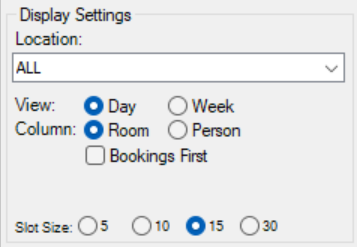
- Select a view option: Day/Room, Day/Person, Week/Person, or Week/Room.
- Use the Location drop-down to filter by a specific location, or select All to display all locations.
-
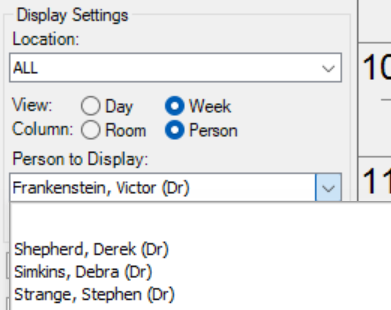
For Week/Person or Day/Person view, a second drop-down appears. Select the doctor or person to display.
How many columns show at once
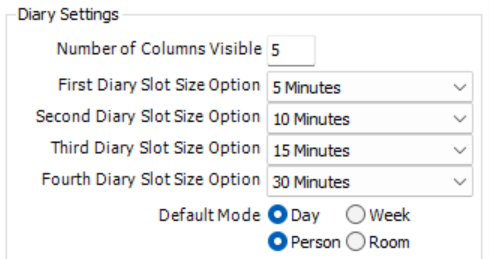
The Diary displays a set number of columns at a time. The default is 4. Any further doctors or rooms are still loaded; they sit off-screen to the right. Use the horizontal scrollbar at the bottom of the Diary grid to reach them.
You can change how many columns display at once via the User Preferences screen on an individual basis.
Adjusting slot sizes
Slot sizes control the minute intervals of the time slots in the Diary columns. There are four slot size options.
To change the slot size:
- Go to File > User Preferences.
- Update the slot size setting option drop-downs as preferred.
- Select Save and close.
A doctor or room is missing from the Diary
If a doctor or room you expect to see is not showing, work through these causes in order.
| What you see | Likely cause | What to check |
|---|---|---|
| The column exists but is not on screen | The column is past the visible column cap | Use the horizontal scrollbar at the bottom of the grid, or increase your visible columns setting |
| Columns keep changing order | The bookings-first option floats columns that have bookings to the left | This is by design; columns without bookings move right, not away |
| A doctor never appears in the Person views | The doctor is not set up to show in the Diary | The doctor must be an internal doctor, marked visible, and hold a current provider number entry for the location. See Setting Up a New Doctor |
| A room is missing on some days only | The room is not available on that day | Check the room's availability dates and open hours in the location and room setup |
| A whole location is missing | Your user account does not have access to that location | Ask your administrator to review your location access |