
How to make a Roster
Use the rostering system to assign staff to specific times and locations in the diary. This determines which doctor or technician is recorded as the owner of clinical records when no doctor is directly booked against an appointment.
When HealthTrack assigns an owner to a clinical record, it uses the following order of precedence:
- Booking has a Doctor assigned - that doctor is used.
- Booking has no Doctor assigned - the Roster Doctor is used.
This same precedence applies when a booking is closed for billing.
To use Roster Mode, users need the DiaryEditRoster permission. This is assigned to the HMS-DiaryAdmin security group by default.
Rosters do not create bookable time
A roster records who is on duty. It does not open appointment slots in the diary. Bookable time comes from diary templates, which are set up separately.
If a rostered doctor cannot be booked in the diary, check their diary templates. A doctor can be rostered on duty and still have no bookable slots.
Roster a doctor using Roster Mode
Use Roster Mode in the diary to assign staff to a specific time period and location. This updates all bookings in that range at once, and is useful for covering absences or rostering doctors who are not booked directly against appointments.
- Open the diary for the relevant location.
-
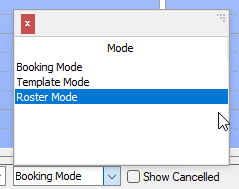
At the bottom right of the diary, select Roster Mode from the mode selector.
-
Double-click in the diary to add or modify a roster item.
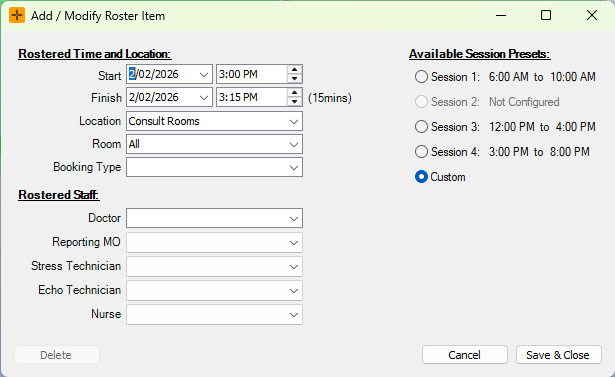
- Under Rostered Time and Location, enter the relevant details.
- Optionally, click a slot under Available Session Presets to populate the time range automatically.
- Under Rostered Staff, select the staff to assign for the period.
-
Click Save and Close.
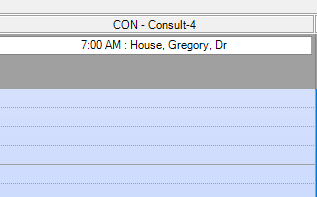
Bookings with a status of Cancelled, No Show, or Closed are not affected when a roster is applied.
Manual roster changes and recurring templates
You can configure recurring rosters using templates if you have consistent staff rotations. For instructions on this, review our article - How to setup recurring Roster Templates.
Applying a recurring roster template set over a date range first removes the set's existing rosters in that window, then re-creates them from the template. Any manual changes you made in Roster Mode within that window are lost. If a roster change needs to survive future template applies, add it to the template instead, or re-do the manual change after each apply.