
How to add a new Location
- Navigate to Admin > Locations and Rooms > Locations and Rooms Manager.
-
In the Locations and Rooms Manager screen, select New and populate the details.
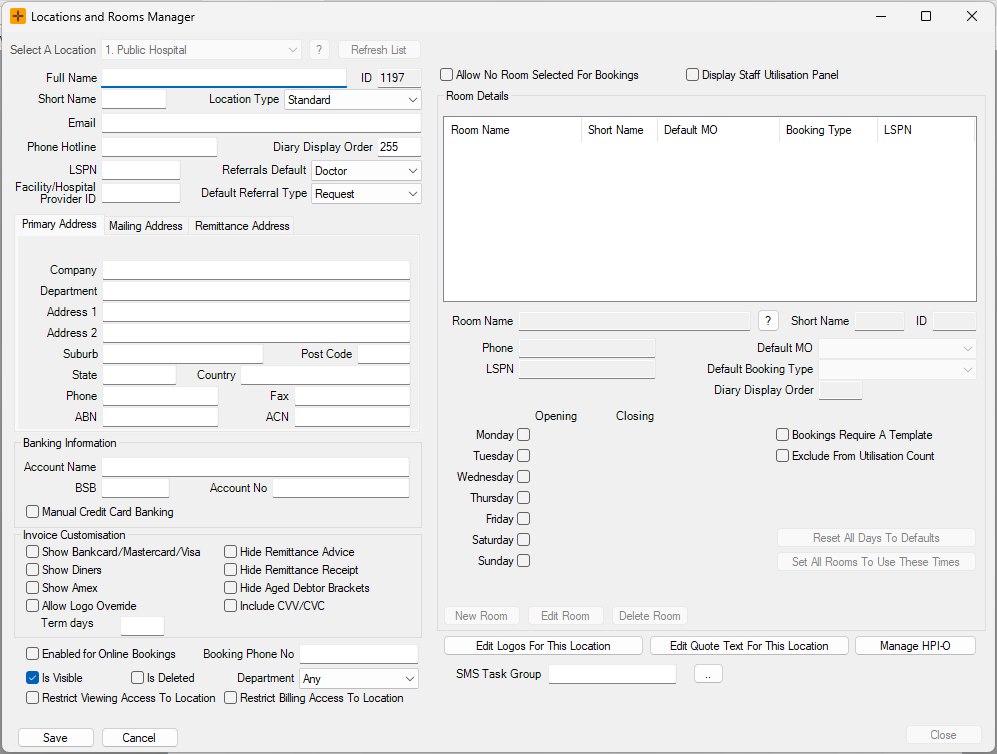
Location Details
- Full Name: displayed in location box where appropriate in HealthTrack.
- ID: automatically assigned to a location in HealthTrack.
- Short Name: location name which appears in the diary.
- Location Type: select from the drop-down list of location types. The characteristics of these location types are outlined below:
|
|
Diary | Billing | Clinics | Hospital Lists | Clinical Records |
|---|---|---|---|---|---|
| Standard | Yes | Yes | Yes | No | Yes |
| Hospital | Yes | Yes | Yes | Yes | Yes |
| Clinic | Yes | Yes | Yes | No | Yes |
| External | No | Yes | No | No | Yes |
External locations do not appear in the location list on the logon screen, so they cannot be set as a user's working location.
- Diary Display Order: where the location should appear in the diary. For example, a 'main' location should appear as '1', meaning that it would be first on the 'Selection A Location' list and would also appear first in the diary.
- Banking Information: location banking details and information displayed on associated invoices/receipts.
- Invoice Customisation: provides options to customise details on invoices/receipts.
- Is Visible: if this checkbox is selected, the location will be visible throughout HealthTrack.
- Restrict Viewing/Billing Access to Location: these checkboxes can be selected to restrict viewing and/or billing access to the location.
When you select a restrict-access checkbox, the location disappears from everyone's location lists until each user is granted access, including your own. HealthTrack shows a warning when you select it. Grant access through the Location Permissions editor, and remember that access changes on the desktop take effect at each user's next login, not straight away. If a location has vanished for all staff, an access restriction is the first thing to check.
For further information on restricting access to locations, review our How to restrict user access to a Location article.
Addresses
A location holds three address sets: its primary address, a mailing address and a remittance address. Each of the mailing and remittance addresses can be its own address, reuse the primary address, or point at another location's address.
When a location's address points at another location, the link is live. Editing the referenced location's address updates the address printed for every location that points at it. This is by design, but it can be a surprise.
If letters or invoices for one site start showing another site's address, check whether its mailing or remittance address is pointing at another location.
Deleting or hiding a location
A location cannot be deleted while it still has:
- outstanding (open, unreversed) invoices, or
- future bookings.
If either applies, the deletion is refused with one combined message. Resolve the outstanding invoices and future bookings first, then try again.
Deleting a location is a soft action. The location is flagged as deleted rather than removed, so historical records keep resolving to the correct location name and location IDs are never reused. To take a location out of everyday use without deleting it, clear the Is Visible checkbox.
Deleting a location converts any letter templates that belonged to that location into global templates, so they become available everywhere. HealthTrack warns you before it does this. If templates from a closed site start appearing at other locations, this is the likely cause.
Adding a New Room
- Select the location, choose Edit and click New Room.
- Populate the Room Details (i.e. Room Name, Phone, Default MO, LSPN, Default Booking Type).
- You can also set the working hours of the room by selecting the 'day' checkboxes and updating the Opening and Closing times. Selecting Reset All Days to Defaults will revert it back to a default set in HealthTrack.
- After all details have been populated, select Save.
- HealthTrack will need to be restarted for any changes to Locations and Rooms to take effect.
A room cannot be deleted once any booking or DICOM worklist entry has referenced it. Rename the room instead of deleting it.