
How to add Booking Types
Booking types are the appointment categories used in the diary. They control the default duration, colours, referral requirements, billing behaviour and notifications for each kind of appointment.
Adding a booking type
-
Navigate to Admin > Diary & Booking > Booking Types.
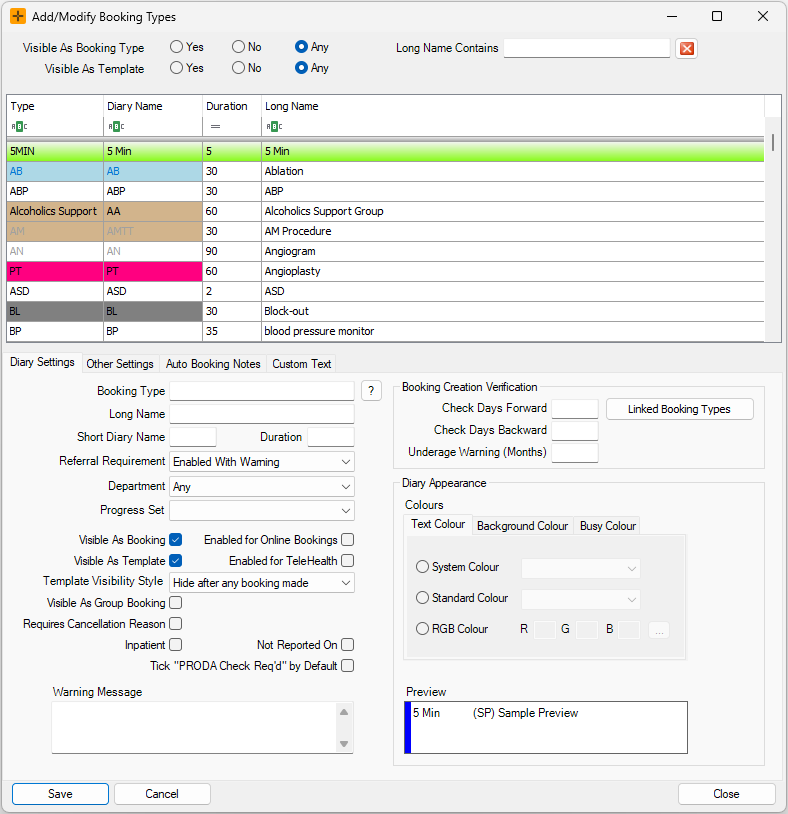
- In the Add/Modify Booking Types screen, select New.
- Populate the booking type details as required, then save the booking type.
Choose the Booking Type code carefully. It cannot be changed once the booking type has been saved. See "Renaming and removing booking types" below.
Booking Type Details
Diary Settings
- Booking Type: unique code for the booking type (cannot be selected for multiple booking types). This code cannot be changed after the booking type is saved.
- Long Name: populates in drop-down list when creating a booking and in some HealthTrack reports.
- Short Diary Name: displayed in the Diary and in various booking listings.
- Duration: default time for booking (and template).
- Referral Requirement: multiple options and can specify whether a warning is mandatory etc.
- Department: if multiple departments are set up, you can specify which department the booking type is for.
- Visible As Booking Type: select this checkbox to confirm it can be used as a booking type.
- Visible As Template: select this checkbox to confirm it can be used as a booking template.
- Non-Reporting: select this checkbox to ensure it is not included in booking type reports.
Other Settings
- Billing Options:
- Automatic No Charge: enables bookings to be closed without requiring an invoice to be raised.
- GST override: all accounts created for this booking type will have GST included when this checkbox is selected.
- Associated billing group/item: to specify an item number/billing group to a booking type which is automatically added to the invoice for that booking.
- Invoice Item Auto-Add: allows for a particular item number to be automatically added to the invoice.
- Communications:
Notification rules are not edited on the Booking Types screen. To set or modify an email or SMS for a particular booking type, go to Admin > Notifications & Messages > Notification Manager.
- Notification Rules Exist: if SMS messages are sent for the booking type, this checkbox will be selected.
- Requires Email: if an email is to be sent out for this booking type, this checkbox will be selected.
Restart HealthTrack to see a new booking type
Booking types are loaded when HealthTrack starts. A newly created booking type will not appear in the diary or booking screens until HealthTrack is restarted.
When a booking type has been added or modified, all users should restart HealthTrack to prevent any errors in the diary and booking modules.
If you have created a booking type and cannot see it when making a booking, restart HealthTrack first before checking anything else.
Renaming and removing booking types
- The Booking Type code cannot be changed after the booking type has been saved. There is no rename option, because existing bookings are recorded against the code itself.
- You can update the Long Name and Short Diary Name at any time to change how the booking type displays.
- Booking types cannot be deleted. To retire a booking type, clear the Visible As Booking Type and Visible As Template checkboxes so it can no longer be selected. Historical bookings keep the retired type's name.
- If a booking type was saved with the wrong code, create a new booking type with the correct code and retire the old one.
Online bookings
If your practice offers appointments through the online booking portal, each booking type can be configured to control whether it can be booked online.
Changes to a booking type's online booking settings (including hiding a type that is offered online) are only sent to the portal when you close the Booking Types screen. After making changes, close the screen so the portal updates.