
How to add a new cloud user
A cloud user signs in to HealthTrack through the HealthTrack Cloud Portal rather than with a local password or a Windows login. You still create the user in the desktop Security & Permissions screen. The difference is that, after you create the account, you send the person an invitation, and they set up their own sign-in in the cloud portal.
Creating a new user in HealthTrack
- Navigate to Admin > Security > Security & Permissions.
- Select Create New User at the bottom left of the screen.
-
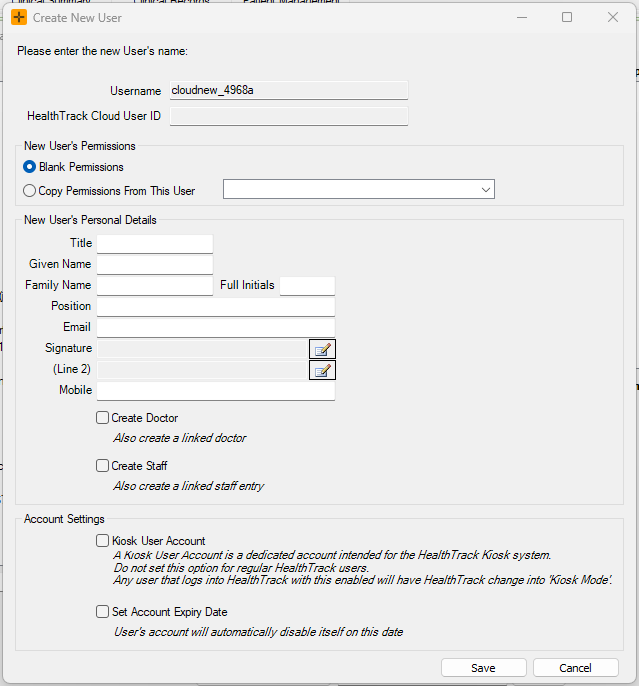
The Username field will automatically populate - no changes are required.
Under the New User's Permissions section, you can copy permissions from an existing user with a similar role by selecting Copy Permissions From This User.
-
If needed, you can also manually add permissions.
-
- Then, enter the user's personal details (i.e. email address, phone number) under the New User's Personal Details section.
A valid email address is required for a cloud user, and it must not already belong to another active user. If the email matches a user who has been disabled, re-enable that existing account instead of creating a new one.
Inviting the user
When you save the new user, HealthTrack asks whether to send the sign-up invitation by email or SMS.

- The invitation contains a short code and a link to the HealthTrack Cloud Portal, along with the email address the person must use and the date the invitation expires.
- The invitation is valid for 14 days. After that it stops working and needs to be re-sent (see below).
- If you choose not to send the invitation at save time, it is still created. You can send it later from the user's record.
Re-sending an invitation
If the invitation expires, does not arrive, or needs to go to a different address, you can send it again. Re-sending issues a new code, so the old one stops working.
- One user: right-click the user in Security & Permissions and choose to show the invitation code or send it again by email or SMS. These options appear only while the user has not yet linked their cloud account.
Setting up a Cloud Account
- The new user will then need to click here to 'Sign Up Now' to set up their cloud account.
- The user will need an email address and mobile phone for authentication purposes.
The user must sign up with the same email address the invitation was sent to. If they sign up with a different email, their cloud sign-in will not link to their HealthTrack user and they will not be able to get in. If they have already signed up with the wrong email, re-send the invitation to the email address they actually used.
For more detailed instructions, view the 'HealthTrack Cloud' section of our usability guide article - How to start HealthTrack for the first time.
What happens at the first sign-in
On the person's first successful sign-in, their cloud account is permanently linked to their HealthTrack user. From then on they sign in with their cloud credentials and manage their own password and multi-factor authentication through the cloud portal. HealthTrack does not hold their password.
After linking, a hidden, disabled copy of the original temporary account can remain in the user list. This is expected history, not a fault.
If a user cannot sign in
Most cloud sign-in problems come back to the invitation or the account status. Work through these:
- A different email was used. Sign-up only links when the portal email matches the invited email. Re-send the invitation to the address the person actually used, or have them sign up again with the invited address.
- The invitation has expired. Invitations last 14 days. Re-send it to issue a new code. Retrying the old code will not work.
- The account is disabled in HealthTrack. A disabled user cannot sign in even with a valid cloud account. Right-click and re-enable the user in Security & Permissions to restore access.
- There is no HealthTrack user yet. A cloud account with no matching HealthTrack user cannot sign in. An admin must create and invite the user first.
- The cloud service was not reachable. Sending an invitation needs the cloud service to respond. If it times out you will see an error about being unable to register the invitation. Wait a moment and try again.
Removing cloud access
Disabling a user in Security & Permissions immediately blocks their cloud sign-in and is the fastest way to stop access. Right-click the user and select 'Disable User' to disable their account.