
How to add a new user (on-prem)
You create a new user in the desktop Security & Permissions screen. How that user then signs in depends on how your site is set up for authentication, so this article covers both creating the account and what the person needs to sign in for the first time.
Creating a new user in HealthTrack
- Navigate to Admin > Security > Security & Permissions.
- Select Create New User at the bottom left of the screen.
-
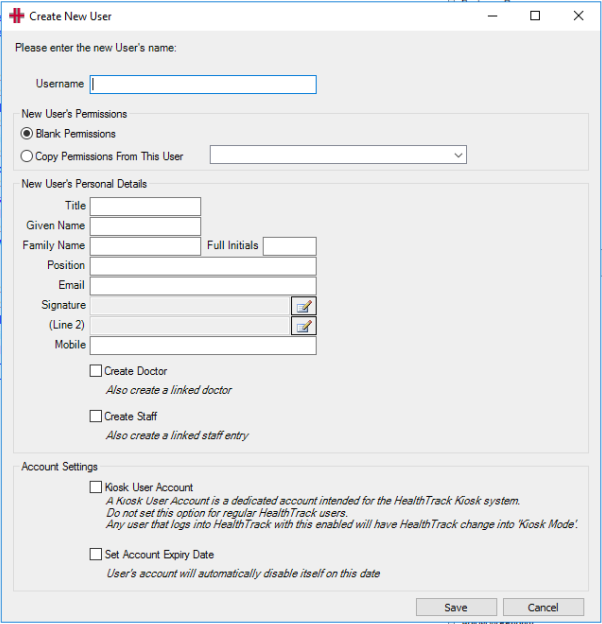
Enter the user's Windows username in the username field (see "How the new user signs in" below for why this matters).
Under the New User's Permissions section, you can copy permissions from an existing user with a similar role by selecting Copy Permissions From This User.
-
If needed, you can also manually add permissions.
-
- Then, enter the user's personal details (i.e. email address, phone number) under the New User's Personal Details section.
- Select Save.
Copying permissions takes a snapshot of the other user's groups and permissions at the moment you save. It does not stay linked, so later changes to that user do not flow through to the new one.
How the new user signs in
The username you enter and what the person needs to sign in depend on your site's authentication mode. Most on-premises sites use Windows authentication.
Windows authentication (the default)
The person signs in with their Windows session, so there is no separate HealthTrack password prompt. HealthTrack matches their Windows login name to the username on their HealthTrack account.
- Enter the user's Windows username in the username field when you create the account.
The username must match the Windows login name exactly. If it does not match, the person cannot sign in at their workstation, or they may be prompted to create a new user instead. If sign-in fails after you create the account, check the username against their Windows login first.
HealthTrack username and password
Some sites are set up so people sign in with a HealthTrack username and password rather than their Windows login. On these sites the create-user dialog does not ask for a password, so a new user cannot sign in until you set one.
- Create and save the user as above.
- In Security & Permissions, right-click the new user and choose Set Password.
- Enter an initial password and confirm it. The user can change it later from the Set Password menu item once they have signed in.
If you are not sure which mode your site uses, contact HealthTrack support before creating the account.
If a user is locked out
If a site enforces a limit on failed sign-in attempts, a user who enters the wrong password too many times is locked out and sees a message to contact their system administrator.
- Lockout does not clear on its own after a wait. An administrator has to clear it.
- To clear a lockout, right-click the user in Security & Permissions and choose Set Password. Setting a password resets the failed-attempt count and lets the user sign in again.
There is no self-service "forgot password" for a HealthTrack username and password. A forgotten password is always cleared by an administrator using Set Password.
For more instructions, view the 'HealthTrack On-Prem' section of our usability guide article - How to start HealthTrack for the first time.