
Add a Test Request Form
When ordering pathology, radiology, or other test requests through HealthTrack, each request prints on either blank paper (generating a pre-populated PDF) or vendor stationery. You can add new Test Providers via the Requests screen in a patient's Clinical Summary tab.
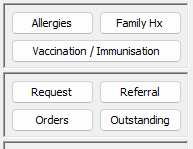
- Open the patient's record and navigate to the Clinical Summary tab.
- Click the
Requestbutton.
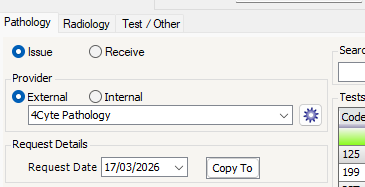
- Next to the Provider drop-down, select the 'cog' icon to open the Request Configuration screen.
- Tick the Show Deleted Providers box in the bottom left.
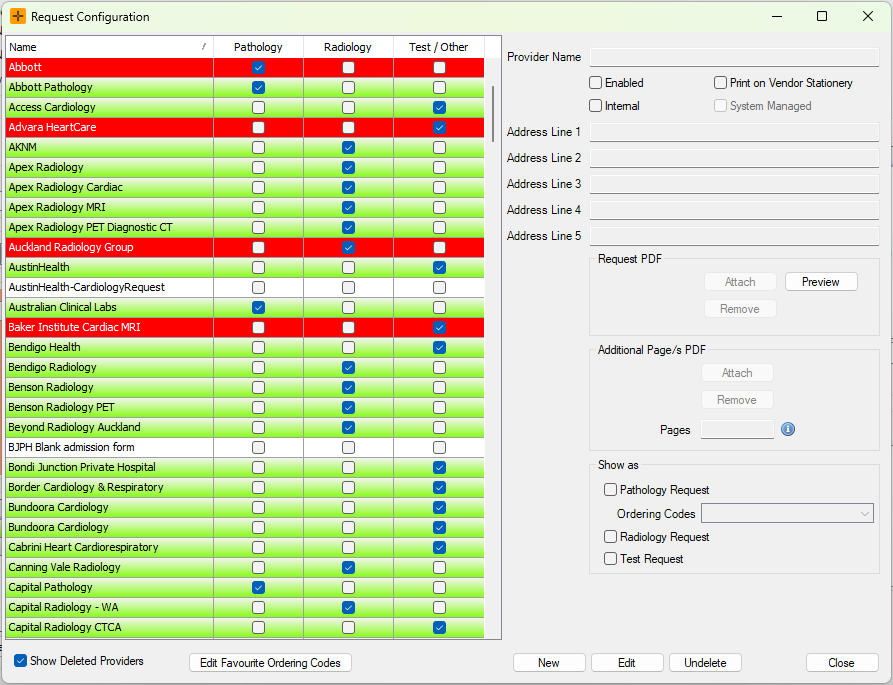
- Highlight the test provider that you would like to have available.
- Select the
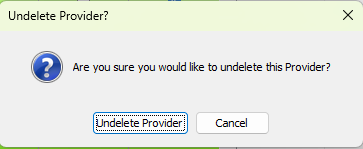
Undeletebutton at the bottom of the screen. - You will be prompted to confirm undeleting the provider; select the
Undelete Providerbutton.
- Select the
Closebutton.
Users should restart HealthTrack before utilising the new request providers.
For forms that aren't already available in the Request Configuration screen, reach out to HealthTrack Support for assistance.