
Creating Pathology & Radiology Test Requests
The Requests screen is used to create pathology, radiology, or other test requests for a patient. Access it from the Clinical Summary tab or from a Clinical Notes / General Consultations screen.
Placing a request from this screen always produces a printed or PDF request form for the patient to take to their provider or sends it to them via SMS. It does not send the order electronically.
Outstanding requests can also be viewed from the Requests window. For more detail, view our article here: How to View Outstanding Requests.
Creating a test request
- Open the patient's record and navigate to the Clinical Summary tab.
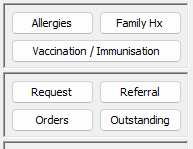
- Click the Request button.
- The Requests window opens, showing the patient's demographic details at the top and three tabs: Pathology, Radiology, and Test/Other.

- Select the appropriate tab: Pathology, Radiology, or Test/Other.
- Click in the Search Tests field and enter a test code or part of the test name.
Pathology tests can be searched by code or name. Different providers may use different names for the same test - for example, searching "ESR" returns the Erythrocyte Sedimentation Rate test, and "ANF" returns the ANA test.
Tests are selected from the catalogue, your favourites, or a test group. A test that is not in any of these lists cannot be entered as a free-text order code via the Add User Defined Test button. If a test you need is missing, contact your practice administrator about updating the list.
- Locate the test in the results list. Double-click it to add it, or select the checkbox next to it and click Add >>.
- Repeat for all tests required. Selected tests appear in the Tests to be Ordered section.

- Check the Request Date - it defaults to today's date. Change it if required.
- Enter any relevant Clinical Notes in the notes field.

- Click Place Order to submit the test request. The request form Saves as a PDF or can be sent via SMS, so the patient can take it to their pathology or radiology provider.
Click Clear Order to remove all selected tests and start the request again from scratch.
Requesting on behalf of another doctor
A request records the requesting doctor, and results are matched back to that request when they arrive. You can only select a doctor you have been authorised to request as.
Site administrators can enable this by going to Admin > Internal MO. Select the relevant doctor and choose the authorised requested from the Authorised Requestors drop-down at the top right.

Why didn't my request send electronically?
Requests created from this screen never transmit electronically - printing or sending via SMS is the intended behaviour.
User Defined Tests

Select the Add User Defined Test button to instead use the free text field to quickly list out tests to order.

Do not use any commas - simply add a single space between each test.
As per normal, click Place Order to submit the test request. The request form Saves as a PDF or can be sent via SMS, so the patient can take it to their pathology or radiology provider.
Using Commonly Ordered Test Groups
Commonly Ordered Test Groups let you add a predefined set of tests to a request in a single step, rather than searching for each test individually.
- Select the appropriate Commonly Ordered Test Group from the list.
- Double-click the group name to add all its tests to the Tests to be Ordered section.

To create or manage Commonly Ordered Test Groups, see the separate article: How to set Commonly Ordered Test Groups.