
How to setup Booking reminders
The Notification Manager controls all SMS and email notifications sent from HealthTrack to patients. It can be used to create message templates, set delivery rules, and manage when messages are sent.
Access the Notification Manager from Admin > Notifications > Notification Manager.

Notification Manager layout
The Notification Manager has three sections:
| Messages | Lists all configured message templates. Create, edit, or delete messages here. |
| Message Description | The right-hand side panel where you enter and edit the message text, subject (for emails), and insert tags. |
| Rules for Message | Defines which booking types trigger the message and when it is sent (e.g. 2 hours before a booking). |
Setting up SMS messages
The steps below create an SMS notification. To create an email notification instead, see "Setting up email messages" below.
-
In the Messages section, click New.
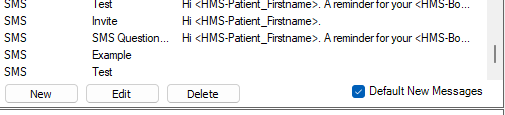
By default, Default New Messages is selected. This pre-fills the message with a standard reminder template. Clear it before clicking New to start with a blank message.
-
Enter a Description for the message - for example, an appointment reminder.
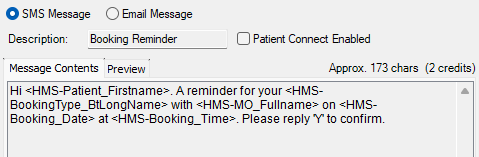
- You can see how the tags will populate in the message by selecting the 'Preview' tab.

- In the Message field, enter or edit the message text as required.
-
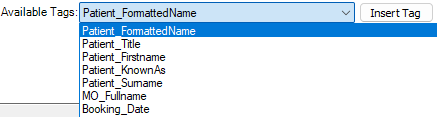
Use the Available Tags drop-down to insert patient-specific data (booking date, patient name, location, etc.), then click Insert Tag.
-
Use the Questionnaire Invites drop-down to insert any relevant Questionnaire links (patient registration, patient consent etc.), then click Insert Tag.

-
- Click Save.
- The message will now be listed in the Messages section. Click Edit at any time to modify it.
Add rules to a message
Rules control which booking types trigger the message and how long before or after the booking it is sent. A single message can have multiple rules.
-
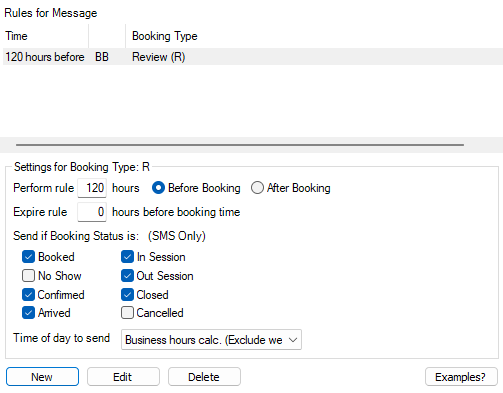
Select the message in the Messages section, then in the Rules for Message section, click New.
-
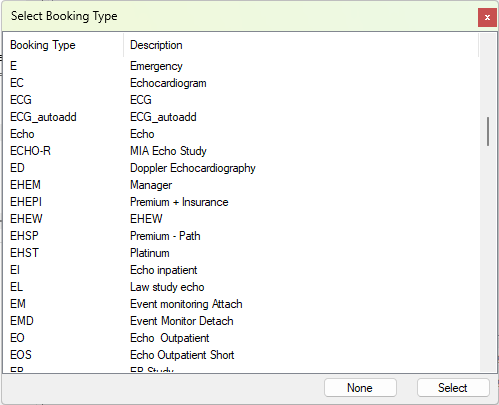
Select the booking type this message applies to from the Select Booking Type list, then click Select.
-
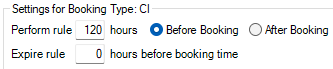
Enter how many hours before or after the booking the message should be sent and when the rule should expire.
-
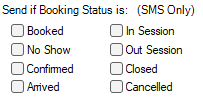
To configure the message to send when the booking is in a particular status, select any required checkboxes.
-
To restrict when messages send, click the Time of day to send drop-down and select an option.
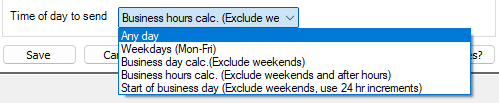
The options in the Time of day to send drop-down do not take into account public holidays. As such, regardless of the selected option, messages will send on a public holiday.
Use the Examples? button to preview when messages will be sent with each option.

Messages generated outside the allowed send window queue and send at the next allowed time.
- Select Save.
- Repeat these steps to add rules for additional booking types that use the same message template.
Edit or delete messages and rules
Select any message or rule and click Edit or Delete.
All rules attached to a message must be deleted before the message itself can be deleted. A warning appears if you try to delete a message that still has rules.

What controls whether an SMS reminder sends
An SMS reminder only sends when all of the following are true:
- The booking type is set up to send communications and has at least one rule.
- The booking is in a status allowed by the rule at the time the reminder is due.
- The patient has automated SMS enabled on their record.
- The booking is not flagged to prevent SMS reminders.
- The patient has a valid mobile number, and the location has an SMS account set up.
If a reminder cannot send, the booking status is not changed. There is no "reminder sent" or "reminder failed" status on the booking.
SMS auto-confirmation
When a patient replies to a reminder SMS, HealthTrack checks whether the reply is a confirmation. If it is and the booking is still in the Booked status, HealthTrack automatically updates the booking to Confirmed, records the confirmation date and time, and adds a note to the booking.
Each of the below SMS replies will auto-confirm a booking:
- OK
- Y
- YES
- TY
- THANKS
- THANK YOU
- CONFIRM
- CONFIRMED
Auto-confirmation applies to the SMS reminder path only. Email reminders cannot be confirmed by reply.
A confirmation only changes a booking that is still Booked. If the booking has already moved to another status, the reply is still captured but the status is not changed.
If the reply is not recognised as a confirmation (for example "NO" or "CANCEL"), HealthTrack does not change or cancel the booking. Instead it creates a task containing the message so a staff member can review it and follow up. Cancellations are always actioned manually by staff.
Setting up email messages
Creating an email message follows the same steps as creating an SMS message, with one addition: enter a subject line in the Email Subject field.

You can view sent and received SMS messages via Admin > Notifications & Messages > View Messages. For more detail review our article: How to view messages sent to a patient.