
How to add an Item Number
Non-Medicare Item numbers can be added to HealthTrack in the Add/Modify Bill Items screen. For instructions on adding Medicare items, please review our How to add a new Medicare Item article.
- Go to Admin > Billing > Add/Modify Billing Items.
- Select the New button at the bottom of the screen.
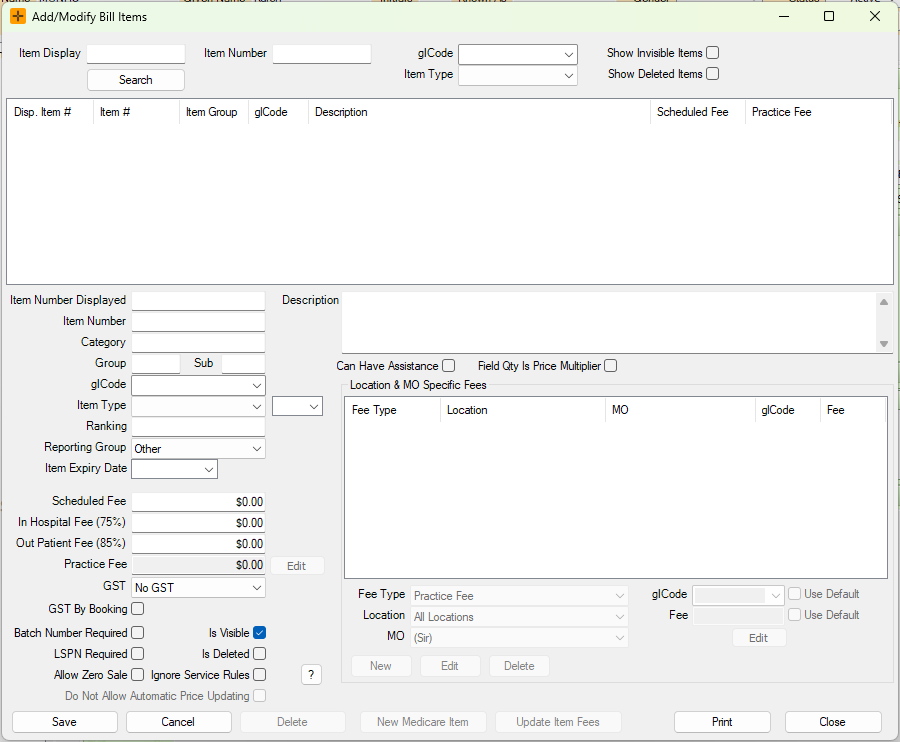
- The fields will be blank, ready to enter the new item number's details.
- Enter all required information.
- Enter the item number in the 'Item Number Displayed' field - this will automatically populate in the 'Item Number' field as well but you can change it if required.
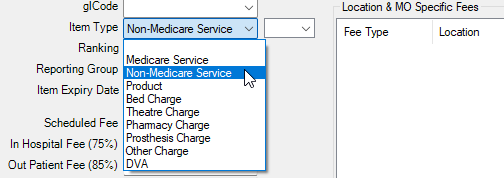
Make sure to select the Item Type field as 'Non-Medicare Service'.
- Review the check-box fields and check them if required.
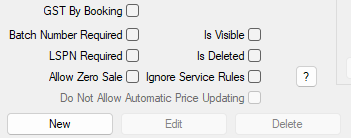
If the item requires an LSPN, make sure to tick the check-box as this will ensure that a LSPN is recorded before staff can add it to the invoice.