
How to view patient documents remotely
The Patient Documents app in the Doctor Portal lets you view clinical records for a patient on your phone, tablet, or computer, without needing to open HealthTrack.
Before using Patient Documents, make sure the Doctor Portal is installed and your Cloud Details are registered. See How to enable the Doctor Portal.
Viewing patient documents
Open the Doctor Portal on your device and select Patient Documents from the HealthTrack Apps screen.
The app displays a list of the patient's clinical records. Each row shows the record name and type.
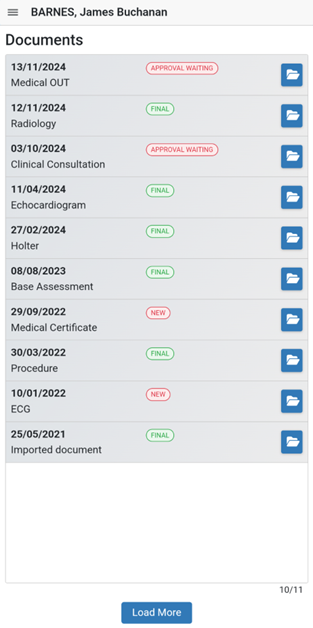
To open a record, select the blue folder icon on the right-hand side of the row. The document opens as a PDF in a new tab.
Finding a patient not in your diary
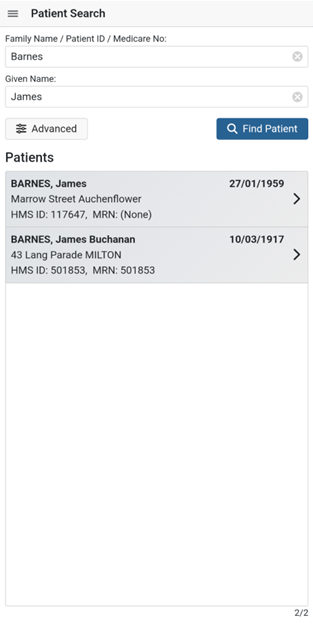
If the patient you need is not visible in the diary list, use Patient Search:
- Tap the search icon or select the Find Patient option.
- Enter one or more search fields: Family Name, Given Name, Patient ID, or Medicare Number.
- To refine the search, select Advanced to add Date of Birth or enable Sounds Like for approximate name matching.
- Select Find Patient.
- Tap the patient to open their documents.
How documents are fetched
Patient Documents does not keep a copy of the patient's records on your device. When you open a record, the app fetches it live from HealthTrack, converts it to a PDF, and opens it through a temporary, time-limited link. This means:
- Records always open as a PDF, whatever their original format in HealthTrack (for example a letter, result, or report).
- The record opens in a new tab, using your device's built-in PDF viewer.
- Because the link is time-limited, it can expire if you leave the record open for a while. If that happens, select the record again to fetch a fresh copy.
What you can view
The Patient Documents app shows records from the patient's Clinical Records tab in HealthTrack. Only records that have been saved to the patient's file are visible - you cannot create or edit records from the app.
The list always shows records for the one patient you have opened, organised by record type. Which records a portal user can open is governed by your practice's folder security in HealthTrack. To limit a portal user to certain records, set up folder-level (navigation) security in HealthTrack against the records you want to control.
The app is view-only. There is no mark-as-read, reply, or forward, and the app does not track whether a record has been opened before.