
Patient Billing in the Doctor Portal
The Doctor Portal is a HealthTrack smartphone feature for doctors. The Patient Billing app lets you record item numbers and clinical notes for hospital patients. When you discharge a patient, the billing information is sent to HealthTrack for invoicing.
Each doctor must register for Doctor Portal - for further instructions review our article here.
Billing behaviour (task assignees, patient sync) is configured via File > User Preferences in the Cloud Details tab.
Select a Practice and Location
-
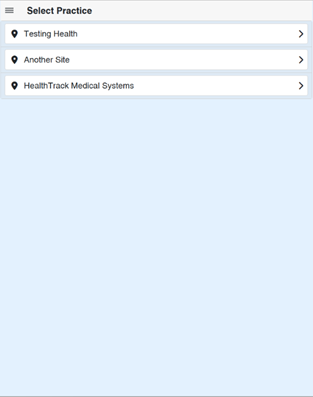
If you are registered at more than one practice, the app will prompt you to select a practice before loading the Patient Billing app. Select the relevant practice to continue.
- The Patient Billing app opens to a list of your locations. The list is filtered to show only locations where you have a provider number recorded in Admin > Internal MO > Manage Internal MOs.
- Each location shows the number of current patients. Select a location to view your patient list.

Select List All Locations at the top of the screen to see all practice locations, not just yours. To switch locations later, tap the ☰ menu and select Change Location.
Patient List
- After selecting a location, your patient list loads. By default, this includes patients booked in the last 7 days, today, and tomorrow. Patients with outstanding billing items remain listed until discharged.

- To view another doctor's patients, select List All Patients to see all patients at the location.
- Tap a patient to open their billing record.
Adding an ad-hoc patient
Patients booked through the practice sync into the app automatically and are marked as HealthTrack Managed Patients. If the patient you need to bill is not on the list yet (for example, someone seen on rounds before the booking has come through), you can add them yourself as an ad-hoc patient.
- Tap + Patient.
- Enter the patient's details.
- Add their billing items and any notes as usual, then discharge the patient when you are finished.
An ad-hoc patient exists only in the app until they are discharged. When the billing is received in HealthTrack, billing staff match the entry to an existing patient record before invoicing. Because the patient has not synced from the practice, their details in the app are editable (unlike a HealthTrack Managed Patient, whose details are read-only). See Editing Patient Details below.
Adding Billing Items
- From the patient screen, add billing items using Favourites or the New Item drop-down.

| Setting | Description |
|---|---|
| Favourites | Your favourite item numbers, kept for quick access. Tap an item, adjust the date and time if needed, then tap + Add Item . Favourites draw on the item types synced from your practice, together with a cloud MBS fee-schedule lookup, so item descriptions and fees stay current. |
| New Item | Select or type an item number not in your Favourites, adjust the date and time, then tap + Add Item . |
| Service Text | Optional field for body location, self-deemed status, or other service details. Previous entries are available for selection. |
| ⚙ (cog) | Opens Search All Items to look up item descriptions. Use + Item to make an MBS item available in the app, or + Custom to add a custom code. |
| Add Procedure | Groups multiple item numbers as a procedure. Select from Procedure Favourites and tap + Procedure to add the group. |
| Billing Items list | All items expected to be billed at discharge. Tap the pencil icon to edit an item, or the × icon to remove it. |
- When finished, tap Done to save and return to the Patient List, or tap Discharge if billing is complete.
Editing Patient Details
- Tap Edit Details from the patient screen to update patient information.

If the patient was loaded from a HealthTrack booking, they are marked as a HealthTrack Managed Patient and their details are read-only.
- From this screen you can upload up to three photos:
- Patient Info: a photo of the patient's chart, label, or picture of the patient.
- Referral Info: a photo of the referral document.
- Up to three referral photos are combined as a multi-page PDF when received in HealthTrack.
Changes to patient details do not update the patient record in HealthTrack - this information is used only to match the entry to an existing patient at discharge.
Patient Notes
- Use the Notes button to record progress notes for the patient.

- The notes area is free-text. Tap + Timestamp to add a time-stamped entry. Tap Save to save and return to the patient screen.
- Patient Notes are available in HealthTrack under Practice Wide > Incoming Billing, where they can be copied to the relevant areas of the patient's record.
- Notes can also be downloaded as a .txt file from the app.
Discharging a Patient
- Discharging sends the patient's billing and associated information to HealthTrack. The discharge screen lets you add optional follow-up items before confirming.
- In the Patient Billing app, discharging is how you submit a patient's billing to the practice. It is the submission step, not a hospital admission discharge. Once you discharge a patient, their items, photos, and notes are sent to HealthTrack for reception to invoice.

| Setting | Description |
|---|---|
| Follow-up (Add Task) | Creates a task starting in the nominated number of days, weeks, or months. Assigned to the user or group set in Billing Settings. |
| Message to Secretary (Add Task) | Creates an immediate task with a free-text message. Assigned to the user or group set in Billing Settings. |
| Message to Biller | A note displayed to the billing user when processing the incoming billing in HealthTrack. |
- Review the billing summary, then tap Discharge to send to HealthTrack. Tap Back to return to the patient without discharging.
Processing in HealthTrack
After a patient is discharged from the app, their billing transmits to HealthTrack automatically. It may take a short time to appear rather than showing up instantly.
Billing staff can then raise an invoice from Practice Wide > Incoming Billing. For the steps on the HealthTrack side, see Invoicing From Mobile Billing Transmissions.