
How to use the Away Register
HealthTrack's Away Register records when a doctor or staff member is unavailable. It suits ad-hoc, one-off unavailability such as leave, conferences, or sick days. For unavailability that repeats every week, change the person's Diary Template instead (see "When to use the Away Register" below).
Add someone to the Away Register
- Go to Admin > Diary & Booking > Away Register.
-
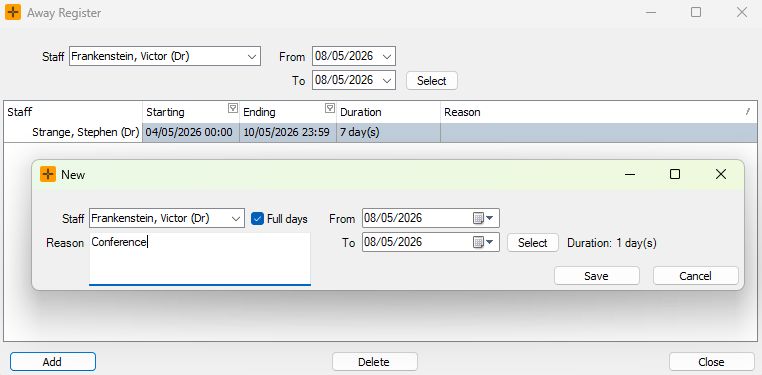
Select Add and populate the required details (staff name, time period, and reason).
-
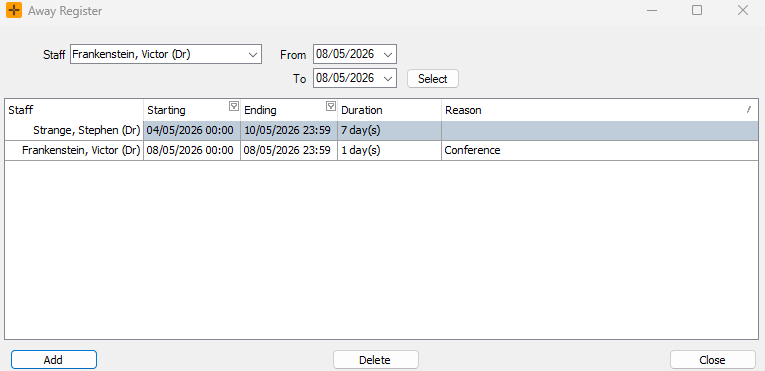
Select Save. The provider's away details now display in the Away Register screen.
When you add a doctor to the Away Register, if any clashing Diary Templates are found, a dialog appears with the option to either delete or keep the templates.

How away entries show in the Diary
When a staff member is added to the Away Register, their name is added to the top of the Diary columns to flag that they are away during the specified time period.

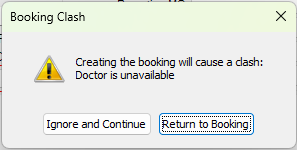
If staff try to select the away doctor for a booking during that period, a Booking Clash dialog appears.
When to use the Away Register
The Away Register is one of three ways a provider can be shown as not working. Choose the right one so the Diary stays accurate:
- Away Register - ad-hoc, one-off unavailability for an individual (leave, a conference, a sick day). Use this for a defined start and end.
- Recurring roster or schedule changes - if a provider's regular working pattern changes ongoing (for example, they stop working Fridays), edit their Diary Template rather than adding repeated away entries.
- Public holidays - practice-wide closures are handled through the practice's public holiday settings, not the Away Register. Adding a public holiday there closes the day for the whole practice rather than one person.