How to use Clinical Record Quick Bill
Clinical Record Quick Bill (CRQB) lets clinicians and authorised staff capture billing or coding directly on a clinical record, rather than maintaining a separate link between the booking, the clinical record, and the invoice. The clinical record becomes the single source of truth for what was performed and what needs to be billed.
When CRQB is in use, the clinical record drives billing. Bookings and the clinical record remain independent, and HealthTrack derives billing context from the clinical record itself.
How CRQB works
Each clinical record carries a CRQB status that tracks where it is in the billing workflow.
| Status | Meaning |
|---|---|
| Waiting | The clinical record has been created but no billing data has been captured yet. |
| Ready | Billing data capture is complete. |
| Approved | The captured billing data has been reviewed and approved. |
| Complete | The data has been billed in HealthTrack or sent to an external billing system (for example, PBRC). |
Add billing items to a clinical record
The clinician or technician completing the clinical record is best placed to capture the items to be billed. Administrative staff with the relevant permission can review and correct billing later.
- Open the clinical record.
- Select the Clinical Billing tab, and press Edit at the top right.
- Review any items displayed under the Configured Items section. If the clinical record type is configured with "Always" items, these are populated by default.
- To add an item to the invoice, click [+]. This will add the item to the invoice section at the bottom of the screen.
- To remove an item, select it and click the Del button next to the item.
- Save the clinical record. HealthTrack prompts you if no billing items have been added.
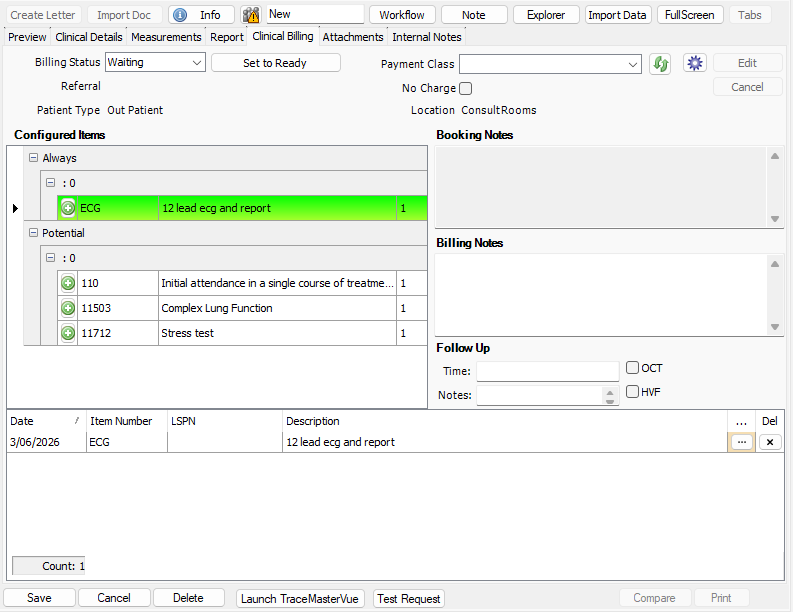
Some booking types are configured to create a clinical record automatically when the booking is closed (for example, ECGs). The clinical record opens with its "Always" items already populated.
Review and approve billing
Once billing data has been captured, an authorised reviewer (such as a clinical area manager or a department billing person) approves the record for transmission.
Access to the Clinical Billing Review screen is controlled by the Access_Billing_Review permission. A user without this permission will not see the menu item.
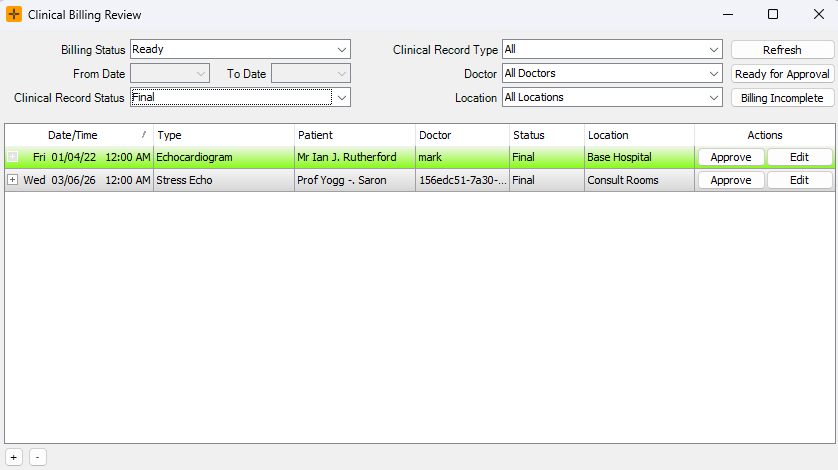
- Open the Clinical Billing Review screen via Accounts > Clinical Billing Review.
- Filter by Billing Status and Clinical Record Status.
- Optionally, filter by Clinical Record Type, Doctor, or Location.
- To approve a record, ensure you have filtered by Billing Status: Ready, and press the Approve button.
If a billing item appears to be missing, make sure to check the Clinical Record Status filters first!
Correct a Complete record
Billing record sets can be edited freely until their CRQB status is set to Complete. After that, only users with the Edit_Billed_CRQB permission can make corrections.
- Open the Clinical Billing tab on the clinical record.
- Click the Correction button.
- HealthTrack marks the existing record set as deleted and creates a copy with the same Clinical Record ID. The copy can be edited and re-approved for resend.

The cross-reference number for the corrected record stays the same as the original, because it is the Clinical Record ID. The deleted record set is retained for audit, so changes to a Complete record set are inherently versioned.
Invoicing a CRQB record
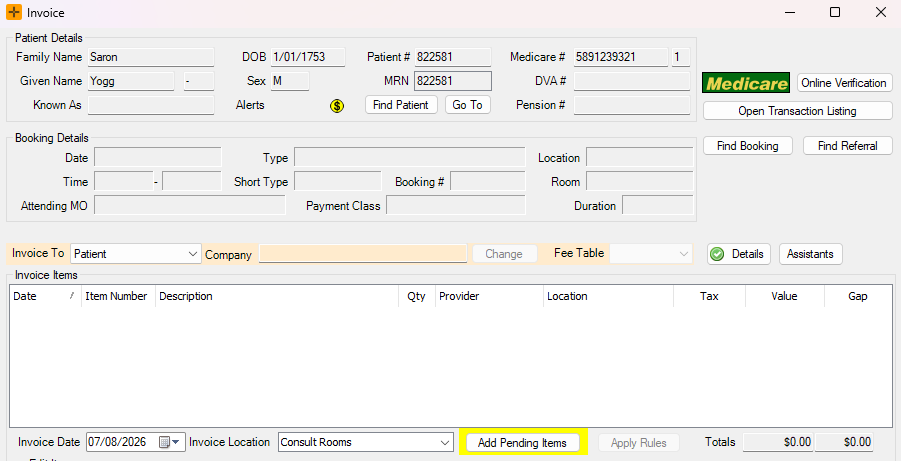
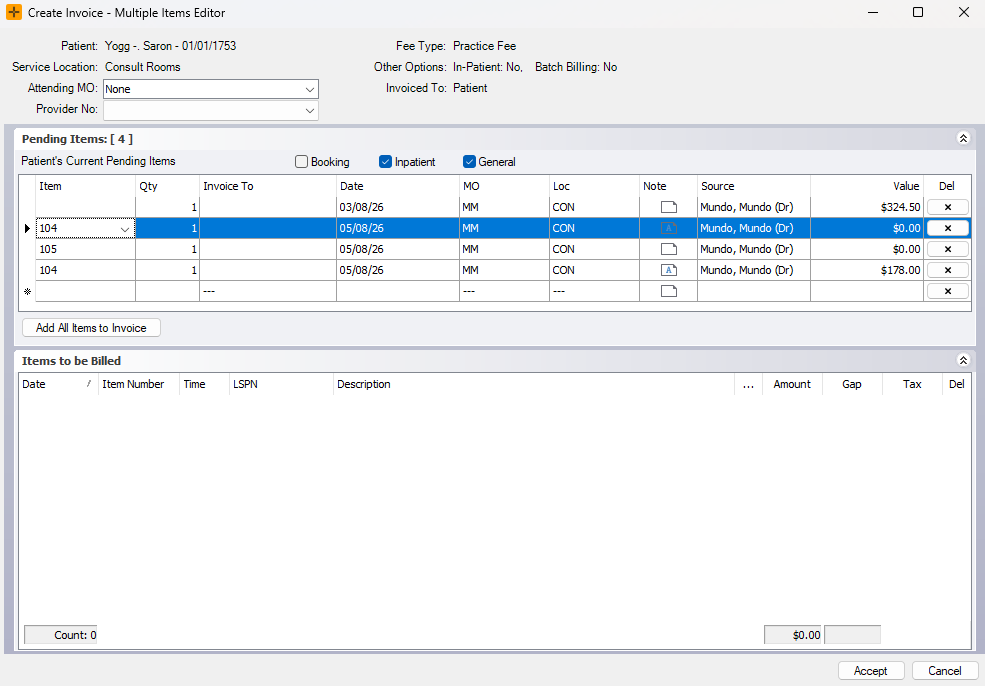
When you open the HealthTrack invoicing screen, the Add Pending Items button lists all clinical records (and any associated item numbers) that have not yet been billed for that patient. It will be highlighted in yellow if there are pending items for that patient. Select what you are billing. On invoicing, the CRQB Billing tab is set to Complete.