
Quick Bill for reception (diary and waiting room)
Quick Bill is a fast way to add billable items to a patient's account before the invoice is raised. The items sit as pending items against the patient, and whoever raises the invoice can pull them straight in with one click. It suits busy reception desks: the items are captured at the time of the visit, and the invoice is completed later without retyping anything.
HealthTrack also has a feature called Clinical Record Quick Bill (CRQB), where clinicians capture billing on the clinical record itself. This feature is covered in its own article: How to use Clinical Record Quick Bill.
Where to open Quick Bill
Quick Bill can be opened from several places:
- Diary: right-click a patient's booking and select Quick Bill.
- Waiting room: from the patient's entry in the waiting room.
- Accounts menu: Accounts > Quick Bill from the main HealthTrack screen.
- Clinical summary: clinicians have a Quick Bill shortcut button that adds pending item numbers for invoicing.
Opening Quick Bill from the diary or waiting room is the quickest option for reception, because the patient and booking are already selected.
VALIDATE: Confirm the exact control used to open Quick Bill from the waiting room in the current build (right-click menu or button, and its label). Also confirm whether and how Quick Bill appears in the web diary, and adjust this list to match.
Add items with Quick Bill
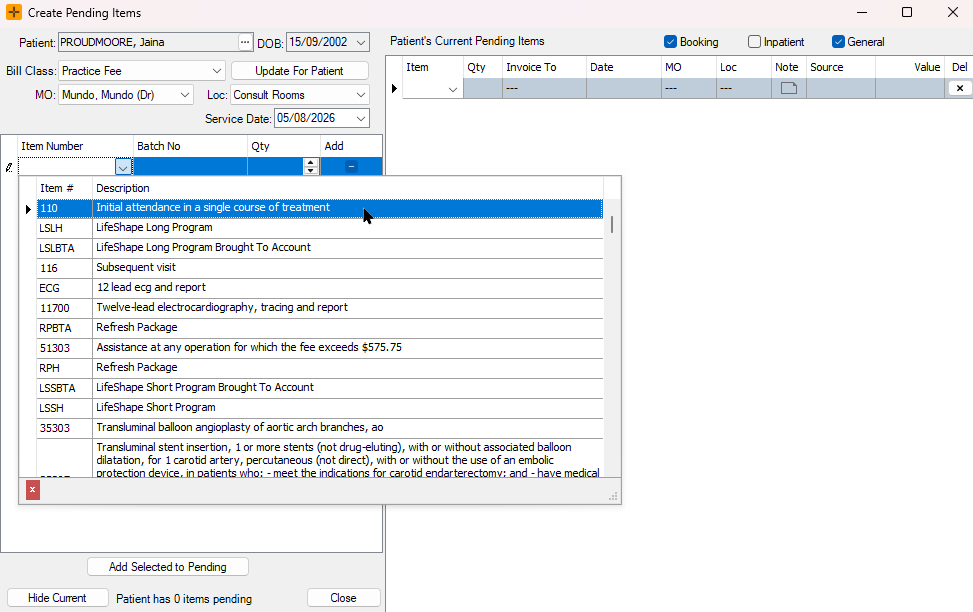
- Right-click the patient's booking in the diary and select Quick Bill.
- Click in the Item Number field.
- Type the item number you want to charge, or scroll through the list to find it.
- Select Add Selected to Pending.
- Add another item number if needed, or select Close.
The items are now saved as pending items on the patient's account, ready for whoever raises the invoice.
Pull the pending items onto the invoice
- Close the patient's booking by right-clicking it in the diary and selecting Close. The invoice window opens with the booking details filled in.
- If the patient has pending items, the Add Pending Items button shows in yellow. Click it to see the items that were quick billed.
- Check that the correct item numbers have come across before you issue the invoice.
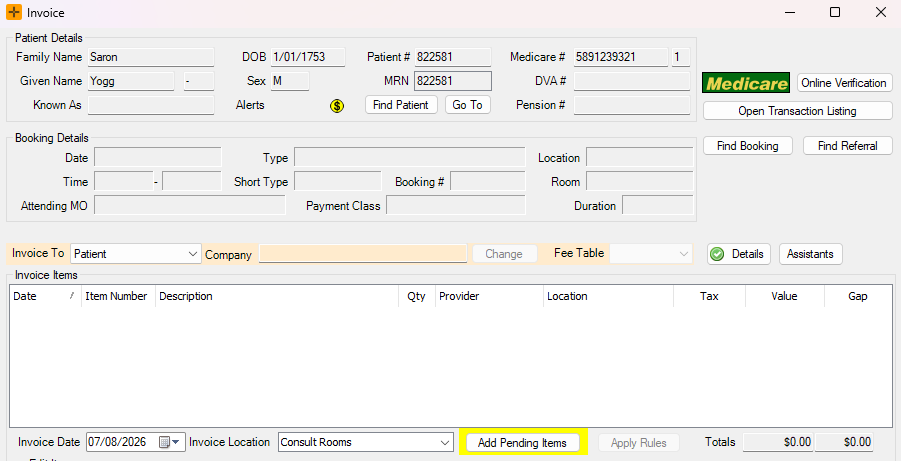
The yellow Add Pending Items button is your cue that someone has already flagged items for this patient. Always review the items rather than adding them blind, to avoid billing errors.
If you cannot see Quick Bill
Access to Quick Bill is controlled by your practice's security settings, and can differ between locations. If the option is missing from your right-click menu or the Accounts menu, ask your practice manager or system administrator to check your access.