
How to fix a billing mistake
HealthTrack never deletes a transaction. To fix a billing mistake, record a correction against the original transaction, so the account always shows what happened and when. This article helps you choose the right correction and apply it. All corrections start from the patient's Transaction Listing (Accounts > Transaction Listing). For a tour of that screen, see Understanding the transaction listing.
Choose the right correction
| What went wrong | Use this |
|---|---|
| The whole invoice is wrong (wrong patient, doctor or items) | Reverse Invoice, or Reverse and Reload to fix and re-save it |
| Specific details in the invoice are incorrect (incorrect referral etc.) | Right-click and Edit Existing Invoice. |
| A payment was recorded incorrectly | Reverse Payment, or Reverse and Reload |
| The invoice amount is slightly out and you want to correct it without redoing the invoice | Adjustment |
| You will not recover some or all of what is owed | Bad Debt |
| The patient paid too much, or paid for a service that did not go ahead | Refund (see Patient Refunds) |
| You want to hold an amount on the account for future services | Credit |
Before you start
- An invoice in a claim batch cannot be reversed. The Reverse Invoice button is unavailable until the invoice is removed from the batch. In the same way, the Reverse Payment button is unavailable while the payment sits in a bank deposit.
- Reversals and adjustments require the CanPerformReversals and MakeBillingAdjustments permissions. If a button is unavailable for you but not for a colleague, ask your practice manager to review your permissions. Larger adjustments, such as adjusting an invoice's entire amount, need the MakeBigBillingAdjustments permission.
Reverse a transaction
- Go to Accounts > Transaction Listing for the patient.
- Select the invoice or payment in the Transactions section.
- In the Actions section, click Reverse Invoice or Reverse Payment.
- The transaction stays on the account marked as reversed. It is not deleted.
Reverse and Reload
Reverse and Reload reverses the transaction and immediately reopens it for editing, so you can fix the mistake and save it again. Use it when the transaction is mostly right and needs a correction.
If the original invoice or payment had allocations, reallocate after saving. See How to allocate a payment.
Edit Invoice Details
Editing Existing Invoice can be used to edit some details on invoices where needed. Certain details such as the Attending MO, Provider Number, Item Numbers, LSPN, Fee Type etc. are unable to be changed.
- Go to Accounts > Transaction Listing for the patient.
- Right-click the invoice and click Edit Existing Invoice.
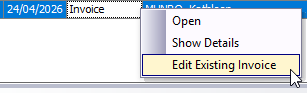
- Change details as required:
- Select Change Referral, to select a different referral.
- In the Existing Items, choose ... to open the Additional Item Details. Here, you can edit:
- Time of Service
- Self Deemed or Not
- Payee
- Additional Notes
- Select Accept to save the changes.
Apply a credit, adjustment or bad debt
- In the Transaction Listing, select the invoice.
- Click Credit/Adj/Bad Debt in the Actions section.
- Choose the type:
- Credit applies to the patient's account, for future services.
- Adjustment applies directly to the invoice. Use it to fix small errors without reversing the invoice.
- Bad Debt clears some or all of the invoice's outstanding balance when you do not expect to recover it.
- Enter the amount and a reason, then save.
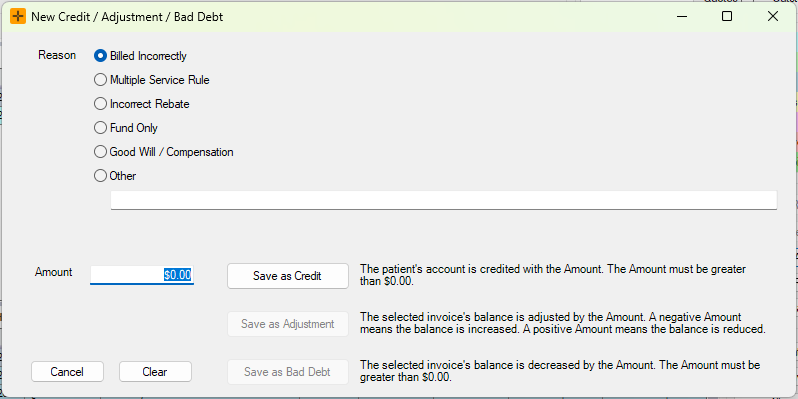
Corrections applied this way appear on the Adjustments Summary Report, which your practice manager may review at end of month.