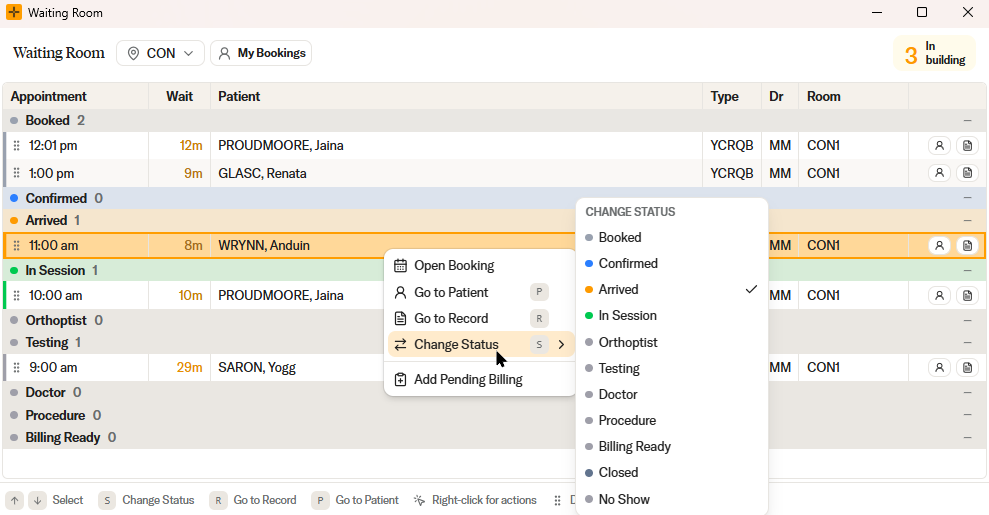
How to track patients in the Waiting Room
The Waiting Room shows all of the day's bookings in one screen. Use it to see appointments across different locations and for different doctors, and to move bookings through their statuses as patients progress through their visit.
Open the Waiting Room
Press CTRL + W , or go Diary > Waiting Room.

What the Waiting Room shows
The Waiting Room lists the day's bookings alongside their current status, so you can see at a glance who has arrived, who is in session, and who is waiting to be billed. You can view bookings for different locations and for different doctors from the one screen.
Use the controls in the taskbar to change the location, and toggle between All Doctors and My Bookings.
Tracking a patient through their visit
Each booking carries a status that moves forward as the patient progresses through their appointment:
- Booked - the appointment is scheduled.
- Confirmed - the patient has confirmed they will attend.
- Arrived - the patient has arrived at the practice.
- In Session - the patient is with the doctor or having a test.
- Out Session - the consultation or test is finished and the patient is waiting to be billed.
- Closed - billing is complete for the appointment.
For the full list of statuses, including No Show and Cancelled, their icons, and how each behaves, see the How to change the Booking Status article.
Update a booking's status from the Waiting Room
- Right-click a booking, or press the
Skey. - Select the new status from the Change Status menu.
- The booking status updates immediately.