
How to change the Booking Status
Each booking in HealthTrack has a status that tracks the patient's progress through their appointment. Updating the status as a patient moves through their visit enables accurate reporting and keeps the diary clear for all staff.
Booking statuses
When a booking is created, its status is set to Booked. The status moves forward as the patient progresses through the appointment.
| Status | Icon | Meaning |
|---|---|---|
| Booked | (No Icon) | Default status when a booking is created. The appointment is scheduled but not yet confirmed. |
| Confirmed |
|
The patient has confirmed they will attend the appointment. A green dot appears next to the patient name in the diary. |
| Arrived |
|
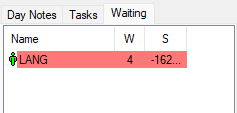
The patient has arrived at the practice. Their name appears in the Diary Waiting List, visible to all users with the diary open. |
| In Session |
|
The patient is with the doctor or having a test. |
| Out Session |
|
The patient has finished the consultation or test and is waiting to be billed. |
| Closed |
|
The billing process has been completed for this appointment. The invoice screen appears automatically when this status is set. |
| No Show |
|
The patient did not attend and was not contactable beforehand. Treat as a cancelled booking - the patient must be contacted to reschedule. |
| Cancelled |
|
The booking has been cancelled and will not proceed. A red cancel icon appears next to the patient name in the diary. |


When a patient's status is set to Arrived, their name appears in the Diary Waiting List on the left-hand side of the diary screen, visible to all staff with the diary open.
When a booking is set to Closed, the invoice screen opens automatically to prompt billing.
A No Show booking should be treated as a cancellation. The patient must be contacted to reschedule. If the patient cannot be reached, document the attempt in the Booking Form notes and consider sending a letter to the referring doctor.
Changing a booking status
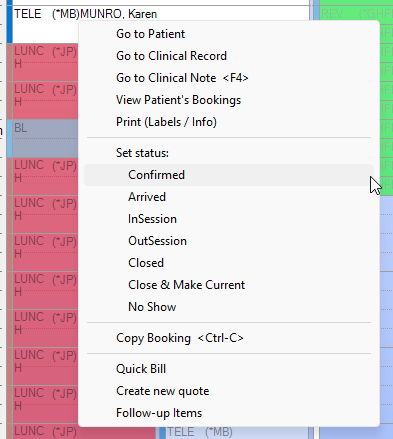
Booking statuses can be changed directly from the diary:
- Right-click the booking in the diary. Make sure the Edit Template checkbox is clear.
- Click the status you want to apply in the menu that displays.
- The booking status updates immediately.
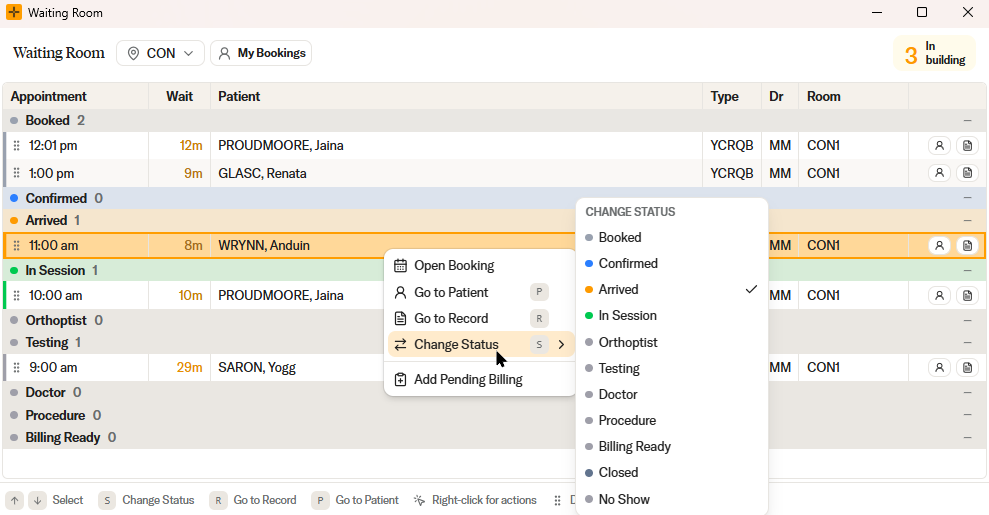
Booking Statuses can be changed directly from the Waiting Room screen:
- Right-click a booking, or press the
Skey. - Select the status via the Change Status menu.
- The booking status updates immediately.
You can also change the status from within the Booking Form:
- Open the booking by double-clicking it in the diary, or selecting it in the Bookings tab and clicking Edit.
- Click the status button that matches the new status. The available status buttons appear at the top of the Booking Form.
- The booking status updates immediately.

Statuses normally move forward. The right-click menu also has a submenu for moving a booking back to an earlier status (for example, back to Booked if a patient was arrived by mistake), but this is controlled by a separate permission and may not be available to all users.
No Show or Cancelled?
These two statuses look similar but behave very differently in the diary:
- No Show keeps the appointment slot occupied. The booking stays in the diary with the No Show icon, and the time slot is not available for another patient. Use it when the patient did not attend, so the practice has a record of the missed appointment.
- Cancelled removes the booking from the diary and frees the slot for another patient. You cannot set Cancelled from the status menus or the Booking Form status buttons - it is only applied when you cancel the booking through the cancel option.
This explains two common questions:
- "The patient never came, why is the slot still blocked?" - the booking was set to No Show, which keeps the slot. If you want the time back, cancel the booking instead.
- "Where did the booking go?" - the booking was Cancelled, which removes it from the normal diary view and frees the slot.
HealthTrack keeps a count of each patient's cancelled bookings and can warn when a patient cancels too often.
Patient not showing in the Diary Waiting List
If a patient has arrived but is not appearing in the Diary Waiting List, check the following:
- The booking status must be Arrived. If the status is updated to In Session or later, the patient is removed from the waiting list - this is normal behaviour.
- The list shows arrivals for the selected location. If the patient was arrived at a different location to the one you are viewing, they will not appear.
- The list only shows bookings arrived within the last 7 days, so old test bookings or stale arrivals drop off.
- Patients accepted through the Triage screen with Take Patient move straight past Arrived to the next status, so they never appear in the Diary Waiting List. This is expected - they are already being seen.
Can't see the Closed button (or other status options)?
Status options are controlled by security & permissions, so different users may see different menus:
- The Closed status only appears for users who have both the permission to close bookings and access to billing. If a user cannot see Closed on the Booking Form or in the right-click menu, this is a permission setting, not a fault. A Practice Manager can review the user's security group.
- Changing statuses at all requires the change-status permission for that location. A user may be able to change statuses at one location but not another.
- Moving a booking back to an earlier status is a separate permission from moving it forward.
- If no status options appear in the right-click menu, check that the Edit Template checkbox is clear.
- Cancelled bookings show no status buttons - a cancelled booking cannot have its status changed.
Permission changes take effect after the user closes and reopens HealthTrack.