How to Make Booking Templates
Booking templates define the appointment types, times, and providers available in the Diary. They prevent double-bookings and help staff find availability quickly. Templates can be created and modified directly in the Diary or managed centrally through the Diary Template Manager.
For instructions on creating recurring Diary templates in the Diary Template Manager, please see the article for Configuring Recurring Diary Templates.
What are Diary Templates?
Templates are more than a Diary layout tool. They are used to determine what bookings are available when using the Find Next function, and for patients when using the Online Booking feature to create their own appointments.
If there is no template in the Diary, affected slots cannot be found or booked online, even if the Diary looks empty and free. If a doctor or booking type is missing from Online Booking, check that templates exist for that combination before looking anywhere else.
Manually Created Templates
You can manually manage Diary templates using the Template Mode option directly from the Diary. This is useful when the changes being made don't need to be implemented on a recurring basis, such as once-off changes to the time someone begins or finishes seeing patients on a certain day.
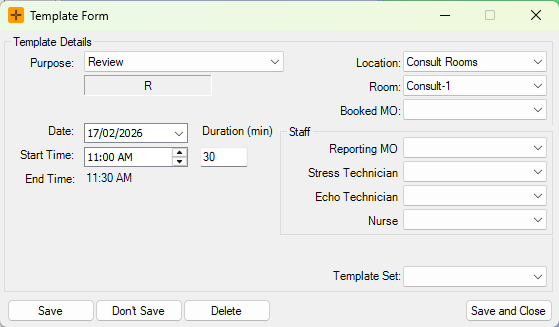
If you aren't sure whether a template was manually created, you can double-click on a template while in Template Mode to view the Template Set drop-down.
- If the Template Set is blank, the template is likely not attributed to any of the recurring templates configured in the Diary Template Manager.
- If the Template Set is not blank, the template was created from a set in the Diary Template Manager. Your manual changes may be reset if the template is re-applied through the Diary Template Manager.
Creating Templates
- Open the diary to the date and location or person you will be templating for.
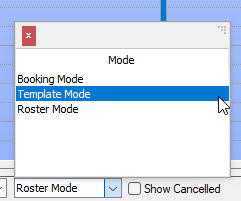
- At the bottom of the diary, set the mode to Template Mode.
- In the Default Type drop-down, select the booking type for any new templates you will be adding.
- Select the Default Room or Default MO from the respective drop-down. The option available will depend on whether you are viewing the selected location in Room or Person view, specified on the left-hand side of the Diary.

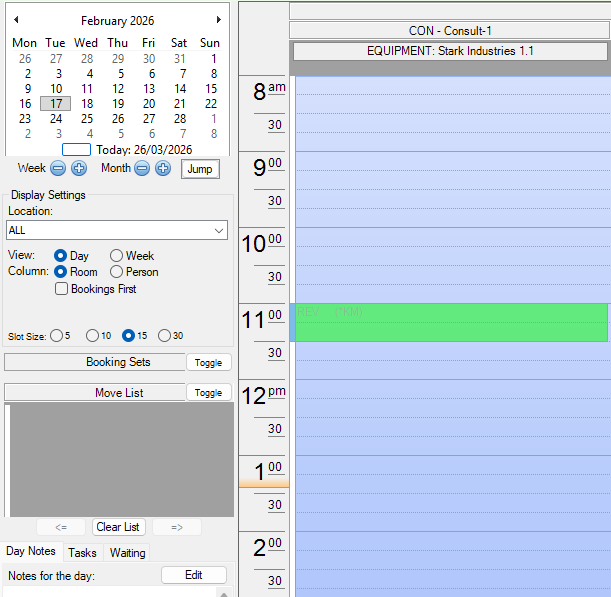
- Double-click the slot in the Diary where the template should start. A template is created immediately, and you can continue to double-click in any space where templates are required.
Modifying Templates
For any templates in the Diary, you can double-click on the slot to modify it while in Template Mode. This allows you to modify a variety of details, including the purpose, room, duration, and any staff for this booking template.
You can also modify templates by dragging them in the Diary. This can be useful when creating overlapping templates in the same space to indicate the different booking types that could be available at this time.
Deleting Templates
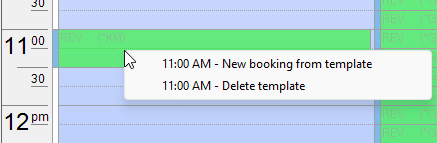
While in Template Mode, you can right-click an existing template and choose the Delete Template option to remove it.